VPN for Microsoft Edge Free: Safe Options and How to Choose
Compare free VPN options for Microsoft Edge, understand their limits, and choose a safer way to protect your browsing.
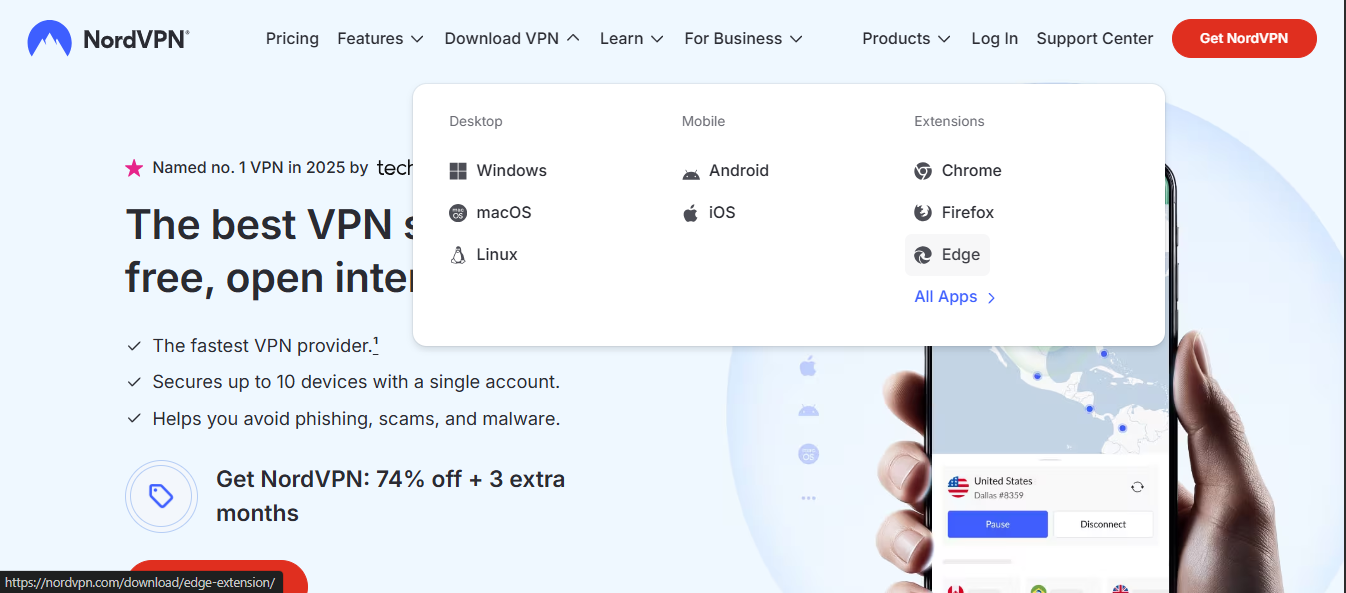
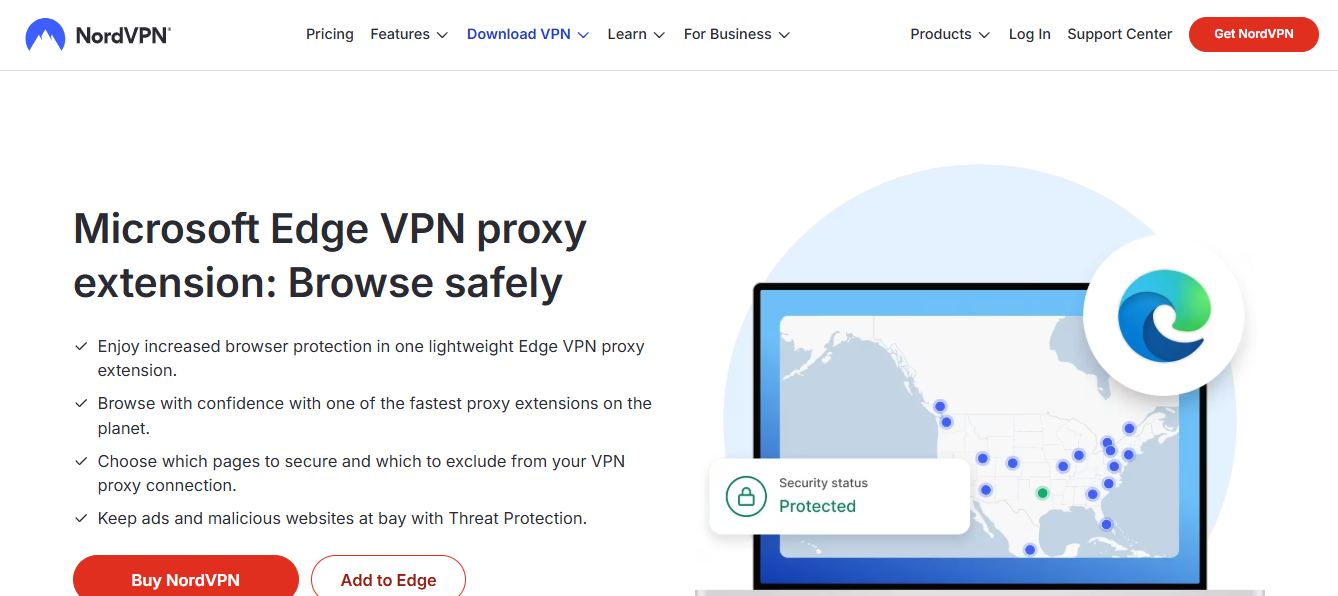
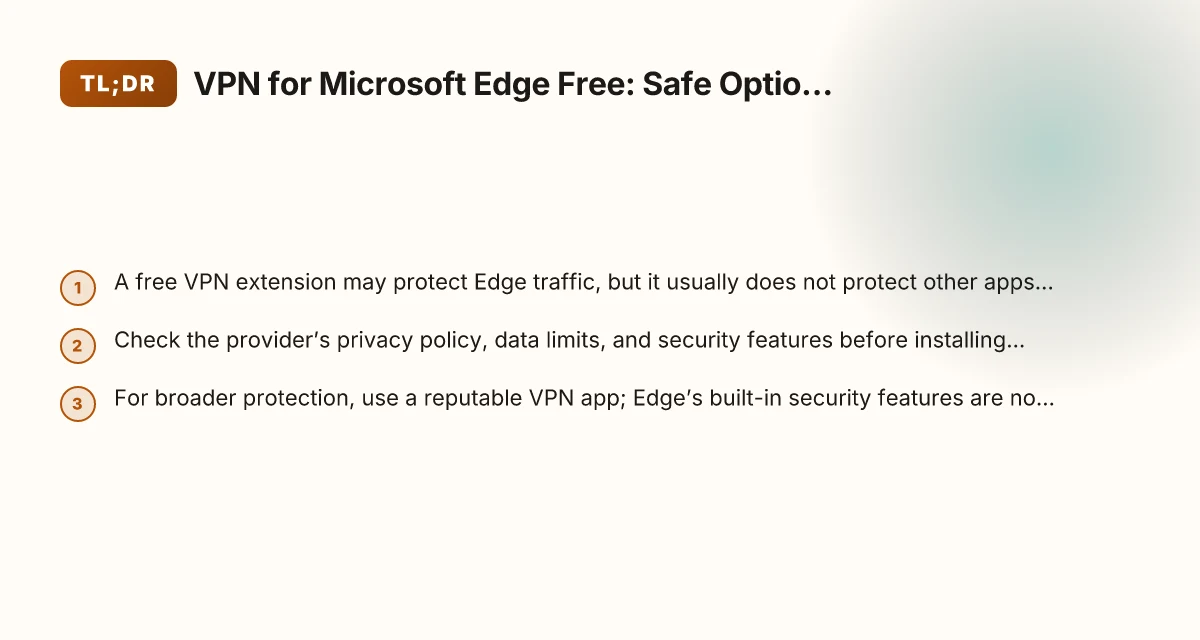
If you’re looking for a VPN for Microsoft Edge free, you can choose between a browser extension and a free VPN app. An extension is usually quicker to set up and may route browser traffic through a VPN server, while an app can protect traffic from Edge and other applications. Free plans often have limits, so check what they cover before relying on one for privacy or security.

Editor's pick: NordVPN — fast, secure VPN — Strong encryption, a no-logs policy and apps for every device. 30-day money-back guarantee. Get NordVPN →
Free VPN options for Microsoft Edge at a glance
| Option | Works in Edge | Free access | Coverage | Main consideration |
|---|---|---|---|---|
| VPN browser extension | Yes | Depends on provider | Browser traffic | Usually protects Edge only |
| VPN desktop app | Yes | Depends on provider | Device traffic | Covers more than the browser |
| Microsoft Edge Secure Network | Yes, where available | Limited | Edge traffic | Availability and terms can vary |
| Free VPN with account | Yes, if it offers an extension or app | Yes | Provider-dependent | Check registration requirements |
| Free VPN without account | Yes, if it offers an extension or app | Yes | Provider-dependent | Verify the provider’s privacy practices |
| Proxy extension | Yes | Often free | Browser traffic | A proxy is not necessarily a VPN |
| Paid VPN trial | Yes, if Edge is supported | Temporary | Provider-dependent | Check renewal and cancellation terms |
Compiled November 2026; check the provider's site for current details.
| VPN | Obfuscation | From / month | Plan | Free plan | Refund | Alipay | UnionPay | Crypto | Website opens in China | Trustpilot | |
|---|---|---|---|---|---|---|---|---|---|---|---|
 ZoogVPN | Turn on manually Shadow | $2.49/mo | 27 months: $59.99 | Yes | 7 days | ✓ | ✓ | ✓ | ✓ | Official site blocked; our special link opens (4.4 s) | 4.2/5 (195 reviews) |
 NordVPN | Turn on manually Obfuscated Servers / NordWhisper | $3.49/mo | 27 months: $94.23 | No | 30 days | ? | ✗ | ✓ | ✓ | ✗ Blocked | 4.2/5 (51,628 reviews) |
 ExpressVPN | ✓ On by default all servers | $3.00/mo | 28 months: $84 | No | 30 days | ✗ | ✗ | ✓ | ✗ | ✗ Blocked | 4.4/5 (29,706 reviews) |
 Surfshark | ✓ On by default Camouflage, with OpenVPN | See site | See site | No | 30 days | ✗ | ✗ | ✗ | ✓ | ✗ Blocked | 4.3/5 (31,823 reviews) |
 Proton VPN | Turn on manually Stealth, free plan too | $2.99/mo | 12 months: $35.88 | Yes | 30 days | ✗ | ✗ | ✗ | ✓ | ✗ Blocked | 2.1/5 (1,040 reviews) |
 Astrill VPN | Turn on manually StealthVPN / OpenWeb | $12.50/mo | 24 months: $300 | No | See site | ✗ | ✗ | ✗ | ✓ | ✗ Blocked | 1.3/5 (110 reviews) |
 Private Internet Access | Turn on manually Shadowsocks, OpenVPN only | $2.03/mo | 40 months: $81.2 | No | 30 days | ✗ | ✗ | ✗ | ✗ | ✗ Blocked | 4.2/5 (11,033 reviews) |
 CyberGhost | Turn on manually selected servers | $2.19/mo | 28 months: $61.32 | No | 45 days | ✗ | ✗ | ✗ | ✓ | ✗ Blocked | 4.0/5 (24,178 reviews) |
 PureVPN | Turn on manually switch to OpenVPN | $1.69/mo | 60 months: $101.55 | No | 31 days | ? | ? | ✗ | ✓ | ✗ Blocked | 4.4/5 (17,994 reviews) |
 AdGuard VPN | ✓ On by default TrustTunnel | $2.99/mo | 24 months: $71.76 | Yes | 30 days | ✓ | ✗ | ✓ | ✓ | Official site blocked; our special link opens (3.7 s) | 4.3/5 (290 reviews) |
 Mullvad | Turn on manually QUIC / Shadowsocks / LWO | $5.61/mo | €5/mo | No | 14 days | ✗ | ✗ | ✗ | ✓ | ✗ Blocked | 3.2/5 (192 reviews) |
 Windscribe | Turn on manually Stealth / WStunnel | $5.75/mo | 12 months: $69 | Yes | See site | ✗ | ✗ | ✗ | ✓ | ✗ Blocked | 4.7/5 (13,355 reviews) |
 StrongVPN | Turn on manually Scramble, OpenVPN TCP | See site | See site | No | 30 days | ✓ | ✗ | ✗ | ✗ | ✗ Blocked | 4.4/5 (2,695 reviews) |
 LightXtreme 闪连 | Not listed | $7.08/mo | 12 months: $84.99 | Yes | 30 days | ✓ | ✓ | ✓ | ✓ | ✓ Yes (3.5 s) | No page |
Prices checked 2026-11-10 on each vendor's pricing page (cheapest long plan, USD). Check the vendor's checkout for the final price.
Obfuscation checked 2026-11-14 on each vendor's site and help center: "on by default" = nothing to set; "turn on manually" = switch protocol or mode in settings; "not listed" = the vendor describes no obfuscation.
Payment methods checked 2026-11-10 on each vendor's payment pages: all 14 take cards and PayPal; ✗ = not listed, ? = the vendor's own pages disagree.
China access: whether the official website opens from mainland China networks (tests the website only, not the VPN connection). Last checked 2026-11-18 01:02 Beijing time.
Trustpilot score and review count checked 2026-11-10.
What a free VPN for Edge actually does
A VPN creates an encrypted connection between your device and a VPN provider’s server. Websites generally see the server’s IP address instead of your home IP address. This can help reduce exposure on public Wi-Fi and make your apparent location different.
A VPN does not make you completely anonymous. The provider may be able to see connection details, and websites can still identify you through account sign-ins, cookies, and browser fingerprinting. A VPN also does not replace antivirus protection or protect you from every scam, malicious download, or tracking method.
Extension or VPN app?
A VPN extension runs within the browser and typically affects only browser traffic. Depending on the provider, it may be a VPN or a browser proxy. These are not always the same thing. A VPN app operates at the device level and can cover traffic from multiple applications.
Read the extension’s description carefully. Confirm whether it encrypts traffic, what data it routes through its servers, and whether it works independently or requires the provider’s desktop app. Clash Free: What It Means and How to Avoid Conflicts
Free Edge VPN options compared
Availability and plan terms can change, so verify current features on the provider’s official website and in the Microsoft Edge Add-ons store.
| Option | What it covers | Typical free-plan trade-off | Best suited to |
|---|---|---|---|
| Browser VPN extension | Usually Edge browser traffic | May have fewer locations or features | Quick, browser-only use |
| Free VPN app | Potentially traffic from the whole device | Often includes data, speed, or server limits | Protection across several apps |
| Edge security features | Browser activity, not a VPN tunnel | Does not replace VPN routing | Safer browsing without a VPN |
Some established VPN providers offer free tiers, while others provide browser extensions only with a paid subscription. Don’t assume an extension is free, unlimited, or a full VPN simply because it appears in an extension store. Check pricing, data limits, server locations, and whether the free option includes the features you need.
How to assess a safer free VPN
| Check | Safer sign | Caution sign | Why it matters |
|---|---|---|---|
| Provider identity | Named, established provider | Unclear operator | Helps assess accountability |
| Privacy policy | Explains data handling | Vague or missing policy | Shows what may be collected |
| Logging | Clear limits on retained activity | Broad or unexplained logging | Affects privacy |
| Permissions | Requests fit its features | Requests unrelated access | Limits unnecessary access |
| Business model | Explains how free access is funded | No clear explanation | Helps identify trade-offs |
| Security details | Describes encryption and safeguards | Unsupported security claims | Helps judge protection |
| Data limits | Limits are clearly disclosed | Restrictions are hard to find | Avoids surprises |
| Independent checks | Credible audits or reviews | No verifiable evidence | Adds evidence beyond marketing |
Compiled November 2026; check the provider's site for current details. FortiGate IPsec VPN: Setup, Configuration, and Troubleshooting
How to choose a safer free VPN
Free VPNs vary widely. Some are supported by a trustworthy paid service, while others may rely on advertising or collect more information than users expect. Before installing one, review its privacy policy and reputation.
Look for:
- A clear explanation of what data the provider collects and retains.
- A stated business model, such as a limited free tier alongside paid plans.
- Recent updates and a recognizable developer in the Edge Add-ons store.
- Transparent limits on data, speed, server locations, and simultaneous connections.
- Security details, including encryption and whether the service offers leak protection.
- Independent reviews or audits, where available.
Be cautious if an extension requests permissions that seem unrelated to its purpose, makes unrealistic claims, or has no meaningful privacy information. A high number of downloads alone does not prove that a service is safe.
How to install and check a VPN extension
To add an extension, open Microsoft Edge and visit the official Microsoft Edge Add-ons store. Search for the provider by name, confirm the developer and listing details, and select the option to get or install it. Avoid downloading extension files from unfamiliar third-party sites. VPN FortiGate: What It Is, How It Works, and When to Use It
After installation:
- Open the extension and sign in or create an account if required.
- Choose a server location and connect.
- Visit a reputable IP-checking website to see whether your public IP address has changed.
- Test the connection again after disconnecting to confirm the difference.
- Review the extension’s settings for options such as auto-connect or leak protection.
These checks can show whether the apparent IP address changes, but they don’t prove that the provider keeps no logs or that every connection is protected. If you use a VPN app, check its status indicator and settings as well.
Edge VPN setup and checks
| Step | What to do | What to check | Common pitfall |
|---|---|---|---|
| Choose a provider | Review its privacy policy and terms | Provider and policies are identifiable | Choosing by rating alone |
| Find the extension | Use the official Edge Add-ons listing or provider site | Publisher matches the provider | Installing a lookalike |
| Review access | Read the requested permissions | Access fits the extension’s function | Approving without checking |
| Install | Add the extension to Edge | Installation completes successfully | Assuming install means protection |
| Connect | Select a location and connect | Status shows an active connection | Leaving it disconnected |
| Test the result | Check your apparent IP or location | Result changes as expected | Treating one test as proof of full security |
| Check coverage | Compare extension and desktop app behavior | Know which traffic is protected | Assuming other apps are covered |
| Recheck settings | Review permissions and connection status later | Extension remains enabled and current | Forgetting updates or settings changes |
Compiled November 2026; check the provider's site for current details. Com.NordVPN.Android: What the NordVPN Android App Does and How to Use It
Free VPN limits and common misunderstandings
A free plan may be enough for occasional browsing, but it may not suit every task. Providers can cap monthly data, limit server locations, reduce speeds during busy periods, or reserve streaming and support features for paying customers. Some free services may also block certain sites or fail to work reliably with them.
Keep these points in mind:
- An extension may cover only Edge. Other browsers and apps may use your regular connection.
- A VPN does not guarantee access to streaming services. Platforms may restrict VPN traffic.
- A changed IP address is not full anonymity. Sign-ins and tracking technologies can still identify you.
- HTTPS still matters. A VPN adds a protected connection to its server, but you should still use secure websites.
- Free does not automatically mean unsafe, or safe. Evaluate the provider rather than relying on the price alone.
If you need reliable protection for frequent public Wi-Fi use, multiple devices, or large amounts of data, compare reputable paid plans too. A low-cost subscription with clear privacy terms may be a better fit than an unknown free extension.
Recommendation
For occasional browser-only use, choose a well-reviewed Edge extension from a provider with a clear privacy policy and transparent free-plan limits. If you want to protect traffic beyond Edge, install a reputable VPN app instead and verify that its free tier covers your needs. Whichever option you choose, treat a VPN as one privacy tool, not a replacement for careful browsing, secure accounts, and up-to-date device protection. Certificate Validation Failure Cisco VPN: Causes and Fixes