Best Free VPN for Edge Extension: What to Choose and Check
Learn how free VPN extensions for Microsoft Edge work, what they protect, and how to choose a safer option.
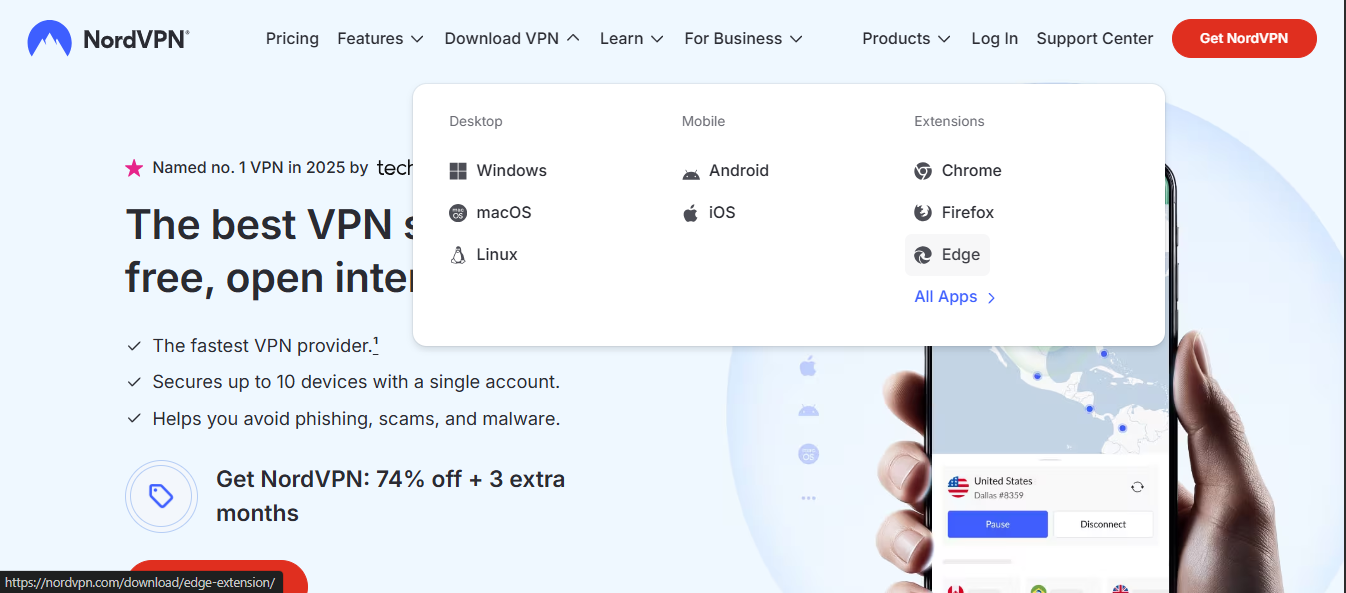
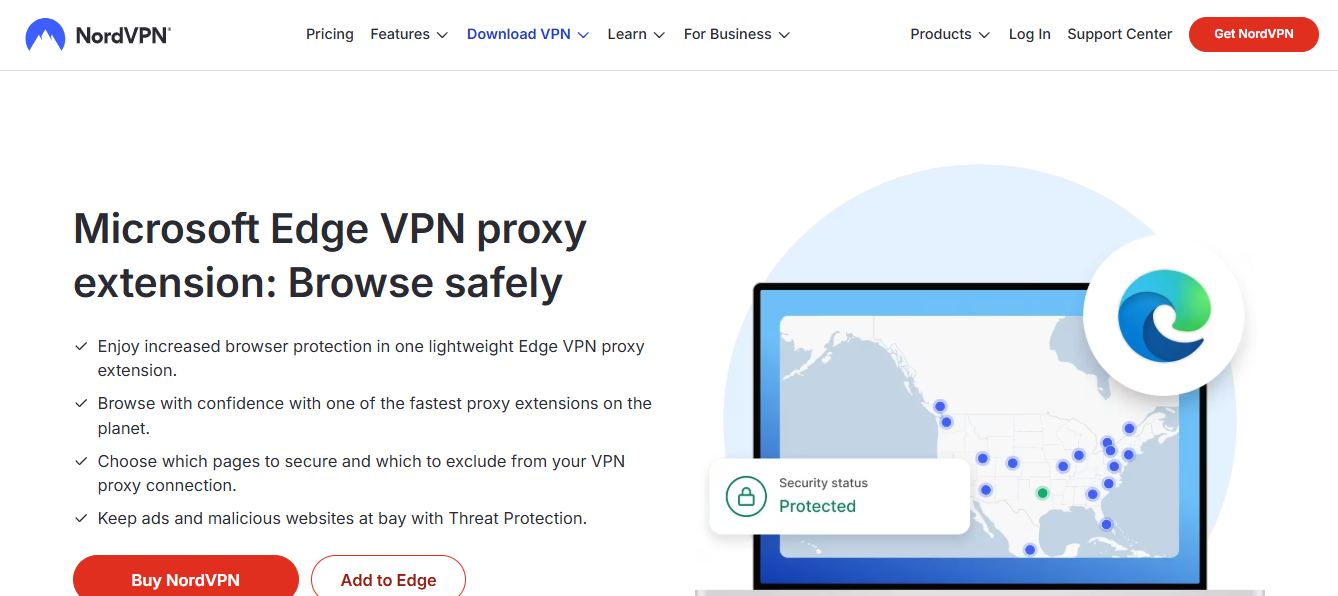
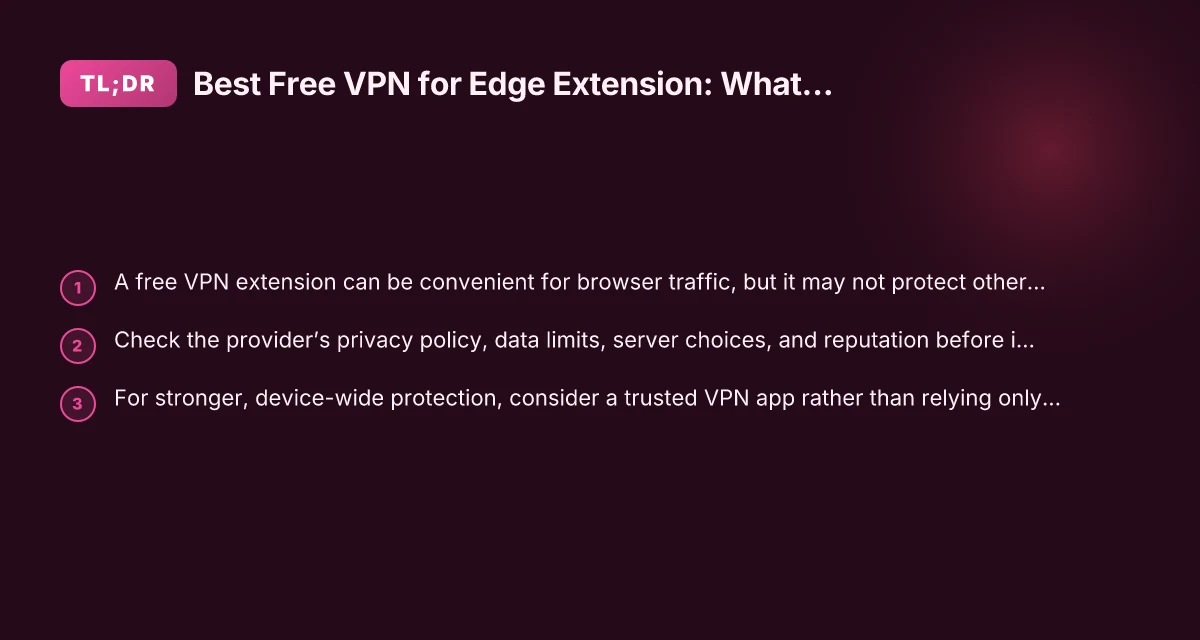
If you’re looking for a free VPN for an Edge extension, choose one from a reputable provider that clearly explains what it protects, what data it collects, and whether it imposes usage limits. A browser extension is quick to install and can help route browser traffic through a VPN or proxy, but it may not secure every app on your computer. Check the extension’s exact features before relying on it for privacy.

Editor's pick: NordVPN — fast, secure VPN — Strong encryption, a no-logs policy and apps for every device. 30-day money-back guarantee. Get NordVPN →
Compare free VPN options for Edge using practical selection criteria
| Option | Edge support | Free data policy | Locations | Privacy checks | Best fit |
|---|---|---|---|---|---|
| Browser extension | Check Edge add-on listing | Check for limits | Check available regions | Review privacy policy | Browser-only protection |
| VPN app | Check Edge compatibility | Check plan terms | Check app server list | Review logging policy | Device-wide protection |
| Built-in browser proxy | Check whether offered | Check usage limits | Check proxy regions | Verify provider practices | Basic browser routing |
| Free plan from a VPN provider | Confirm Edge support | Check monthly allowance | Compare free locations | Check independent audits | Occasional use |
| Paid VPN trial | Confirm Edge support | Check trial conditions | Review full server list | Check privacy safeguards | Short-term testing |
| Unknown free extension | Verify publisher first | Treat terms as unclear | Check before installing | Avoid unclear data practices | Not recommended |
Compiled November 2026; check the provider's site for current details.
| VPN | Obfuscation | From / month | Plan | Free plan | Refund | Alipay | UnionPay | Crypto | Website opens in China | Trustpilot | |
|---|---|---|---|---|---|---|---|---|---|---|---|
 ZoogVPN | Turn on manually Shadow | $2.49/mo | 27 months: $59.99 | Yes | 7 days | ✓ | ✓ | ✓ | ✓ | Official site blocked; our special link opens (4.4 s) | 4.2/5 (195 reviews) |
 NordVPN | Turn on manually Obfuscated Servers / NordWhisper | $3.49/mo | 27 months: $94.23 | No | 30 days | ? | ✗ | ✓ | ✓ | ✗ Blocked | 4.2/5 (51,628 reviews) |
 ExpressVPN | ✓ On by default all servers | $3.00/mo | 28 months: $84 | No | 30 days | ✗ | ✗ | ✓ | ✗ | ✗ Blocked | 4.4/5 (29,706 reviews) |
 Surfshark | ✓ On by default Camouflage, with OpenVPN | See site | See site | No | 30 days | ✗ | ✗ | ✗ | ✓ | ✗ Blocked | 4.3/5 (31,823 reviews) |
 Proton VPN | Turn on manually Stealth, free plan too | $2.99/mo | 12 months: $35.88 | Yes | 30 days | ✗ | ✗ | ✗ | ✓ | ✗ Blocked | 2.1/5 (1,040 reviews) |
 Astrill VPN | Turn on manually StealthVPN / OpenWeb | $12.50/mo | 24 months: $300 | No | See site | ✗ | ✗ | ✗ | ✓ | ✗ Blocked | 1.3/5 (110 reviews) |
 Private Internet Access | Turn on manually Shadowsocks, OpenVPN only | $2.03/mo | 40 months: $81.2 | No | 30 days | ✗ | ✗ | ✗ | ✗ | ✗ Blocked | 4.2/5 (11,033 reviews) |
 CyberGhost | Turn on manually selected servers | $2.19/mo | 28 months: $61.32 | No | 45 days | ✗ | ✗ | ✗ | ✓ | ✗ Blocked | 4.0/5 (24,178 reviews) |
 PureVPN | Turn on manually switch to OpenVPN | $1.69/mo | 60 months: $101.55 | No | 31 days | ? | ? | ✗ | ✓ | ✗ Blocked | 4.4/5 (17,994 reviews) |
 AdGuard VPN | ✓ On by default TrustTunnel | $2.99/mo | 24 months: $71.76 | Yes | 30 days | ✓ | ✗ | ✓ | ✓ | Official site blocked; our special link opens (3.7 s) | 4.3/5 (290 reviews) |
 Mullvad | Turn on manually QUIC / Shadowsocks / LWO | $5.61/mo | €5/mo | No | 14 days | ✗ | ✗ | ✗ | ✓ | ✗ Blocked | 3.2/5 (192 reviews) |
 Windscribe | Turn on manually Stealth / WStunnel | $5.75/mo | 12 months: $69 | Yes | See site | ✗ | ✗ | ✗ | ✓ | ✗ Blocked | 4.7/5 (13,355 reviews) |
 StrongVPN | Turn on manually Scramble, OpenVPN TCP | See site | See site | No | 30 days | ✓ | ✗ | ✗ | ✗ | ✗ Blocked | 4.4/5 (2,695 reviews) |
 LightXtreme 闪连 | Not listed | $7.08/mo | 12 months: $84.99 | Yes | 30 days | ✓ | ✓ | ✓ | ✓ | ✓ Yes (3.5 s) | No page |
Prices checked 2026-11-10 on each vendor's pricing page (cheapest long plan, USD). Check the vendor's checkout for the final price.
Obfuscation checked 2026-11-14 on each vendor's site and help center: "on by default" = nothing to set; "turn on manually" = switch protocol or mode in settings; "not listed" = the vendor describes no obfuscation.
Payment methods checked 2026-11-10 on each vendor's payment pages: all 14 take cards and PayPal; ✗ = not listed, ? = the vendor's own pages disagree.
China access: whether the official website opens from mainland China networks (tests the website only, not the VPN connection). Last checked 2026-11-18 01:02 Beijing time.
Trustpilot score and review count checked 2026-11-10.
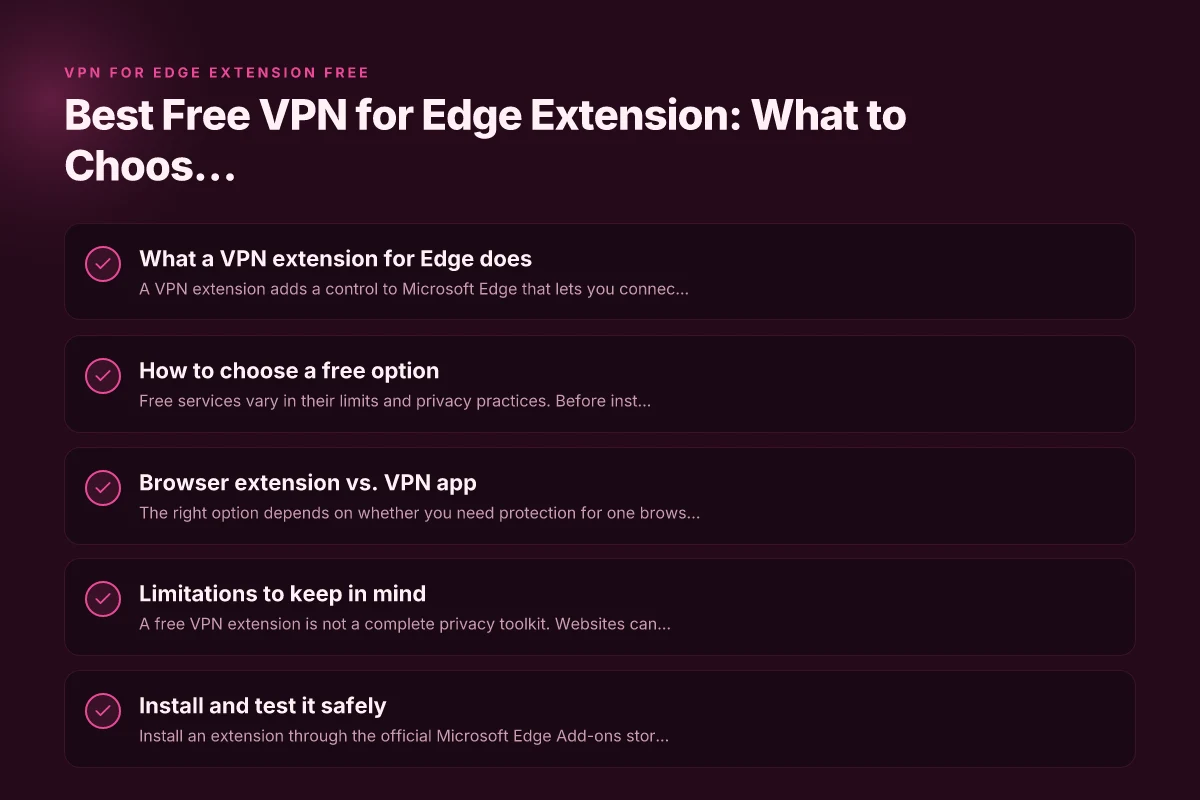
What a VPN extension for Edge does
A VPN extension adds a control to Microsoft Edge that lets you connect to a provider’s servers from the browser. Depending on how the service is built, it may act as a browser-only VPN or as a proxy connection. These options are not always equivalent to a full VPN app.
A browser extension typically protects traffic from Edge while the connection is active. Other programs, such as email clients, game launchers, and desktop apps, may continue using your normal internet connection. A VPN app, by contrast, can usually route traffic from the entire device.
An extension may be useful when you want a simple way to change the apparent location of browser traffic or add protection while browsing on public Wi-Fi. It does not make you anonymous, prevent every form of tracking, or guarantee that every website will accept a connection from a VPN server.
How to choose a free option
Free services vary in their limits and privacy practices. Before installing an extension, review its listing in the Microsoft Edge Add-ons store and follow the link to the provider’s official website. Look for clear, consistent information about the company and its product. VPN Free Extension Microsoft Edge: How to Choose and Use One Safely
Use this checklist:
- Privacy policy: Confirm what connection and usage data the service collects, how long it keeps it, and whether it shares it.
- Protection scope: Check whether the extension routes only Edge traffic or works with a companion VPN app.
- Data limits: Find out whether there is a monthly allowance, speed cap, or time limit.
- Server locations: Make sure the free plan offers locations that meet your needs.
- Security features: Look for details about encryption, connection handling, and protection if the VPN disconnects.
- Business model: Understand how the provider supports its free service. Avoid products that make vague or exaggerated privacy promises.
- Support and updates: Check when the extension was last updated and whether the provider publishes help information.
An extension asking for permission to read or change data on websites may need that access to manage browser traffic. Still, permissions should make sense for the product. If the request seems excessive or the provider does not explain it, do not install the extension.
Browser extension versus VPN app
| Comparison point | Edge extension | VPN app |
|---|---|---|
| Traffic covered | Usually browser traffic | Often device traffic |
| Setup | Install through Edge add-ons | Install on the device |
| Edge compatibility | Must support Edge | Must support the operating system |
| Controls | Browser-level settings | Device-level settings |
| Other apps protected | Usually no | Often yes |
| Free-plan limits | Check extension terms | Check app plan terms |
Compiled November 2026; check the provider's site for current details. Best Free VPN Extension for Microsoft Edge: Top Choices and What to Know
Browser extension vs. VPN app
The right option depends on whether you need protection for one browser or the whole device.
| Feature | Edge VPN extension | VPN app |
|---|---|---|
| Typical coverage | Edge browser traffic | Usually traffic from the whole device |
| Setup | Installed in the browser | Installed on the computer |
| Convenience | Fast to toggle while browsing | Often runs in the background |
| Free-plan limits | May include data, server, or speed restrictions | May also have restrictions |
| Best for | Browser-specific use | Device-wide VPN protection |
Some providers offer both an extension and an app, but the extension may require an account or a connection to the app. Read the setup instructions rather than assuming the extension works independently.
Limitations to keep in mind
A free VPN extension is not a complete privacy toolkit. Websites can still identify or track you through account logins, cookies, browser fingerprinting, and other signals. A VPN changes the network path and can hide your IP address from websites, but it does not erase your browsing history or prevent a site from recognizing an account you sign in to.
Free plans may also come with trade-offs: VPN Free for Edge Extension: What to Choose and How to Use It
- Fewer server locations
- Lower speeds during busy periods
- Monthly data caps
- Limited customer support
- Features reserved for paid plans
Be especially cautious of extensions that promise unlimited access, total anonymity, or guaranteed access to every streaming service. These claims may not reflect how the service actually works. VPN performance and website access can change, and a free plan may not be suitable for high-bandwidth activities.
Safe installation and testing checklist
| Step | What to check | Good sign | Warning sign |
|---|---|---|---|
| Find the extension | Use the Edge Add-ons store | Publisher is identifiable | Unfamiliar source |
| Review permissions | Read requested access | Permissions match features | Broad access without explanation |
| Check privacy terms | Look for data handling details | Clear, specific policy | Vague collection or sharing terms |
| Confirm free limits | Read plan details | Limits are stated plainly | Important terms are unclear |
| Test the connection | Visit a trusted IP-check site | Location changes as expected | Connection appears unchanged |
| Test for leaks | Use a reputable leak-check tool | No unexpected exposure | DNS or IP details are exposed |
| Remove if unsure | Uninstall through Edge settings | Extension is fully removed | Persistent or unexpected behavior |
Compiled November 2026; check the provider's site for current details.
Install and test it safely
Install an extension through the official Microsoft Edge Add-ons store or the provider’s official site. Confirm the publisher name, read recent reviews, and compare the requested permissions with the product’s stated purpose. Avoid downloading extension files from unfamiliar websites. Forticlent VPN: How to Download, Set Up, and Fix Connection Problems
After installation:
- Open the extension’s settings and review its privacy and connection options.
- Connect to a server and check the provider’s instructions for confirming that the connection is active.
- Test a browser-only connection with a trusted IP-checking service, if appropriate.
- Disconnect and confirm you understand which traffic may return to your regular connection.
- Remove the extension if it behaves unexpectedly, requests unexplained access, or appears abandoned.
Do not use a free VPN as a substitute for basic security practices. Keep Edge and your operating system updated, use strong unique passwords, and be careful with links and downloads. For sensitive work, follow your organization’s security guidance.
Recommendation
For a free VPN for Edge extension, prioritize a well-documented provider with a clear privacy policy, transparent limits, and regular updates. Treat the extension as a browser-focused tool unless the provider confirms that it protects traffic beyond Edge. If you need coverage for all apps, more reliable performance, or stronger controls, choose a reputable VPN app and compare its current plan terms before subscribing.