VPN Free Extension Microsoft Edge: How to Choose and Use One Safely
Find a free VPN extension for Microsoft Edge, understand its limits, and choose one that protects your privacy.
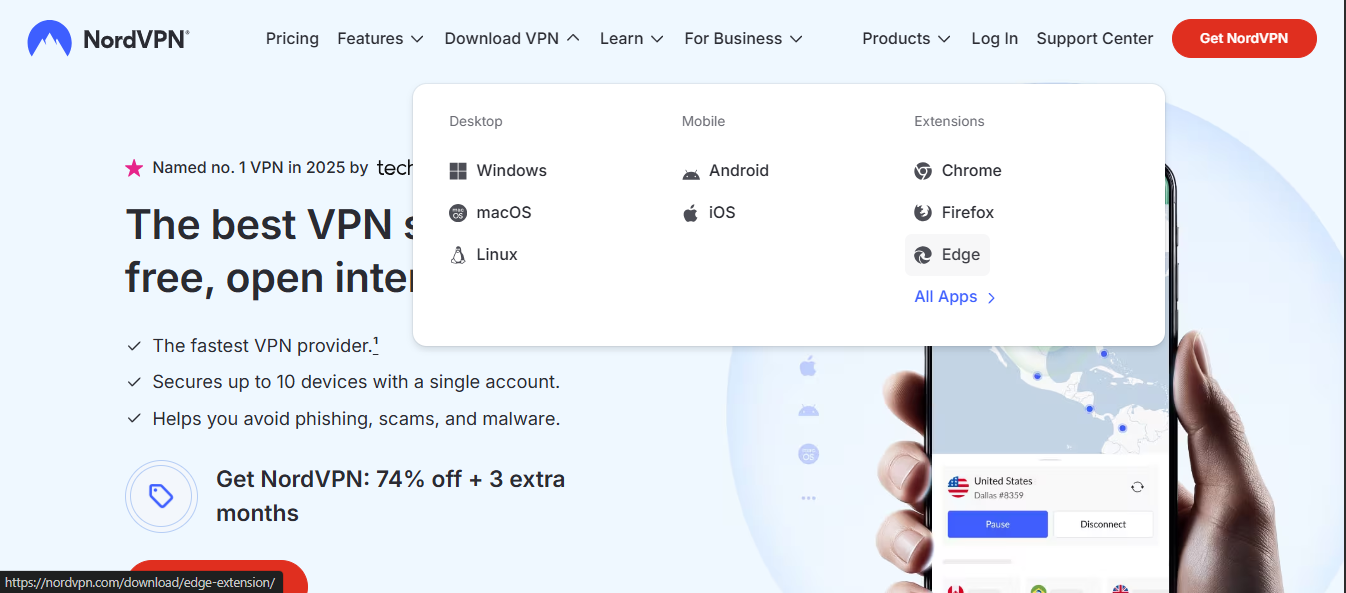
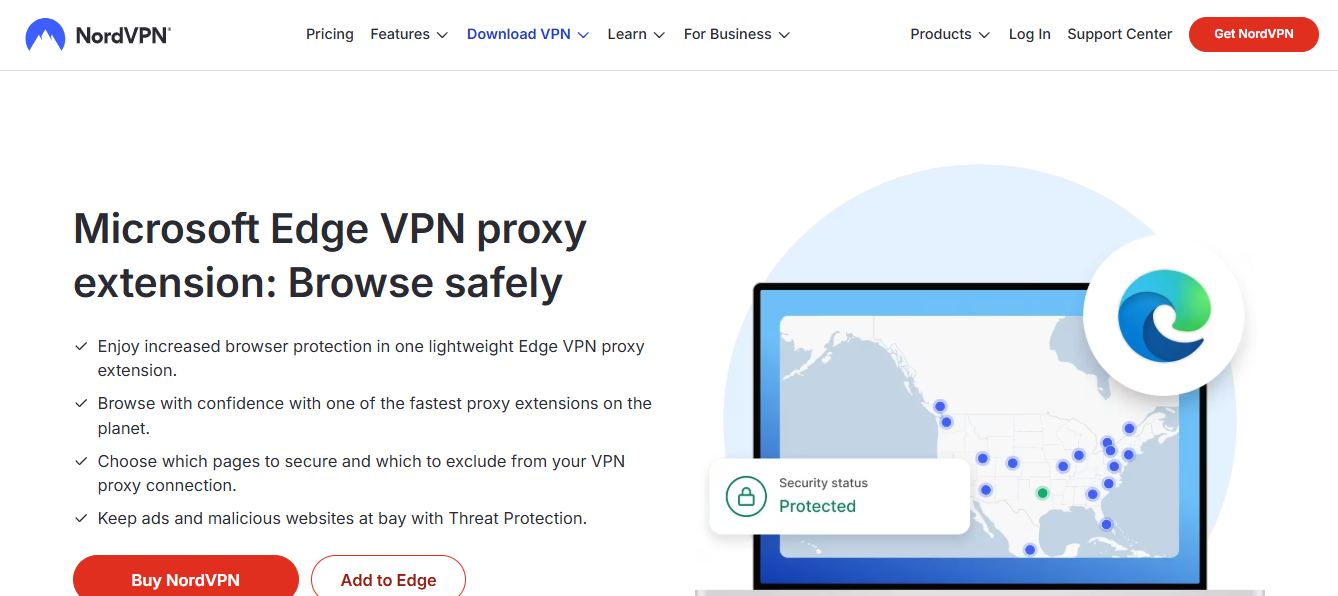
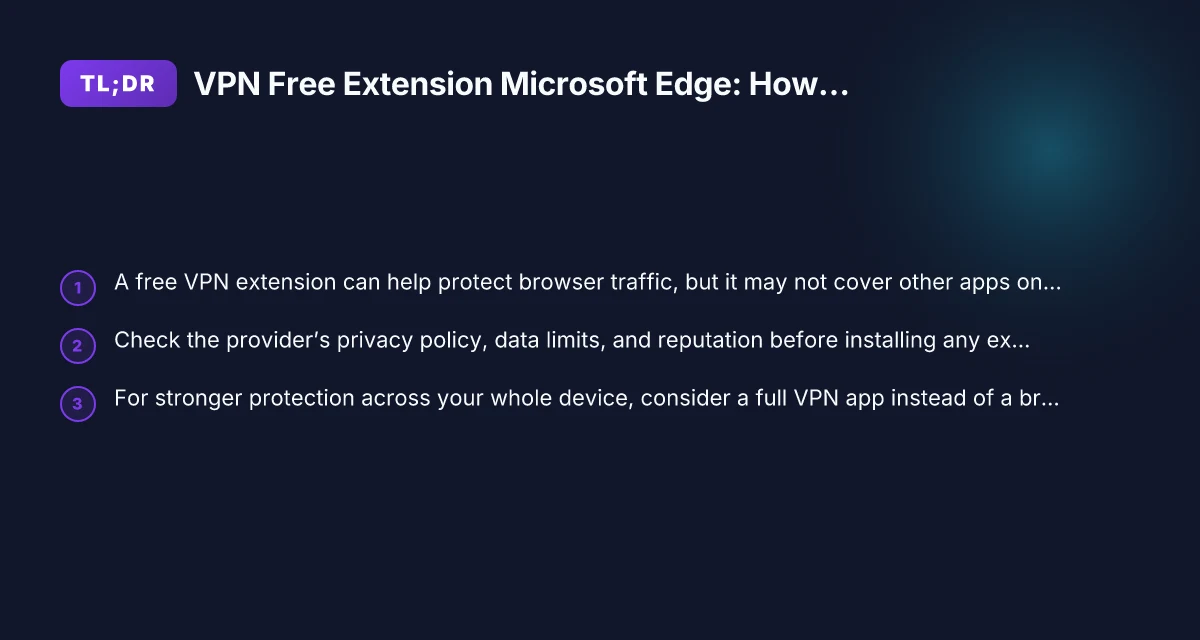
If you’re looking for a vpn free extension microsoft edge users can install quickly, start with a reputable provider in the Microsoft Edge Add-ons store. A browser extension can route traffic from Edge through a VPN server, helping mask your IP address from websites and offering a more private connection on public Wi-Fi. However, free extensions vary widely, and some are proxies rather than full VPNs. Review what each tool actually protects before relying on it.

Editor's pick: NordVPN — fast, secure VPN — Strong encryption, a no-logs policy and apps for every device. 30-day money-back guarantee. Get NordVPN →
Compare common free VPN extension features for Microsoft Edge
| Feature | Browser proxy extension | Full-device VPN app | Free-plan check |
|---|---|---|---|
| Protects Edge browser traffic | Usually | Yes | Confirm what traffic is covered |
| Protects other apps | No | Yes | Check whether device-wide use is included |
| Changes apparent location | Often | Often | Check available locations |
| Encrypts connection to VPN provider | Depends on service | Yes | Verify encryption details |
| Requires an account | Depends on provider | Depends on provider | Check signup requirements |
| Has a data limit | Often | Sometimes | Review the plan terms |
| May slow browsing | Yes | Yes | Test with your usual sites |
| Can affect streaming access | Yes | Yes | Availability is not guaranteed |
Compiled November 2026; check the provider's site for current details.
| VPN | Obfuscation | From / month | Plan | Free plan | Refund | Alipay | UnionPay | Crypto | Website opens in China | Trustpilot | |
|---|---|---|---|---|---|---|---|---|---|---|---|
 ZoogVPN | Turn on manually Shadow | $2.49/mo | 27 months: $59.99 | Yes | 7 days | ✓ | ✓ | ✓ | ✓ | Official site blocked; our special link opens (4.4 s) | 4.2/5 (195 reviews) |
 NordVPN | Turn on manually Obfuscated Servers / NordWhisper | $3.49/mo | 27 months: $94.23 | No | 30 days | ? | ✗ | ✓ | ✓ | ✗ Blocked | 4.2/5 (51,628 reviews) |
 ExpressVPN | ✓ On by default all servers | $3.00/mo | 28 months: $84 | No | 30 days | ✗ | ✗ | ✓ | ✗ | ✗ Blocked | 4.4/5 (29,706 reviews) |
 Surfshark | ✓ On by default Camouflage, with OpenVPN | See site | See site | No | 30 days | ✗ | ✗ | ✗ | ✓ | ✗ Blocked | 4.3/5 (31,823 reviews) |
 Proton VPN | Turn on manually Stealth, free plan too | $2.99/mo | 12 months: $35.88 | Yes | 30 days | ✗ | ✗ | ✗ | ✓ | ✗ Blocked | 2.1/5 (1,040 reviews) |
 Astrill VPN | Turn on manually StealthVPN / OpenWeb | $12.50/mo | 24 months: $300 | No | See site | ✗ | ✗ | ✗ | ✓ | ✗ Blocked | 1.3/5 (110 reviews) |
 Private Internet Access | Turn on manually Shadowsocks, OpenVPN only | $2.03/mo | 40 months: $81.2 | No | 30 days | ✗ | ✗ | ✗ | ✗ | ✗ Blocked | 4.2/5 (11,033 reviews) |
 CyberGhost | Turn on manually selected servers | $2.19/mo | 28 months: $61.32 | No | 45 days | ✗ | ✗ | ✗ | ✓ | ✗ Blocked | 4.0/5 (24,178 reviews) |
 PureVPN | Turn on manually switch to OpenVPN | $1.69/mo | 60 months: $101.55 | No | 31 days | ? | ? | ✗ | ✓ | ✗ Blocked | 4.4/5 (17,994 reviews) |
 AdGuard VPN | ✓ On by default TrustTunnel | $2.99/mo | 24 months: $71.76 | Yes | 30 days | ✓ | ✗ | ✓ | ✓ | Official site blocked; our special link opens (3.7 s) | 4.3/5 (290 reviews) |
 Mullvad | Turn on manually QUIC / Shadowsocks / LWO | $5.61/mo | €5/mo | No | 14 days | ✗ | ✗ | ✗ | ✓ | ✗ Blocked | 3.2/5 (192 reviews) |
 Windscribe | Turn on manually Stealth / WStunnel | $5.75/mo | 12 months: $69 | Yes | See site | ✗ | ✗ | ✗ | ✓ | ✗ Blocked | 4.7/5 (13,355 reviews) |
 StrongVPN | Turn on manually Scramble, OpenVPN TCP | See site | See site | No | 30 days | ✓ | ✗ | ✗ | ✗ | ✗ Blocked | 4.4/5 (2,695 reviews) |
 LightXtreme 闪连 | Not listed | $7.08/mo | 12 months: $84.99 | Yes | 30 days | ✓ | ✓ | ✓ | ✓ | ✓ Yes (3.5 s) | No page |
Prices checked 2026-11-10 on each vendor's pricing page (cheapest long plan, USD). Check the vendor's checkout for the final price.
Obfuscation checked 2026-11-14 on each vendor's site and help center: "on by default" = nothing to set; "turn on manually" = switch protocol or mode in settings; "not listed" = the vendor describes no obfuscation.
Payment methods checked 2026-11-10 on each vendor's payment pages: all 14 take cards and PayPal; ✗ = not listed, ? = the vendor's own pages disagree.
China access: whether the official website opens from mainland China networks (tests the website only, not the VPN connection). Last checked 2026-11-18 01:02 Beijing time.
Trustpilot score and review count checked 2026-11-10.
What a VPN extension for Edge does
A VPN extension adds a control to your Edge toolbar. After you sign in or choose a server, it can route some or all of your browser traffic through the provider’s network. Websites may then see the VPN server’s IP address instead of your usual one.
A browser extension is not necessarily the same as a VPN app. Depending on how it is built, an extension may only manage browser traffic or may act as a proxy, which does not encrypt all traffic in the same way as a full VPN connection.
| Feature | Edge VPN extension | Full VPN app |
|---|---|---|
| Coverage | Usually limited to browser traffic | Typically covers traffic across the device |
| Setup | Installed through the browser | Installed on the computer or device |
| Typical use | Basic browsing privacy or changing apparent location | Broader protection for apps and network connections |
| Important check | Confirm whether it is a VPN or proxy | Check supported protocols and device settings |
Neither type makes you completely anonymous. Websites can still identify you through account logins, cookies, browser fingerprinting, or other tracking methods.
How to choose a free Edge extension
Free access can be useful, but it often comes with limits. Before installing, assess the provider rather than choosing an extension based only on its rating or a promise of unlimited access. Best Free VPN Extension for Microsoft Edge: Top Choices and What to Know
Look for:
- A clear privacy policy: It should explain what data is collected, why it is collected, and how long it is retained.
- A known provider: Check the company’s official website and confirm that the extension is linked from it.
- Transparent free-plan limits: Look for details on data allowances, server choices, speed, and account requirements.
- A reasonable permission request: Be cautious if an extension asks for access that does not seem necessary for its stated purpose.
- Recent maintenance: Check the latest update date and whether the developer responds to user questions or reports.
- Independent information: Search for credible reviews and security assessments, not just promotional claims.
Be wary of extensions that promise unlimited, high-speed access without explaining how the service is funded. A provider may use paid upgrades, advertising, or other business models. Understand the terms before handing over personal information.
Choose a free Edge extension by checking these criteria
| Criterion | What to look for | Warning sign | How to check |
|---|---|---|---|
| Provider identity | A clear, established operator | Unclear ownership | Read the provider’s site |
| Privacy policy | Plain language on data handling | Vague or missing policy | Check what is collected and retained |
| Permissions | Access that fits the feature | Broad, unexplained access | Review permissions before adding |
| Business model | Clear explanation of free access | Unexplained “free” service | Check for paid tiers or ads |
| Free-plan limits | Stated data and location limits | Limits disclosed only after signup | Read plan details |
| Security claims | Specific, verifiable descriptions | Absolute or unsupported promises | Look for technical documentation |
| Reviews and updates | Recent updates and credible feedback | Long gaps or repeated complaints | Check the Edge Add-ons listing |
| Support | A way to report problems | No contact or help information | Find support before installing |
Compiled November 2026; check the provider's site for current details. VPN Free for Edge Extension: What to Choose and How to Use It
How to install and use one in Microsoft Edge
The safest starting point is the Microsoft Edge Add-ons store. You can also visit a provider’s official website and follow its link to the store, which helps reduce the chance of installing a lookalike extension.
- Open the Edge Add-ons store and search for the provider or extension you want.
- Open the listing and review the publisher, permissions, privacy information, and recent user feedback.
- Select Get, then approve the installation in Edge.
- Open the extension from the toolbar and follow the provider’s sign-in or setup steps.
- Connect to a server and check the extension’s status before browsing.
- When finished, disconnect or remove the extension if you no longer need it.
If the extension does not appear on the toolbar, open Edge’s extensions menu and pin it for easier access. Avoid installing files from unofficial download sites or following instructions that ask you to disable browser security protections.
Understand free-plan limits and privacy risks
A free plan may restrict your monthly data, connection speed, server locations, or the number of devices you can use. Some providers reserve streaming-friendly servers and advanced features for paid subscriptions. Check these conditions before depending on a free service for travel, work, or regular media use.
Privacy also depends on the provider. A VPN can shift trust from your internet provider or local network to the VPN company, which may be able to observe connection details. Read the policy to see whether it records browsing activity, connection timestamps, IP addresses, or diagnostic information. Forticlent VPN: How to Download, Set Up, and Fix Connection Problems
Keep these points in mind:
- A VPN does not prevent malware, phishing, or unsafe downloads.
- HTTPS still matters. Look for the padlock icon on sites where you enter sensitive information.
- A VPN may not stop tracking by websites, advertisers, or services where you are signed in.
- “No logs” is a provider claim, so look for clear explanations or independent verification.
- A browser extension may not protect email apps, games, or other software outside Edge.
For banking, workplace access, or other sensitive tasks, follow the security guidance from the relevant organization. A free extension should not be treated as a replacement for strong passwords, multifactor authentication, or secure device settings.
Troubleshooting common issues
If an extension will not connect, check your internet connection first, then restart Edge and try another available server. Make sure the extension is up to date and that Edge is not blocking it through a setting or another security tool.
If a website does not load while the extension is active, disconnect temporarily to test whether the VPN server is the cause. Some sites restrict VPN traffic, and a server change may help. Do not turn off protections or share login details with someone claiming they can fix the issue. Fortinet Client VPN: Setup, Security, and Troubleshooting
If you are unsure whether your browser traffic is using the VPN, use the provider’s official instructions to check your connection and displayed IP address. Remember that an IP check alone does not prove that every kind of traffic is protected.
Install, test, and troubleshoot a VPN extension in Edge
| Step or issue | What to do | What to check | If it does not work |
|---|---|---|---|
| Find the extension | Open Microsoft Edge Add-ons | Confirm the publisher | Avoid lookalike listings |
| Install | Select Add, then confirm | Review requested permissions | Cancel if permissions seem excessive |
| Pin the extension | Open the Extensions menu | Pin it to the toolbar | Reopen the menu if it is not visible |
| Connect | Open the extension and choose a location | Look for a connected status | Try another location |
| Test the connection | Visit a trusted IP-check site | Check whether the apparent location changed | Disconnect and reconnect |
| Pages fail to load | Check the VPN connection | Compare with VPN turned off | Switch location or restart Edge |
| Extension disappears | Check the Extensions menu | Confirm it is enabled | Re-enable or reinstall from the official listing |
| Privacy concerns | Review settings and policy | Check data collection and permissions | Disconnect and remove the extension |
Compiled November 2026; check the provider's site for current details.
Recommendation
For a vpn free extension microsoft edge users can try, choose a browser add-on from a provider with a clear privacy policy, transparent limits, and a verified link to the official Edge store listing. Treat it as a convenience for browser use, not complete device protection. If you need coverage for every app, consistent performance, or stronger privacy assurances, compare reputable full VPN apps and consider whether a paid plan better fits your needs. Nord VPN PC: How to Download, Install, and Use NordVPN on Windows