Surfshark Won’t Connect? Try These Fixes

Find out why Surfshark won’t connect and follow practical steps to restore your VPN connection.
If Surfshark won’t connect, first confirm that your internet works without the VPN, then restart the Surfshark app and try a different server. If that does not help, switch VPN protocols, temporarily disable conflicting network tools, and update the app. These steps fix many connection issues on Windows, macOS, Android, iPhone, and other supported devices.

Editor's pick: NordVPN — fast, secure VPN — Strong encryption, a no-logs policy and apps for every device. 30-day money-back guarantee. Get NordVPN →
Quick checks to try before changing settings
| Check | What to do | What it can reveal | Next step |
|---|---|---|---|
| Surfshark service status | Check whether there is a service issue | A wider outage may be affecting connections | Wait and try again later |
| Internet connection | Open a website without the VPN | Whether your connection works independently | Restore your internet connection |
| Surfshark app | Close and reopen the app | Whether a temporary app issue is blocking connection | Try connecting again |
| VPN server | Choose a different server location | Whether the selected server is the problem | Keep using a server that connects |
| VPN protocol | Switch to another available protocol | Whether the current protocol is blocked or unstable | Test the new protocol |
| App version | Check for an available update | Whether an older app version may be involved | Update and retry |
| Device restart | Restart your device | Whether a temporary device issue is involved | Open Surfshark and retry |
Compiled November 2026; check the provider's site for current details.
Start with quick checks
A VPN cannot connect reliably if your device has no internet access or the Surfshark app is stuck. Rule out basic problems before changing advanced settings.
- Check your internet connection. Disconnect from Surfshark and open a few websites. If they still will not load, restart your router or contact your internet provider.
- Restart Surfshark. Fully close the app, reopen it, and try connecting again. If needed, restart your device.
- Try another server. Choose a nearby location or use Surfshark’s location search to select a different server in the same country. A particular server may be busy or temporarily unavailable.
- Check your account. Sign in again and confirm that your subscription is active.
- Update Surfshark. Install the latest version from the official app store or Surfshark website, then try again.
If you are connecting through public Wi-Fi, open a browser first and complete any sign-in or network access page. Some hotels, airports, and cafés block internet access until you accept their terms.
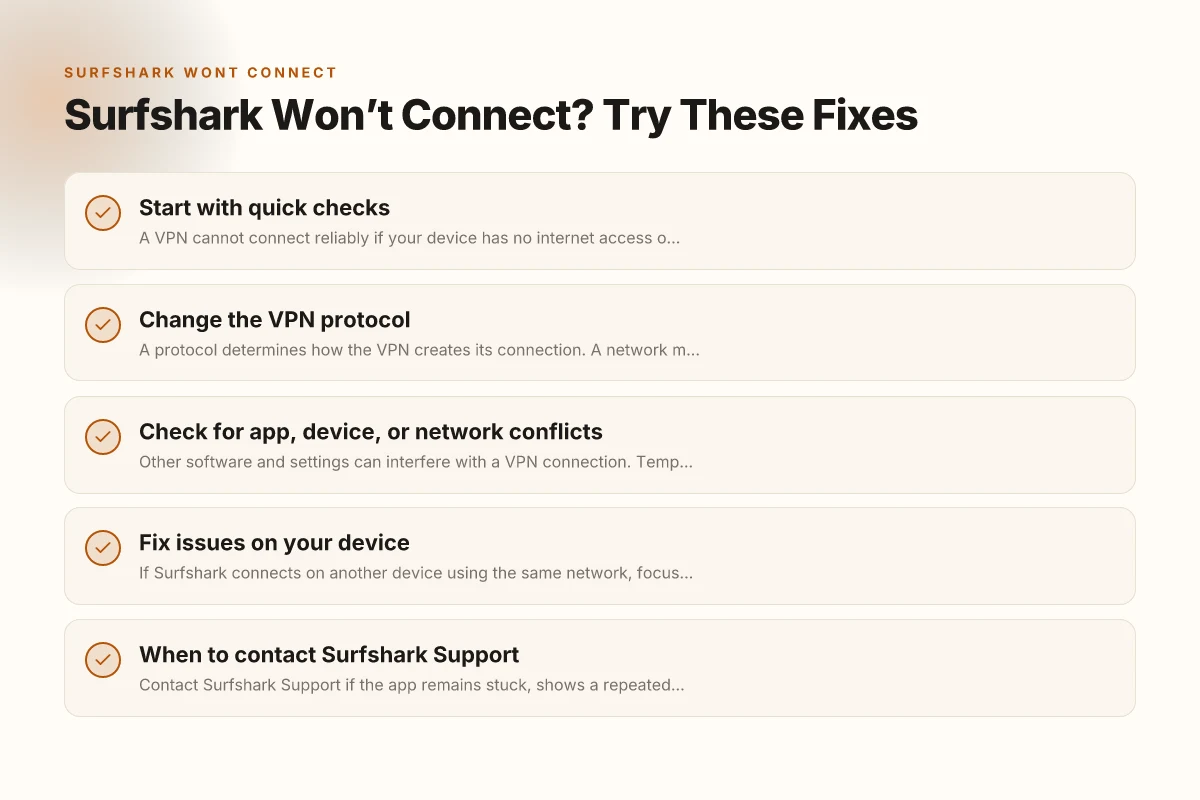
Change the VPN protocol
A protocol determines how the VPN creates its connection. A network may block or interfere with one protocol while allowing another, so switching is a useful next step.
Open Surfshark’s settings and look for VPN settings, Protocol, or a similarly named option. The exact labels may differ by app version. Try another available protocol, such as WireGuard, OpenVPN (UDP), or OpenVPN (TCP), then reconnect. Find My VPN Location: Check Your Public IP and DNS
| Option | When to try it | What to expect |
|---|---|---|
| WireGuard | As a starting point for everyday use | Often fast, though some networks may restrict it |
| OpenVPN (UDP) | If another protocol will not connect | A common alternative with good performance |
| OpenVPN (TCP) | On restrictive or unreliable networks | May connect where UDP fails, but can be slower |
If one option fails, return to settings and test another. Avoid changing several settings at once. Testing one change at a time makes it easier to identify what fixed the problem. If your device or Surfshark version offers different protocol choices, use only the options shown in the app.
Check for app, device, or network conflicts
Other software and settings can interfere with a VPN connection. Temporarily check for conflicts, then restore any protection you turned off.
- Pause other VPNs or proxies. Running another VPN, proxy, or work network client at the same time can prevent Surfshark from connecting.
- Review firewall and security software. A firewall or antivirus may block the Surfshark app. Check its permissions and allow the official app if appropriate. Do not leave security protection disabled as a permanent fix.
- Try another network. Connect through a mobile hotspot or another trusted Wi-Fi network. If Surfshark works there, the original router or network may be blocking VPN traffic.
- Check network settings. Custom DNS, proxy settings, or restrictive router rules can interfere. If you changed these settings recently, temporarily restore their previous values.
- Check your device’s date and time. Incorrect settings can cause problems with secure connections. Enable automatic date and time, then retry.
On a router, school, or workplace network, you may not have permission to change restrictions. Ask the network administrator whether VPN connections are allowed rather than trying to bypass an organization’s rules.
Troubleshooting options by likely cause FortiClient VPN 7.2: Download, Install, and Configure the VPN
| Option | Likely cause | What to try | Useful when |
|---|---|---|---|
| Change protocol | Current protocol cannot connect | Select another protocol in Surfshark settings | Connection fails on one protocol |
| Change server | Selected server is unavailable or unstable | Connect to a different server | Other servers may work |
| Update Surfshark | App issue or outdated version | Install the latest available app update | Problems persist after a restart |
| Restart device | Temporary device or app conflict | Restart, then open Surfshark again | The app behaves unexpectedly |
| Check other VPNs | VPN app conflict | Disconnect from or remove another VPN | More than one VPN is installed |
| Check security software | Firewall or antivirus interference | Review whether it is blocking Surfshark | VPN traffic appears blocked |
| Check network restrictions | Network may block VPN connections | Try a different network if available | Surfshark works elsewhere |
Compiled November 2026; check the provider's site for current details.
Fix issues on your device
If Surfshark connects on another device using the same network, focus on the device where it fails.
Windows and macOS
Restart the computer, install operating system updates, and confirm that Surfshark is allowed through the system firewall. If the app still cannot connect, sign out and back in. You can also uninstall and reinstall the current version from an official source. Reinstalling may remove local app settings, so note any configuration you want to keep.
Android and iPhone
Update Surfshark from the official app store and restart the phone. Check that the app has the permissions it requests for VPN use. On Android, battery-saving or background restrictions may interrupt the app, so review its battery settings if connections drop. On iPhone, check Settings > General > VPN & Device Management for VPN configuration conflicts, but do not remove a work or school profile unless its administrator says to. Clash for Window: How to Play Clash Royale on a Windows PC
Smart TVs and other devices
Some devices have limited network settings or do not support every VPN feature. Restart the device and router, check Surfshark’s setup instructions for that specific device, and test another server. If you use a router-based setup, verify that its VPN configuration is current and that the router itself still has internet access.
When to contact Surfshark Support
Contact Surfshark Support if the app remains stuck, shows a repeated error, or fails across multiple networks after you have tried the steps above. Support can help determine whether the issue is related to your account, app version, device configuration, or a particular server.
Before contacting them, note:
- Your device model and operating system version
- The Surfshark app version
- The server location and protocol you tried
- The exact error message and when it appears
- Which troubleshooting steps you have already completed
Do not share your password or payment details in a public forum. If Support requests diagnostic information, use Surfshark’s official support channel and follow its instructions. Change My VPN Location Free: Safe Ways to Do It
Where to troubleshoot and when to seek help
| Situation | First step | If it still fails | Contact Surfshark Support? |
|---|---|---|---|
| One server will not connect | Try another server | Test a different protocol | Not yet |
| No server will connect | Check your internet connection | Restart the app and device | If the issue continues |
| Connection fails on one network | Check network restrictions | Try another network if available | If it also fails elsewhere |
| Connection fails after an app update | Restart Surfshark | Check for another available update | If the issue continues |
| Another VPN is installed | Disconnect from the other VPN | Test Surfshark on its own | If the conflict remains unclear |
| Security software may be blocking Surfshark | Review its VPN or firewall settings | Retry the connection | If you cannot resolve the block |
| Basic checks do not help | Test another protocol and server | Note what you have already tried | Yes, if Surfshark still will not connect |
Compiled November 2026; check the provider's site for current details.
Recommendation
When Surfshark won’t connect, check your internet first, restart the app, and test another server. If the problem continues, switch protocols and check for network or security software conflicts. Update or reinstall the app only after the simpler checks, and contact Surfshark Support with the exact error if the connection still fails.