Find My VPN Location: Check Your Public IP and DNS
Learn how to find your VPN location, verify that your connection is working, and spot common privacy leaks.
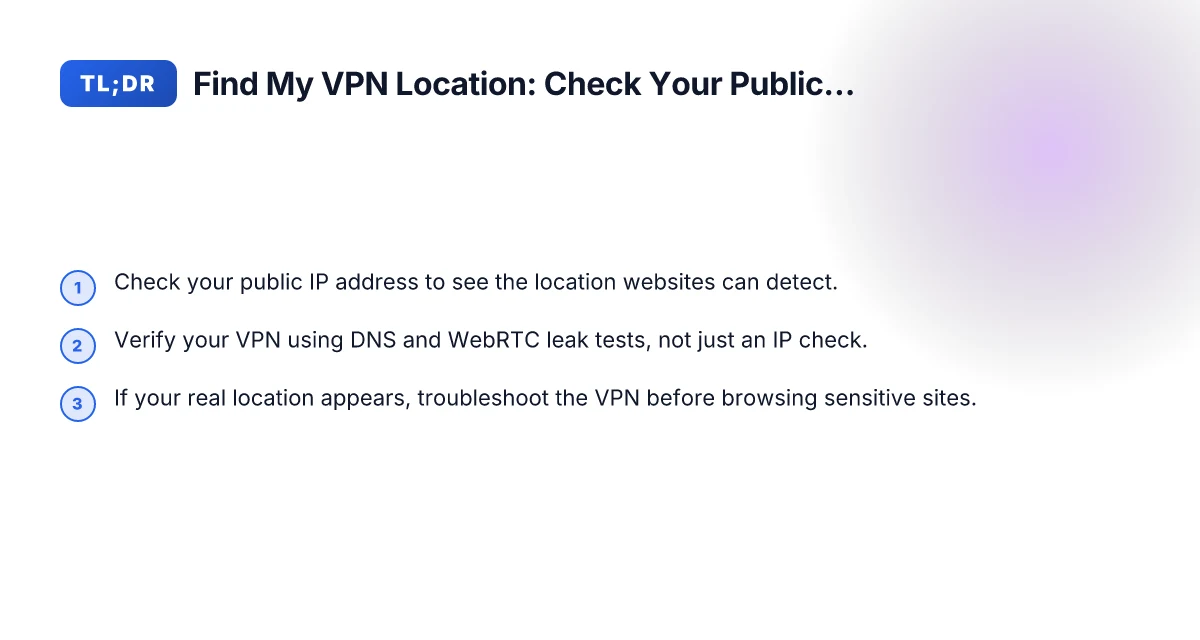
To find your VPN location, connect to your VPN and check your public IP address using a reputable IP lookup service. The displayed country or city is the location websites generally associate with your connection, not necessarily your precise physical location. For a more complete check, confirm that DNS requests and WebRTC connections are not exposing information linked to your actual location.

Editor's pick: NordVPN — fast, secure VPN — Strong encryption, a no-logs policy and apps for every device. 30-day money-back guarantee. Get NordVPN →
Which checks help find your VPN location?
| Check | What to inspect | What it can show | What it cannot confirm |
|---|---|---|---|
| Public IP check | IP address and reported country | Apparent internet location | Your exact physical location |
| IP lookup | Country, region, or city | How a website may place your IP | That every database agrees |
| DNS leak test | DNS resolver location | Whether DNS requests appear to use another resolver | Your public IP location |
| WebRTC leak test | Addresses exposed by the browser | Whether WebRTC may reveal an address | Whether all browser traffic is protected |
| VPN app status | Connection and selected server | Whether the app reports an active connection | That no leaks are present |
| Repeat check | Results after reconnecting | Whether the reported location changes | The cause of a mismatch |
Compiled November 2026; check the provider's site for current details.
| VPN | Obfuscation | From / month | Plan | Free plan | Refund | Alipay | UnionPay | Crypto | Website opens in China | Trustpilot | |
|---|---|---|---|---|---|---|---|---|---|---|---|
 ZoogVPN | Turn on manually Shadow | $2.49/mo | 27 months: $59.99 | Yes | 7 days | ✓ | ✓ | ✓ | ✓ | Official site blocked; our special link opens (4.4 s) | 4.2/5 (195 reviews) |
 NordVPN | Turn on manually Obfuscated Servers / NordWhisper | $3.49/mo | 27 months: $94.23 | No | 30 days | ? | ✗ | ✓ | ✓ | ✗ Blocked | 4.2/5 (51,628 reviews) |
 ExpressVPN | ✓ On by default all servers | $3.00/mo | 28 months: $84 | No | 30 days | ✗ | ✗ | ✓ | ✗ | ✗ Blocked | 4.4/5 (29,706 reviews) |
 Surfshark | ✓ On by default Camouflage, with OpenVPN | See site | See site | No | 30 days | ✗ | ✗ | ✗ | ✓ | ✗ Blocked | 4.3/5 (31,823 reviews) |
 Proton VPN | Turn on manually Stealth, free plan too | $2.99/mo | 12 months: $35.88 | Yes | 30 days | ✗ | ✗ | ✗ | ✓ | ✗ Blocked | 2.1/5 (1,040 reviews) |
 Astrill VPN | Turn on manually StealthVPN / OpenWeb | $12.50/mo | 24 months: $300 | No | See site | ✗ | ✗ | ✗ | ✓ | ✗ Blocked | 1.3/5 (110 reviews) |
 Private Internet Access | Turn on manually Shadowsocks, OpenVPN only | $2.03/mo | 40 months: $81.2 | No | 30 days | ✗ | ✗ | ✗ | ✗ | ✗ Blocked | 4.2/5 (11,033 reviews) |
 CyberGhost | Turn on manually selected servers | $2.19/mo | 28 months: $61.32 | No | 45 days | ✗ | ✗ | ✗ | ✓ | ✗ Blocked | 4.0/5 (24,178 reviews) |
 PureVPN | Turn on manually switch to OpenVPN | $1.69/mo | 60 months: $101.55 | No | 31 days | ? | ? | ✗ | ✓ | ✗ Blocked | 4.4/5 (17,994 reviews) |
 AdGuard VPN | ✓ On by default TrustTunnel | $2.99/mo | 24 months: $71.76 | Yes | 30 days | ✓ | ✗ | ✓ | ✓ | Official site blocked; our special link opens (3.7 s) | 4.3/5 (290 reviews) |
 Mullvad | Turn on manually QUIC / Shadowsocks / LWO | $5.61/mo | €5/mo | No | 14 days | ✗ | ✗ | ✗ | ✓ | ✗ Blocked | 3.2/5 (192 reviews) |
 Windscribe | Turn on manually Stealth / WStunnel | $5.75/mo | 12 months: $69 | Yes | See site | ✗ | ✗ | ✗ | ✓ | ✗ Blocked | 4.7/5 (13,355 reviews) |
 StrongVPN | Turn on manually Scramble, OpenVPN TCP | See site | See site | No | 30 days | ✓ | ✗ | ✗ | ✗ | ✗ Blocked | 4.4/5 (2,695 reviews) |
 LightXtreme 闪连 | Not listed | $7.08/mo | 12 months: $84.99 | Yes | 30 days | ✓ | ✓ | ✓ | ✓ | ✓ Yes (3.5 s) | No page |
Prices checked 2026-11-10 on each vendor's pricing page (cheapest long plan, USD). Check the vendor's checkout for the final price.
Obfuscation checked 2026-11-14 on each vendor's site and help center: "on by default" = nothing to set; "turn on manually" = switch protocol or mode in settings; "not listed" = the vendor describes no obfuscation.
Payment methods checked 2026-11-10 on each vendor's payment pages: all 14 take cards and PayPal; ✗ = not listed, ? = the vendor's own pages disagree.
China access: whether the official website opens from mainland China networks (tests the website only, not the VPN connection). Last checked 2026-11-18 01:02 Beijing time.
Trustpilot score and review count checked 2026-11-10.
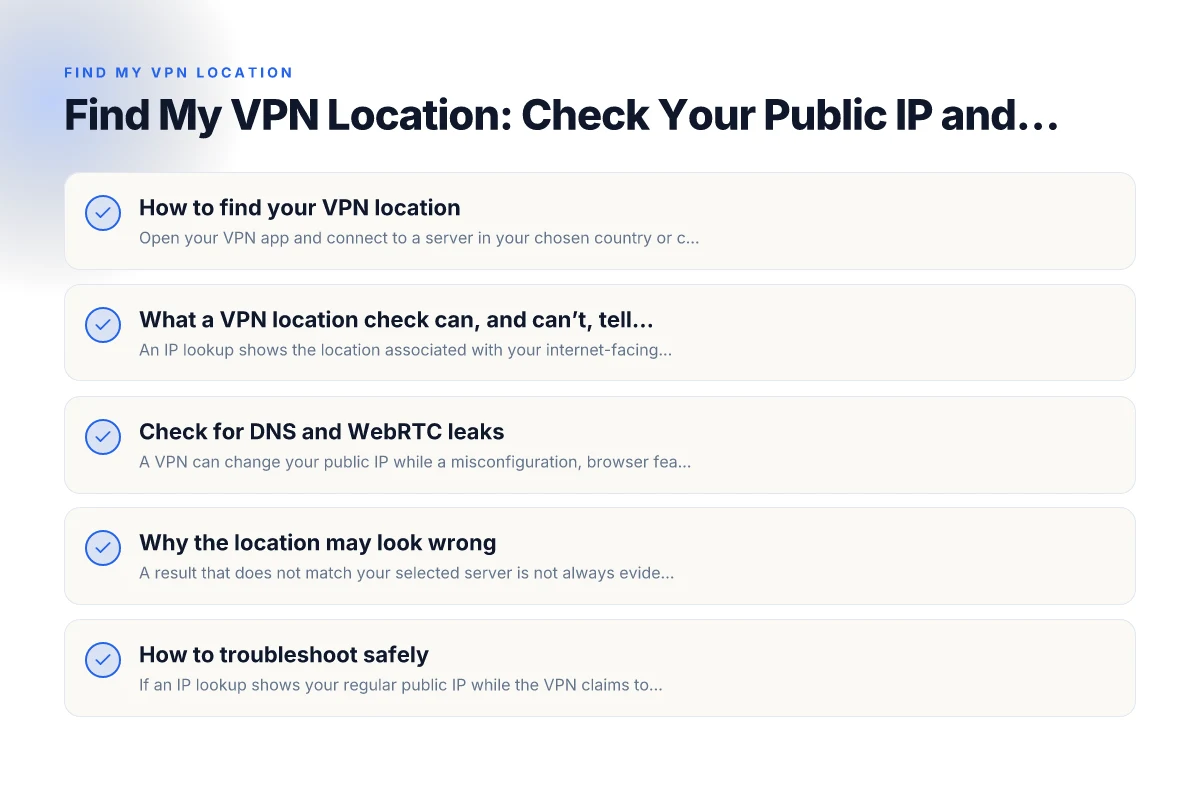
How to find your VPN location
- Open your VPN app and connect to a server in your chosen country or city.
- Visit a public IP lookup website in your browser.
- Note the IP address and reported location.
- Compare the result with the server location selected in your VPN app.
If the lookup shows the VPN server’s country, your public IP appears to be routed through the VPN. The city may differ from the one you selected because IP databases are estimates. A server labeled “New York,” for example, could use an IP address that a lookup service associates with a nearby city or another region.
For a useful comparison, check your IP once before connecting and again after connecting. The address should change when the VPN is active. If it stays the same, check the app’s connection status and try reconnecting to another server.
What a VPN location check can, and can’t, tell you
An IP lookup shows the location associated with your internet-facing IP address. This is the location most likely to appear to websites and services that use IP-based location data. It does not confirm that every part of your online activity is private.
IP geolocation is approximate. Services use databases that may be outdated or disagree about a location. They may identify the server’s country correctly while assigning the wrong city, or display the VPN provider’s registered address rather than the server’s physical location. FortiClient VPN 7.2: Download, Install, and Configure the VPN
Your device can also reveal location through other means. For example, a website may ask for permission to use your device’s location services. GPS, Wi-Fi positioning, or mobile network information can give a more precise location than an IP address. A VPN does not automatically hide location data that you choose to share with an app or website.
| Check | What it can reveal | What it does not prove |
|---|---|---|
| Public IP lookup | IP address and an approximate associated location | That DNS, WebRTC, or device location is protected |
| DNS leak test | Whether DNS requests appear to come from your VPN provider or another resolver | That all other traffic is routed through the VPN |
| WebRTC leak test | Whether a browser’s WebRTC features expose IP information | That device GPS or location permissions are disabled |
| Device location settings | Whether apps or websites can access device-based location | That your public IP is hidden |
What can make a VPN location look wrong?
| Possible cause | What you may see | What to check | Safe next step |
|---|---|---|---|
| IP geolocation data | Wrong country or city | Compare more than one IP lookup | Treat city-level results cautiously |
| VPN server routing | Location differs from server label | Check the selected server | Reconnect to a different server |
| DNS leak | DNS location differs from VPN location | Run a DNS leak test | Follow the VPN provider’s leak guidance |
| WebRTC exposure | Browser shows an unexpected address | Run a WebRTC leak test | Use browser privacy controls |
| Browser or device settings | Different results across apps | Compare another browser or device | Review relevant privacy settings |
| Stale connection | Old or inconsistent result | Check VPN connection status | Reconnect, then test again |
Compiled November 2026; check the provider's site for current details.
Check for DNS and WebRTC leaks
A VPN can change your public IP while a misconfiguration, browser feature, or connection problem exposes other information. Run DNS and WebRTC leak tests after connecting, especially if you rely on the VPN for privacy. Clash for Window: How to Play Clash Royale on a Windows PC
DNS leaks
DNS translates website names into IP addresses. When a DNS leak occurs, requests may go to a resolver outside the VPN tunnel. A test may show the resolver’s provider or location. If results appear connected to your internet provider rather than the VPN, review your VPN’s DNS settings or contact its support team.
WebRTC leaks
WebRTC enables browser features such as audio and video calls. Depending on your browser and network configuration, a WebRTC test may reveal an IP address that you did not expect to appear. Look for browser privacy settings or VPN features designed to prevent WebRTC leaks. Avoid changing settings you do not understand. Test again afterward to make sure video and voice features still work as needed.
For both tests, use a trusted testing site, connect to the VPN first, and follow the site’s instructions. Treat results as diagnostic clues rather than a guarantee of complete anonymity.
Why the location may look wrong
A result that does not match your selected server is not always evidence of a leak. Common explanations include: Change My VPN Location Free: Safe Ways to Do It
- IP geolocation databases differ: Lookup services may use different sources and update on different schedules.
- The VPN uses virtual locations: A server advertised for one country may be physically hosted elsewhere.
- Your browser or device has location permission: A site may report device-based location instead of the IP-based estimate.
- Your connection dropped: Some VPN apps disconnect briefly when switching servers or networks.
- Split tunneling is enabled: Selected apps or websites may bypass the VPN.
- A proxy or network feature is involved: Browser proxies, security software, or network settings can change what an IP lookup reports.
Try a second IP lookup service, reconnect to the VPN, and check whether the IP address changes. Then review split tunneling, automatic connection settings, and any “kill switch” feature. A kill switch is intended to block internet traffic if the VPN connection drops, though its behavior can vary by app and device.
How should you respond to VPN location check results?
| Result | What it suggests | What it does not prove | Next step |
|---|---|---|---|
| IP shows VPN country | Public IP appears associated with that country | That DNS is also using the VPN | Check for DNS leaks |
| IP shows another country | IP lookup may not match the server label | That the VPN has failed | Compare another lookup and server |
| DNS shows unexpected resolver | DNS requests may be taking another route | That your public IP is exposed | Review VPN DNS protections |
| WebRTC shows an unexpected address | Browser may reveal address information | That all traffic is leaking | Review browser settings and retest |
| Tests disagree | Services may use different data or methods | Which result is definitive | Repeat checks across services |
| Results remain unclear | The checks do not settle the issue | That a particular cause is responsible | Contact VPN support with test details |
Compiled November 2026; check the provider's site for current details.
How to troubleshoot safely
If an IP lookup shows your regular public IP while the VPN claims to be connected: VPN That Allows You to Choose Location: What to Look For
- Disconnect and reconnect to a different VPN server.
- Check that the app says “connected,” not merely that a server is selected.
- Turn off split tunneling temporarily, if enabled.
- Enable the VPN’s kill switch or network lock, if available.
- Restart the VPN app and, if needed, your device.
- Run the IP, DNS, and WebRTC checks again.
- Contact the VPN provider if the unexpected result continues.
On public Wi-Fi or when handling sensitive information, avoid relying on an uncertain connection until you have resolved the issue. A VPN is one privacy tool, not a substitute for secure websites, strong account security, or careful sharing of personal information.
Recommendation
To find your VPN location, check your public IP after connecting, then run DNS and WebRTC tests. Confirm that the reported IP location is consistent with your selected server, while remembering that city-level results can be inaccurate. If your real public IP appears or tests show unexpected exposure, reconnect, review your settings, and contact your VPN provider before relying on the connection.