Surfshark Is Making My Connection So Slow: How to Fix It

Find out why Surfshark may slow your internet and how to improve VPN speeds with practical troubleshooting steps.
If Surfshark is making your connection so slow, the most likely causes are a distant or busy VPN server, the VPN protocol, or a weak internet connection to begin with. Disconnect from Surfshark and run a speed test, then reconnect and test again using a nearby server. This quick comparison can show whether the slowdown comes from the VPN or another issue, such as Wi-Fi interference or congestion from your internet provider.
A small speed reduction is normal because a VPN encrypts your data and sends it through an extra server. A severe drop, frequent buffering, or pages that barely load is not something you have to accept. Try the steps below, testing your connection after each change so you can tell what actually helps.

Editor's pick: NordVPN — fast, secure VPN — Strong encryption, a no-logs policy and apps for every device. 30-day money-back guarantee. Get NordVPN →
Quick fixes for Surfshark connection problems
| Fix | What to do | Best for | Trade-off |
|---|---|---|---|
| Change server | Connect to a nearby server | High latency or a distant server | Results vary by server |
| Switch protocol | Try another available protocol | Slow or unstable VPN connection | Performance varies by network |
| Reconnect | Disconnect, then connect again | A temporary connection issue | Brief interruption |
| Restart Surfshark | Close and reopen the app | App connection problems | Brief interruption |
| Restart your device | Reboot your computer or phone | Device or network glitches | Takes a few minutes |
| Restart your router | Power-cycle the router | Home Wi-Fi problems | Other devices disconnect briefly |
| Test without VPN | Compare speeds with Surfshark off | Identifying whether VPN is involved | Connection is not protected by VPN |
| Update the app | Install the latest Surfshark version | Outdated app issues | May require a restart |
Compiled November 2026; check the provider's site for current details.
Why Surfshark can slow down your connection
When you use Surfshark, your traffic travels from your device to a VPN server and then to its destination. Encryption and the extra distance can add delay and reduce throughput. The effect varies based on your internet plan, device, network conditions, and the server you choose.
Common causes include:
- A distant server: Connecting across a country or continent usually adds latency and can lower speeds.
- Server congestion: A popular server may be handling more traffic than usual.
- Protocol choice: Different VPN protocols can perform differently on your device and network.
- Weak Wi-Fi: The VPN cannot fix a poor wireless signal or an overloaded home network.
- Background activity: Downloads, cloud backups, streaming, or updates can use bandwidth.
- Device limitations: Older hardware may struggle to process encrypted traffic at high speeds.
- A restricted network: A workplace, school, hotel, or public Wi-Fi network may interfere with VPN traffic.
Start with these quick fixes
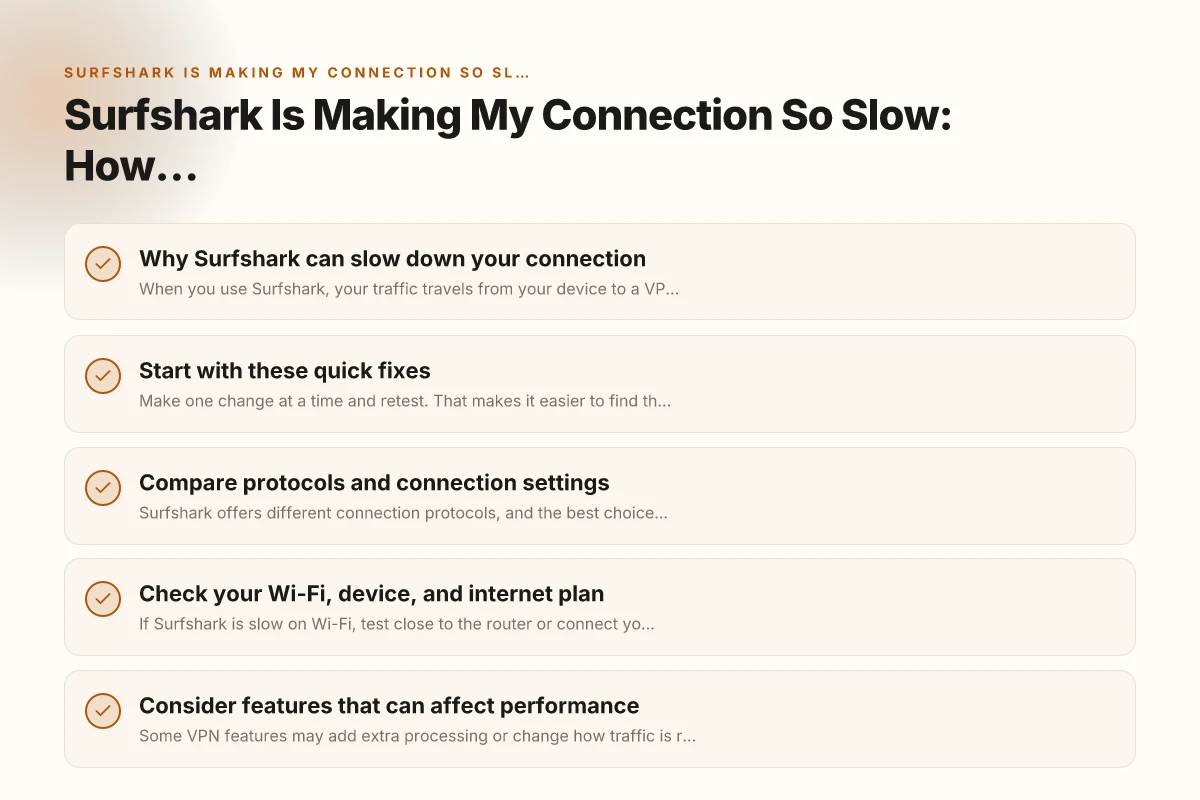
Make one change at a time and retest. That makes it easier to find the actual cause rather than relying on guesswork.
- Check your speed with Surfshark off. Use the same device and network, and run the test more than once. If speeds are poor both with and without the VPN, the issue may be your internet service or local network.
- Choose a nearby server. If you do not need to appear to be in a particular country, connect to a server close to your physical location. Use Surfshark’s fastest-server option if it is available in your app.
- Try another server in the same location. Individual servers can vary in load and performance. Switching to another nearby option may make a noticeable difference.
- Restart the app and your device. Also consider restarting your router if other devices on your network are slow.
- Pause other internet activity. Temporarily stop large downloads, video streams, game updates, and cloud backups while testing.
For a useful comparison, test a nearby server and the server location you normally use. A connection that is fast nearby but slow farther away may be behaving as expected rather than indicating a fault. Free VPN to Change Location: What to Know Before You Connect
Compare protocols and connection settings
Surfshark offers different connection protocols, and the best choice can depend on your device and network. Open the app’s settings and check the protocol options available to you. Change the setting, reconnect, and run another speed test.
| Option to test | When it may help | What to keep in mind |
|---|---|---|
| A nearby server | You are connected to a distant location | It may change the location shown to websites |
| Another server in the same country | Your current server may be busy | Results can vary by server and time of day |
| A different VPN protocol | Your current protocol performs poorly on this network | Availability and names can vary by platform |
| Ethernet instead of Wi-Fi | The wireless signal is weak or inconsistent | A wired connection is not practical for every device |
If a network blocks or disrupts VPN connections, switching protocols may help the VPN connect more reliably. It is not guaranteed to increase speed, so compare results rather than assuming one option is always fastest. Avoid changing several settings at once, since that makes it difficult to identify which change mattered.
Compare connection settings and possible effects
| Setting or option | What to try | May help when | Consider |
|---|---|---|---|
| Server location | Choose a nearby location | Latency is high | A farther server may be slower |
| VPN protocol | Test another available protocol | Speed or stability is poor | The best choice depends on your network |
| WireGuard | Select it if available | You want to compare performance | Availability can vary by app |
| OpenVPN | Compare it with your current protocol | Another protocol is unstable | Performance can vary |
| Kill Switch | Check whether it is enabled | Internet access drops after disconnecting | It blocks traffic if the VPN drops |
| Split tunneling | Route only selected apps through VPN | Some apps need a direct connection | Availability varies by platform |
| MultiHop | Turn it off for a speed test | You are using multiple VPN servers | Extra routing can affect speed |
| CleanWeb | Compare with it off | You are checking whether filtering affects a site | Disabling it reduces filtering |
Compiled November 2026; check the provider's site for current details. How to Find LAN Settings Through Microsoft Edge Proxy Settings
Check your Wi-Fi, device, and internet plan
If Surfshark is slow on Wi-Fi, test close to the router or connect your computer with an Ethernet cable. If performance improves, the likely problem is the wireless connection. Moving the router, reducing interference, or switching to a less congested Wi-Fi band may help.
Check whether other devices are using the connection heavily. A 4K stream or large download can leave less bandwidth for everything else, whether the VPN is on or off. Also close applications you are not using and install available updates for Surfshark and your device.
Your internet plan is another factor. A VPN cannot deliver speeds faster than the connection available to your home, and speed tests can vary depending on the test server and time of day. Compare several results under similar conditions rather than relying on one unusually high or low reading.
Consider features that can affect performance
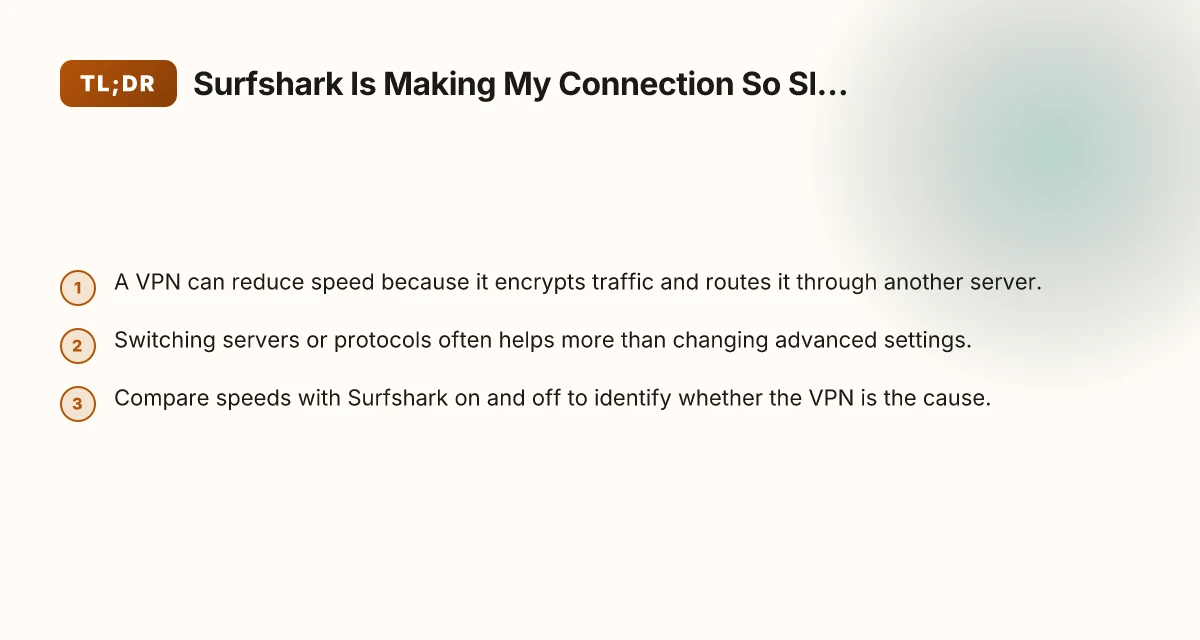
Some VPN features may add extra processing or change how traffic is routed. If your connection became slow after enabling a feature, temporarily switch it off and retest. This can help you determine whether that setting is involved. NordVPN Download Windows 11: How to Install and Get Started
If you use a multi-hop connection, for example, your traffic passes through more than one VPN server. That can add latency compared with a standard connection. Security and privacy features may be important for your needs, so do not disable them permanently just to chase a speed result. Test briefly, understand the trade-off, and choose the settings that fit your priorities.
Do not use a speed test alone to judge whether a VPN is working properly. A test measures performance to a particular destination at a particular moment. Also check the services you actually use, such as video calls, websites, or streaming, and see whether the problem is consistent.
When to contact Surfshark support
Contact Surfshark support if your connection remains dramatically slower than your normal internet speed after testing multiple nearby servers and protocols. Share the details that can help diagnose the issue:
- Your device and operating system
- The Surfshark app version
- The protocol and server location you tested
- Speed-test results with Surfshark on and off
- Whether the problem happens on another network or device
- Any error messages or times when the slowdown occurs
Avoid sharing passwords or sensitive account details in public forums. If the slowdown affects only one website or app, mention that too. The cause may be specific to that service rather than your overall VPN connection. Checkpoint VPN: What It Does, How It Works, and Which Client to Use
Identify whether the slowdown is from Surfshark, your device, or your network
| Check | How to compare | What the result may suggest | Next step |
|---|---|---|---|
| VPN on vs. off | Run the same speed test both ways | A slowdown only with VPN may involve the VPN path | Try a nearby server or another protocol |
| Wi-Fi vs. wired | Test over Wi-Fi and Ethernet | Better wired performance may point to Wi-Fi | Improve Wi-Fi or use a cable |
| Near vs. far from router | Repeat the test in both spots | Better performance nearby may indicate weak Wi-Fi | Move closer to the router |
| One device vs. another | Test the same network on another device | One slow device may have a device-specific issue | Restart or update the affected device |
| One app vs. another | Compare different apps or websites | A single slow service may be the issue | Check that service or app |
| Busy vs. quiet network | Test when fewer people are online | Better results at quiet times may indicate congestion | Reduce network use or try later |
| Plan speed vs. test result | Compare your test with your internet plan | Low results with VPN off may involve the ISP or plan | Contact your internet provider |
| Different server locations | Test nearby and other available servers | One slow location may be server-specific | Choose a better-performing server |
Compiled November 2026; check the provider's site for current details.
Recommendation
Start by measuring your speed with Surfshark off, then reconnect to a nearby server and compare. If needed, try another server and test a different protocol, changing one setting at a time. If every VPN connection is slow while your regular internet remains fast, contact Surfshark support with your test results.