How to Find LAN Settings Through Microsoft Edge Proxy Settings
Locate LAN settings in Edge and Windows, configure proxy options safely, and troubleshoot common menu changes.
If you are looking for “microsoft edge menu > settings > show advanced settings > change proxy settings > lan settings,” you are following a classic route to your computer’s local network proxy controls. In current versions of Microsoft Edge, the old “Show advanced settings” option is generally gone. Instead, open Edge’s Settings, search for “proxy,” and select the option that opens your device’s proxy settings. On Windows, this takes you to the system proxy page, where you can access LAN settings.

Editor's pick: NordVPN — fast, secure VPN — Strong encryption, a no-logs policy and apps for every device. 30-day money-back guarantee. Get NordVPN →
Routes for opening LAN settings
| Route | Steps | Opens LAN Settings? | Best for | Notes |
|---|---|---|---|---|
| Edge Settings | Settings and more > Settings > System and performance | No | Finding Edge’s system links | The layout can vary by version |
| Edge system link | Select the link to open your computer’s proxy settings | Indirectly | Starting in Edge | Opens Windows settings |
| Windows Settings | Network & internet > Proxy | No | Current Windows proxy controls | Not the classic dialog |
| Internet Options | Open Internet Options from Windows search | Yes | Reaching classic controls | Also called Internet Properties |
| Connections tab | Select Connections > LAN settings | Yes | Opening the dialog directly | Available in Internet Options |
| Run command | Run `inetcpl.cpl`, then select Connections > LAN settings | Yes | Quick access | Opens Internet Properties |
| Control Panel | Open Internet Options, then Connections > LAN settings | Yes | Using the classic interface | Control Panel navigation may vary |
Compiled November 2026; check the provider's site for current details.
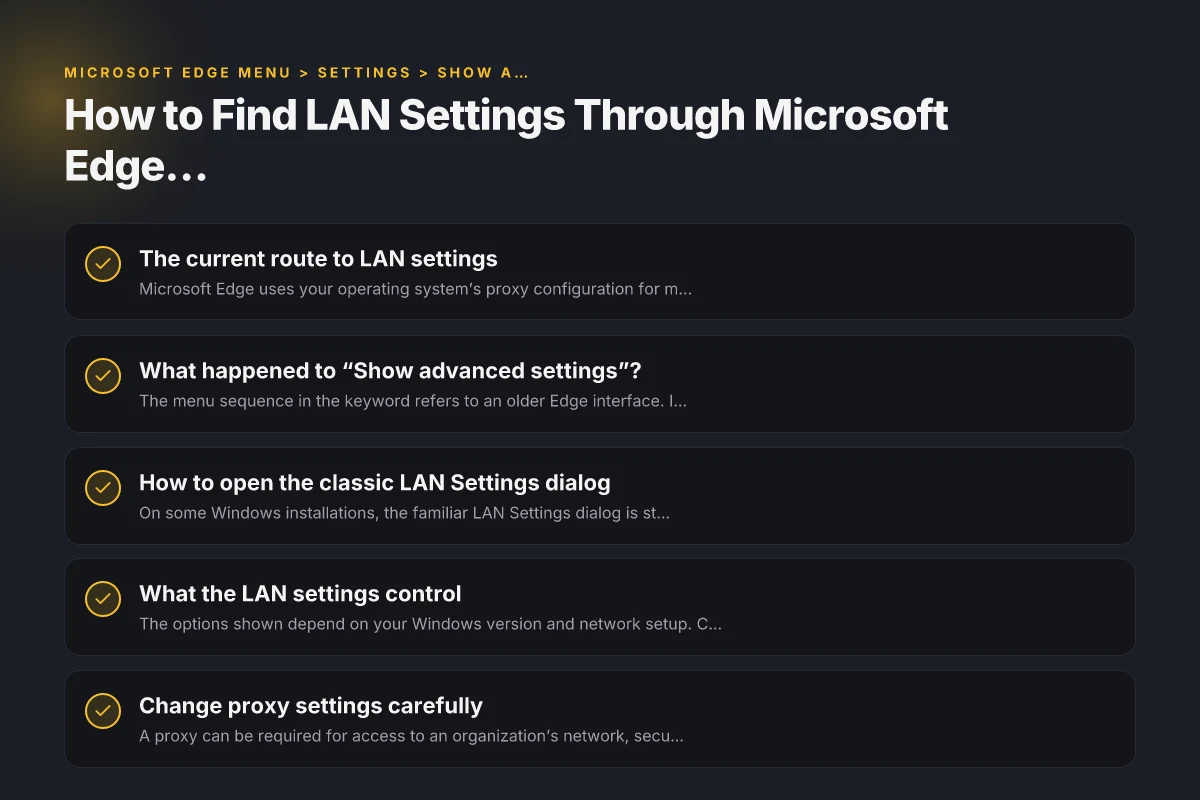
The current route to LAN settings
Microsoft Edge uses your operating system’s proxy configuration for most connections. That means you usually change proxy settings in Windows, not in a separate Edge menu.
Try this route in Edge:
- Open Microsoft Edge.
- Select the three-dot menu in the upper-right corner.
- Select Settings.
- Use the Settings search box and type proxy.
- Select Open your computer’s proxy settings or the similarly named result.
The wording and layout can vary with Edge and Windows versions. You can also open Windows Settings directly: select Start > Settings > Network & internet > Proxy. From there, review the available automatic and manual proxy options.
What happened to “Show advanced settings”?
The menu sequence in the keyword refers to an older Edge interface. In legacy versions, the browser included an Advanced settings area with a Change proxy settings link. Selecting it opened Windows’ Internet Properties dialog. The LAN settings button in that dialog led to the proxy and automatic-configuration controls. NordVPN Download Windows 11: How to Install and Get Started
That older sequence was:
Edge menu > Settings > Show advanced settings > Change proxy settings > LAN settings
In modern Edge, Show advanced settings is no longer a standard menu item. The practical replacement is to open the system proxy page from Edge Settings or Windows Settings. If a guide tells you to click Show advanced settings but you cannot find it, it is likely describing an older browser version.
Where to find proxy controls Checkpoint VPN: What It Does, How It Works, and Which Client to Use
| Control | Classic LAN Settings | Windows Proxy settings | What it controls | Typical use |
|---|---|---|---|---|
| Automatically detect settings | Yes | May be represented differently | Automatic proxy discovery | Managed or automatic networks |
| Use automatic configuration script | Yes | Supported through script settings | Proxy configuration from a script URL | Organization-provided setup |
| Address and port | Yes | Yes | Manual proxy server details | A specified proxy server |
| Bypass proxy for local addresses | Yes | Available with manual proxy settings | Direct access to local addresses | Local network resources |
| Proxy exceptions | Yes | Available with manual proxy settings | Addresses excluded from proxy use | Sites that should connect directly |
| Apply to all protocols | May appear in related proxy dialogs | Windows-dependent | Reuse proxy details across protocols | When the same proxy serves multiple protocols |
| Connection-specific settings | Yes | Not always shown in the same way | LAN connection configuration | Classic dialog users |
Compiled November 2026; check the provider's site for current details.
How to open the classic LAN Settings dialog
On some Windows installations, the familiar LAN Settings dialog is still available through Internet Properties. To reach it:
- Open the Windows Start menu.
- Search for Internet Options and open the result.
- In the Internet Properties window, select the Connections tab.
- Select LAN settings.
You may see controls for automatic configuration and proxy servers. This dialog can remain useful for older applications or network environments that rely on Windows’ traditional Internet settings. However, Windows’ newer Network & internet > Proxy page is the usual place to manage proxy configuration on current systems.
| Route | Best for | What to expect |
|---|---|---|
| Edge Settings search for “proxy” | Finding the relevant system setting from Edge | Opens your device’s proxy controls |
| Windows Settings > Network & internet > Proxy | Managing current Windows proxy options | Shows automatic and manual configuration |
| Internet Options > Connections > LAN settings | Accessing the classic dialog | Useful for legacy settings and compatibility |
What the LAN settings control
The options shown depend on your Windows version and network setup. Common controls include: Free VPN That Changes Location: What to Choose and What to Expect
- Automatically detect settings: Lets Windows try to identify network configuration automatically.
- Use automatic configuration script: Applies settings from a script address, often supplied by an employer or school.
- Use a proxy server for your LAN: Sends eligible traffic through a specified proxy server and port.
- Bypass proxy for local addresses: Lets certain local network addresses connect without using the proxy.
Not every device will show the same options, and some settings may be managed by an organization. If your computer is connected to a work or school network, follow the administrator’s instructions rather than entering proxy details based on guesswork.
Change proxy settings carefully
A proxy can be required for access to an organization’s network, security filtering, or other managed services. Incorrect settings can prevent websites or apps from connecting, or route traffic in an unintended way.
Before making a change:
- Record the existing settings or take a screenshot.
- Confirm whether the proxy should be automatic or manual.
- Use the exact script address, server name, and port provided by your network administrator.
- Avoid disabling a proxy on a managed device unless you have permission.
- After changing a setting, reopen Edge and test the sites or services you need.
If you do not have proxy details and your internet connection works normally, you generally do not need to add a proxy. If you are troubleshooting, restore the previous values if the change does not solve the problem. Fortinet VPN: What It Does, How to Set It Up, and When to Use It
Troubleshooting when the option is missing
If Edge’s Settings search does not show a proxy link, open Windows Settings directly and navigate to Network & internet > Proxy. You can also search Windows for Proxy settings.
If the controls are unavailable or cannot be changed, your device may be managed by an organization. A VPN, security tool, or network policy may also affect how connections are routed. Check with your administrator before trying to override those controls.
If a setting appears correct but browsing still fails, check whether the network requires a proxy script or a specific server and port. Also verify that the problem affects more than one browser or app. This can help distinguish a system-wide proxy issue from an Edge-specific problem.
Choosing a troubleshooting step VPN Free Extension Edge: How to Choose One for Microsoft Edge
| Symptom | Likely explanation | What to try | Expected result | Caution |
|---|---|---|---|---|
| “Show advanced settings” is missing | Edge’s settings layout changed | Open Edge Settings and look for system or proxy links | Find the current route | Labels vary by version |
| Edge has no LAN Settings button | Edge delegates proxy controls to Windows | Open Windows Proxy settings | Reach current proxy controls | Not the classic dialog |
| Need the classic LAN Settings dialog | The control is in Internet Options | Open Internet Options > Connections > LAN settings | Open the classic dialog | Avoid changing unfamiliar values |
| Proxy controls are unavailable | Device settings may be managed | Check with the organization’s administrator | Confirm whether changes are restricted | Do not bypass management |
| Settings appear to reset | A policy or configuration tool may control them | Check for managed-device notices or ask IT | Identify the controlling policy | Avoid repeated overrides |
| Proxy change breaks browsing | The new configuration may be incorrect | Restore the previous values or contact support | Recover the prior connection | Record settings before editing |
| Unsure which proxy option to use | Network requirements are unknown | Ask the network administrator | Get the approved configuration | Do not guess server details |
Compiled November 2026; check the provider's site for current details.
Recommendation
For current versions of Edge, use Edge Settings > search “proxy” or open Windows Settings > Network & internet > Proxy. Use Internet Options > Connections > LAN settings when you specifically need the classic dialog. Keep the existing configuration unchanged unless you have verified instructions for the proxy your network requires.