My VPN Location: How to Check It and Fix It
Learn how to check your VPN location, understand what websites can see, and troubleshoot location leaks.
If you’re wondering, “What is my VPN location?”, it is generally the location associated with the VPN server you’re connected to, not necessarily your physical location. To check it, connect to your VPN, then use a reputable IP lookup service and compare the displayed location with your chosen server. If the result shows your real location, or a different location than expected, check the VPN connection and your device’s location settings.

Editor's pick: NordVPN — fast, secure VPN — Strong encryption, a no-logs policy and apps for every device. 30-day money-back guarantee. Get NordVPN →
Ways to check your apparent VPN location
| Check | What it shows | Useful for | Limitation |
|---|---|---|---|
| IP lookup website | Public IP and estimated location | Quick location check | Location is approximate |
| Search engine location results | Location inferred for search | Checking localized results | Search history may affect results |
| Maps website | Approximate location from available signals | Comparing map behavior | Browser permissions may affect it |
| Streaming service | Region used for content access | Testing a specific service | Content rules vary by service |
| DNS leak test | DNS resolver information | Checking for DNS leaks | Does not confirm every location signal |
| WebRTC leak test | IP information exposed through WebRTC | Checking browser exposure | Results depend on browser settings |
| VPN app | Selected server location and connection status | Confirming the chosen server | May not match website estimates |
Compiled November 2026; check the provider's site for current details.
| VPN | Obfuscation | From / month | Plan | Free plan | Refund | Alipay | UnionPay | Crypto | Website opens in China | Trustpilot | |
|---|---|---|---|---|---|---|---|---|---|---|---|
 ZoogVPN | Turn on manually Shadow | $2.49/mo | 27 months: $59.99 | Yes | 7 days | ✓ | ✓ | ✓ | ✓ | Official site blocked; our special link opens (4.4 s) | 4.2/5 (195 reviews) |
 NordVPN | Turn on manually Obfuscated Servers / NordWhisper | $3.49/mo | 27 months: $94.23 | No | 30 days | ? | ✗ | ✓ | ✓ | ✗ Blocked | 4.2/5 (51,628 reviews) |
 ExpressVPN | ✓ On by default all servers | $3.00/mo | 28 months: $84 | No | 30 days | ✗ | ✗ | ✓ | ✗ | ✗ Blocked | 4.4/5 (29,706 reviews) |
 Surfshark | ✓ On by default Camouflage, with OpenVPN | See site | See site | No | 30 days | ✗ | ✗ | ✗ | ✓ | ✗ Blocked | 4.3/5 (31,823 reviews) |
 Proton VPN | Turn on manually Stealth, free plan too | $2.99/mo | 12 months: $35.88 | Yes | 30 days | ✗ | ✗ | ✗ | ✓ | ✗ Blocked | 2.1/5 (1,040 reviews) |
 Astrill VPN | Turn on manually StealthVPN / OpenWeb | $12.50/mo | 24 months: $300 | No | See site | ✗ | ✗ | ✗ | ✓ | ✗ Blocked | 1.3/5 (110 reviews) |
 Private Internet Access | Turn on manually Shadowsocks, OpenVPN only | $2.03/mo | 40 months: $81.2 | No | 30 days | ✗ | ✗ | ✗ | ✗ | ✗ Blocked | 4.2/5 (11,033 reviews) |
 CyberGhost | Turn on manually selected servers | $2.19/mo | 28 months: $61.32 | No | 45 days | ✗ | ✗ | ✗ | ✓ | ✗ Blocked | 4.0/5 (24,178 reviews) |
 PureVPN | Turn on manually switch to OpenVPN | $1.69/mo | 60 months: $101.55 | No | 31 days | ? | ? | ✗ | ✓ | ✗ Blocked | 4.4/5 (17,994 reviews) |
 AdGuard VPN | ✓ On by default TrustTunnel | $2.99/mo | 24 months: $71.76 | Yes | 30 days | ✓ | ✗ | ✓ | ✓ | Official site blocked; our special link opens (3.7 s) | 4.3/5 (290 reviews) |
 Mullvad | Turn on manually QUIC / Shadowsocks / LWO | $5.61/mo | €5/mo | No | 14 days | ✗ | ✗ | ✗ | ✓ | ✗ Blocked | 3.2/5 (192 reviews) |
 Windscribe | Turn on manually Stealth / WStunnel | $5.75/mo | 12 months: $69 | Yes | See site | ✗ | ✗ | ✗ | ✓ | ✗ Blocked | 4.7/5 (13,355 reviews) |
 StrongVPN | Turn on manually Scramble, OpenVPN TCP | See site | See site | No | 30 days | ✓ | ✗ | ✗ | ✗ | ✗ Blocked | 4.4/5 (2,695 reviews) |
 LightXtreme 闪连 | Not listed | $7.08/mo | 12 months: $84.99 | Yes | 30 days | ✓ | ✓ | ✓ | ✓ | ✓ Yes (3.5 s) | No page |
Prices checked 2026-11-10 on each vendor's pricing page (cheapest long plan, USD). Check the vendor's checkout for the final price.
Obfuscation checked 2026-11-14 on each vendor's site and help center: "on by default" = nothing to set; "turn on manually" = switch protocol or mode in settings; "not listed" = the vendor describes no obfuscation.
Payment methods checked 2026-11-10 on each vendor's payment pages: all 14 take cards and PayPal; ✗ = not listed, ? = the vendor's own pages disagree.
China access: whether the official website opens from mainland China networks (tests the website only, not the VPN connection). Last checked 2026-11-18 01:02 Beijing time.
Trustpilot score and review count checked 2026-11-10.
What “my VPN location” means
A VPN routes your internet traffic through a remote server. Websites and online services usually see the server’s public IP address rather than the IP address assigned to your home or mobile connection. IP lookup services use databases to estimate where that address is registered or located.
For example, if you are physically in Canada and connect to a VPN server in the United Kingdom, an IP checker may report a UK location. The displayed city may not match the server’s actual data center, however. Location databases can be imprecise, outdated, or based on the VPN provider’s business address.
Your VPN location is therefore best understood as an estimate tied to the IP address you’re using. It does not automatically change every location signal on your device.
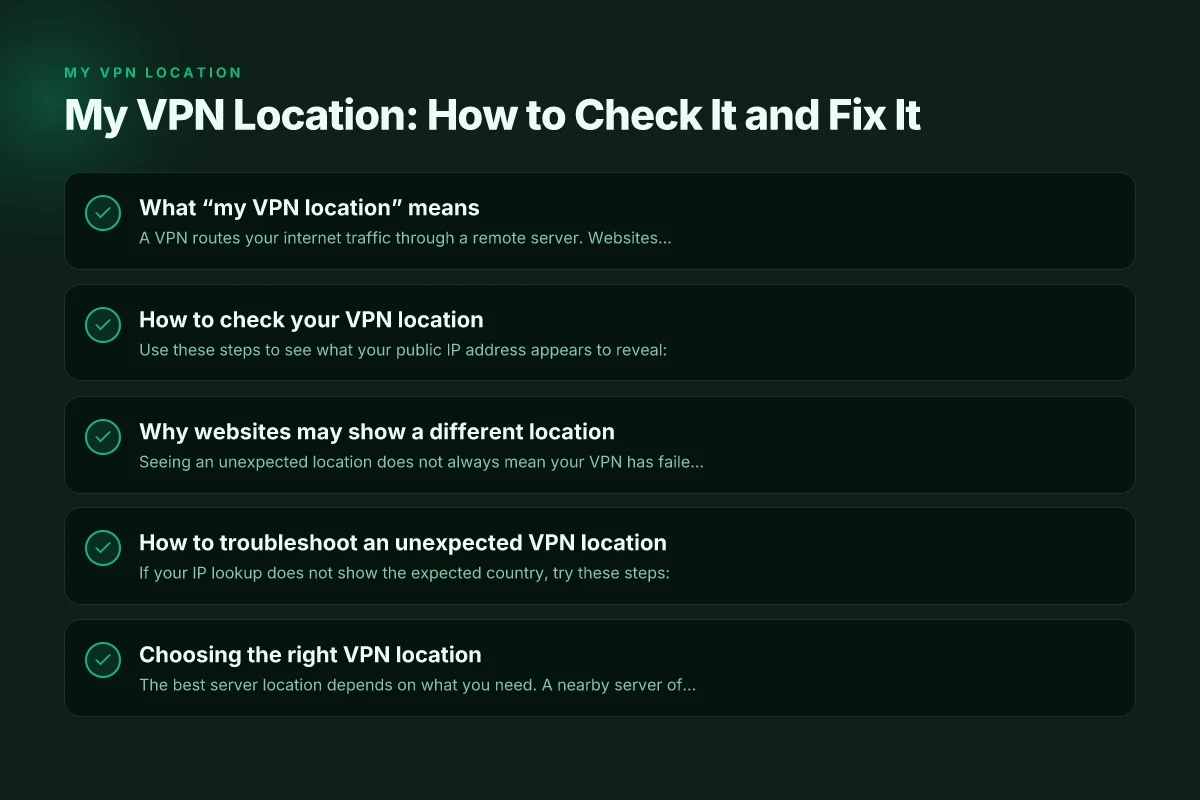
How to check your VPN location
Use these steps to see what your public IP address appears to reveal: VPN Free for Edge: How to Choose and Use One Safely
- Open your VPN app and connect to the country or city you want.
- Confirm the app says the connection is active.
- Visit a reputable IP address lookup site.
- Check the reported IP address, country, and city.
- Compare the result with the server location selected in your VPN app.
You can also search online for “What is my IP?” and check the result, though dedicated IP lookup services may provide more location details. For a useful test, compare the result before and after connecting to the VPN. The IP address should change when the VPN is active.
| What you check | What it can tell you | Important limitation |
|---|---|---|
| Public IP address | Which IP websites may see | It does not show every location signal |
| IP-based country or city | The approximate location associated with that IP | The city can be inaccurate |
| VPN app status | Whether the app reports a connection | An active status alone does not confirm every app uses the VPN |
| Device GPS location | Your device’s physical location, if shared | A VPN generally does not change GPS data |
Why a website may show a different location
| Possible cause | What the site may detect | How to check | Possible next step |
|---|---|---|---|
| VPN server location | Public IP tied to the server | Compare IP lookup results | Choose another VPN server |
| IP geolocation database | An outdated or approximate location | Check more than one lookup site | Allow for database differences |
| Browser location permission | Device location, if permitted | Review browser permissions | Deny access if not needed |
| GPS or device location | Device coordinates | Check device location settings | Turn off location access |
| DNS leak | DNS requests outside the VPN | Run a DNS leak test | Review VPN leak protection |
| WebRTC exposure | IP details available to the browser | Run a WebRTC leak test | Adjust browser or VPN settings |
| Cookies or account history | Previously stored region signals | Try a private window | Clear site data or review account settings |
Compiled November 2026; check the provider's site for current details.
Why websites may show a different location
Seeing an unexpected location does not always mean your VPN has failed. IP location services can disagree, and a VPN provider may route your traffic through a server registered in one place while labeling it as another. 365VPN Review: Features, Devices, and What to Check
Websites may also use information beyond your IP address, including:
- GPS or other device location permissions
- Wi-Fi or mobile network data
- Browser location settings
- Cookies and previously saved account activity
- Your profile’s home address, billing details, or selected region
- DNS or WebRTC requests that may expose network information
This is why a site can show your usual region even when an IP checker reports the VPN server’s country. Streaming services, shopping sites, and search engines may also use account or browser history to personalize results.
A VPN changes the network route and public IP visible to many services. It does not make every part of your device appear to be somewhere else.
How to troubleshoot an unexpected VPN location
If your IP lookup does not show the expected country, try these steps: VPN IPsec: How It Works, Benefits, and When to Use It
- Reconnect to the VPN. Disconnect, wait a few seconds, and connect again. Confirm the selected server and connection status in the app.
- Choose another server. A nearby server in the same country may have an IP address with more accurate location data.
- Check for a dropped connection. Enable the VPN’s kill switch, if available, to block internet traffic when the VPN disconnects unexpectedly.
- Review DNS and WebRTC settings. Some browsers or VPN apps provide leak protection. You can use reputable leak-test tools to check whether DNS requests or WebRTC reveal your regular network information.
- Check device location permissions. If a website has access to your location, it may use GPS or device-based data instead of relying on your IP address. Review permissions in your browser and operating system.
- Clear relevant site data. Cookies or an account’s saved region can affect what a website displays. Try a private browser window or clear that site’s cookies, then check again.
- Contact your VPN provider. If the issue continues, ask whether the server’s IP address has recently changed or whether the location listing is being updated.
Avoid assuming that a particular country or city result proves a leak. First compare the IP shown with your VPN’s server information and test using more than one reliable lookup service.
Choosing a VPN location
| Priority | Location choice | Potential benefit | Trade-off |
|---|---|---|---|
| Privacy | A nearby server | Less travel-related exposure | Does not guarantee anonymity |
| Speed | A nearby server | Often a shorter network route | Actual speed can vary |
| Local websites | A server in your usual region | Familiar local results | Websites may use other signals |
| Regional content | A server where the service is available | May show region-specific options | Service access is not guaranteed |
| Travel access | A server in your home region | May help reach familiar services | Some services restrict VPN use |
| Testing | Several server locations | Helps compare detected regions | Results may differ by lookup site |
| Reliability | A server that connects consistently | More dependable access | Performance can change over time |
Compiled November 2026; check the provider's site for current details.
Choosing the right VPN location
The best server location depends on what you need. A nearby server often gives you lower latency and faster connections. A server in a particular country may be useful when you need access to a service or website available there, but availability can depend on that service’s rules and your account settings. TunnelBear Extension: What It Does and How to Use It
Consider these factors when choosing:
- Speed: Nearby servers are often faster, though network conditions and server load matter.
- Location accuracy: City-level labels may not reflect the physical server location.
- Privacy practices: Review the provider’s privacy policy and security features rather than relying on location alone.
- Reliability: Try a different server if the connection is slow, unstable, or repeatedly blocked.
- Service terms: Check the rules of any website or service you use, since changing your apparent IP location may not be permitted.
VPN location versus physical location
A VPN can make your public IP appear to come from a different place, but it does not change where you physically are. Apps with location permission may still access your GPS location, and a website may infer your region from account details or previous activity. Treat the VPN as one privacy and network-routing tool, not a complete location-spoofing system.
Recommendation
To check “my VPN location,” connect to your chosen server and verify the public IP with a reputable lookup service. If the country or city looks wrong, try another server and check for device location permissions, saved site data, and possible DNS or WebRTC leaks. For the best result, rely on your VPN’s security features and privacy policy, not on an IP location label alone.