iPhone V2Ray: How to Set Up a V2Ray Client on iOS
Learn how to use V2Ray on iPhone, choose a compatible client, add a server profile, and troubleshoot common connection issues.
If you’re looking for “iPhone V2Ray,” you likely want to connect an iPhone to a V2Ray-compatible proxy or VPN-style service. To do that, install a reputable iOS client that supports your server’s protocol, then import a profile or enter the connection details provided by your service provider or server administrator. The exact steps vary by app and server setup, so check that the client supports the configuration you have before you begin.
V2Ray is software used to route network traffic through proxy protocols. It is not, by itself, a subscription service or a complete connection: you need both a compatible client on your iPhone and access to a working server. Availability of specific client apps can also change by region and over time.

Compare iPhone V2Ray client options
| Client | V2Ray support | Import options | Setup effort | Best for |
|---|---|---|---|---|
| Shadowrocket | Check current app support | Subscription or configuration link, if supported | Varies | Users wanting a general proxy client |
| FoXray | Check current app support | Configuration or subscription, if supported | Varies | Users seeking a V2Ray-focused client |
| Streisand | Check current app support | Configuration or subscription, if supported | Varies | Users comparing iOS proxy tools |
| Other compatible client | Verify protocol support | Check app documentation | Varies | Users with a preferred app |
| Any option | Requires a valid server configuration | Depends on the app | Requires careful entry or import | Users with provider details ready |
| Any option | App availability may vary by region | App Store listing | Check before installing | Users checking local availability |
Compiled November 2026; check the provider's site for current details.
What you need before setting up V2Ray
Gather your connection details before opening a client. Depending on the server, these may be supplied as a configuration link, a QR code, or a configuration file. Some setups require entering the information manually.
You may need details such as:
- The server address and port
- The protocol, such as VMess, VLESS, or another supported option
- An identifier or authentication credential
- Transport settings, such as WebSocket or gRPC
- TLS settings and, where applicable, a server name
- Additional routing or encryption parameters
Not every setup uses every field. Use the values supplied for your server rather than copying a configuration from an unrelated guide. A small mismatch in a port, identifier, transport, or TLS setting can prevent the connection.
If you do not have a server profile, contact your provider or administrator. Avoid random configuration links posted online: they may be expired, unreliable, or controlled by someone you do not trust. Why Doesn’t My VPN Switch to Those Local TV Stations?
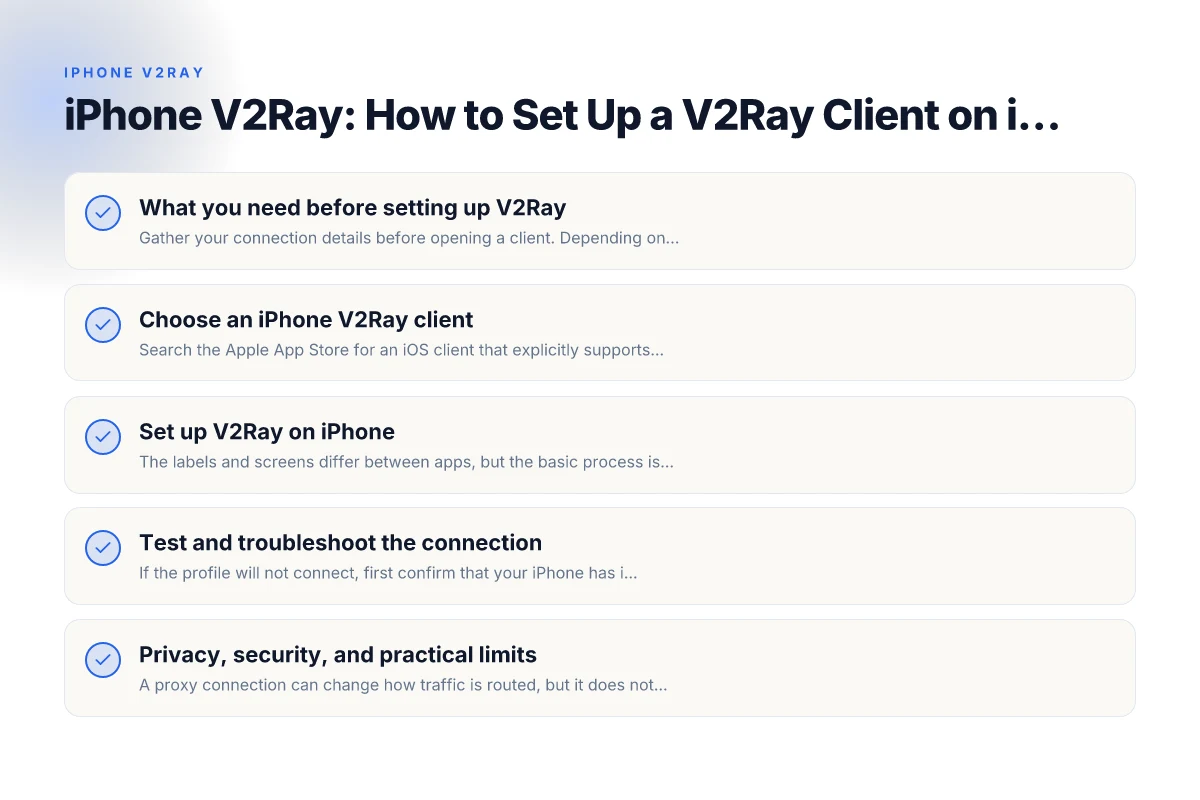
Choose an iPhone V2Ray client
Search the Apple App Store for an iOS client that explicitly supports your server’s protocol and configuration format. Read the current app description and documentation, since app names, features, availability, and import methods can change.
| Option | Best for | What to check |
|---|---|---|
| A V2Ray-compatible iOS client | Connecting to a provider’s V2Ray server | Protocol, transport, and import support |
| A general proxy or VPN client | Setups using other supported protocols | Whether it supports your exact profile type |
| A provider’s own iOS app | A service with managed setup | Provider reputation, privacy terms, and required permissions |
Prefer apps from identifiable developers with recent updates and clear support information. Review the app’s privacy details and permissions. A client needs permission to add a VPN configuration in iOS when it routes traffic through a local VPN interface. That permission alone does not establish that the provider or server is trustworthy.
Compare setup and connection methods
| Method | What you need | Setup effort | Common issue | Useful check |
|---|---|---|---|---|
| Scan a QR code | Valid configuration QR code | Low | Blurry or incomplete code | Rescan from the original source |
| Import a link | Valid configuration or subscription link | Low | Expired or mistyped link | Confirm the link with its provider |
| Enter details manually | Server and protocol settings | Higher | Incorrect field or value | Compare each field with provider details |
| Use a subscription | Subscription link and compatible app | Low | Outdated server list | Refresh the subscription |
| Connect through Wi-Fi | Working network and configuration | Low | Network blocks the connection | Test another trusted network |
| Connect through cellular | Active mobile data and configuration | Low | Weak signal or data restrictions | Check signal and mobile-data access |
Compiled November 2026; check the provider's site for current details. Free VPN for PC: How to Choose and Use One Safely
Set up V2Ray on iPhone
The labels and screens differ between apps, but the basic process is similar:
- Install a compatible client from the App Store.
- Open the app and choose its option to add or import a server profile.
- Import the configuration link, scan the provider’s QR code, or select the supplied file. If the app does not support importing your format, ask the provider for an iOS-compatible configuration.
- If entering details manually, copy them exactly. Pay close attention to the protocol, address, port, authentication value, transport, and TLS settings.
- Save the profile, select it, and tap the app’s connect control.
- Approve the iOS prompt to add a VPN configuration if the app requests it. Confirm only if you intended to connect using that client.
- Check the app for a connected status, then test a website or service you normally use.
Some apps let you choose whether all traffic or only selected traffic goes through the connection. Follow the provider’s instructions and check the client’s routing settings. If you are unsure, do not assume that every app or type of traffic is being routed the way you expect.
Test and troubleshoot the connection
If the profile will not connect, first confirm that your iPhone has internet access without the client. Then check the profile against the latest details from your provider or administrator.
Common issues include: IPsec Port: Which Ports and Protocols Does IPsec Use?
- Connection times out: The server may be offline, the address or port may be wrong, or the current network may block the connection.
- Authentication fails: Reimport the profile or verify that its credentials have not expired.
- The app connects, but websites do not load: Check the client’s DNS and routing settings, and ask the provider whether the server is operating normally.
- Only some apps work: The profile may use split routing, or the client may not be configured to route all traffic.
- The connection stops after switching networks: Disconnect and reconnect after moving between Wi-Fi and cellular data. Also check whether the profile is still current.
Update the client and iOS where practical, but avoid changing several advanced settings at once. If a profile is provider-managed, request a fresh one before experimenting with unfamiliar parameters. Never share a configuration link, QR code, or credentials publicly. Anyone who obtains them may be able to use the connection.
Privacy, security, and practical limits
A proxy connection can change how traffic is routed, but it does not make you anonymous or automatically protect every activity. The server operator may be able to see connection metadata, and the websites or apps you use may still collect information about you. HTTPS protects data in transit between your device and a website, but it does not hide all metadata or prevent tracking.
Choose a provider based on its reputation, transparency, security practices, and privacy policy. Be cautious with free servers that have no clear operator or explanation of how they are funded. Keep iOS and the client app updated, use a device passcode, and remove profiles you no longer need.
Also check local laws, workplace or school rules, and the terms of the service you are using. A V2Ray client is a network tool. Whether a particular use is permitted depends on your location and circumstances. VPN Country Changer Free: How to Change Your Virtual Location Safely
Decide whether V2Ray on iPhone fits your needs
| Consideration | Suitable when | Limitation to consider | Practical step |
|---|---|---|---|
| Configuration access | You have details from a trusted provider | A client app cannot supply a server | Obtain and verify configuration details |
| Client choice | The app supports your required protocol | Features and availability can change | Check the current App Store listing |
| Privacy | You understand the provider’s policies | A proxy does not guarantee anonymity | Review logging and privacy terms |
| Security | You use a trusted server and current app | Misconfiguration can expose traffic | Verify settings and update the app |
| Troubleshooting | You can test settings and networks | Failures may have several causes | Check configuration, network, and service status |
| Everyday use | The connection works reliably for your tasks | Speed and access depend on server and network | Test before relying on it |
| Recommendation | You value control and can manage settings | It may be unsuitable if you need automatic support | Start with a reputable client and verified configuration |
Compiled November 2026; check the provider's site for current details.
Recommendation
For iPhone V2Ray, use a reputable, recently updated iOS client that supports your server’s exact protocol and import format. Get the profile directly from a provider or administrator you trust, verify that the connection works, and keep the configuration private.