Free VPN Extension for Microsoft Edge: What to Choose and How to Use It
Find a free VPN extension for Microsoft Edge, compare popular options, and learn how to install one safely.
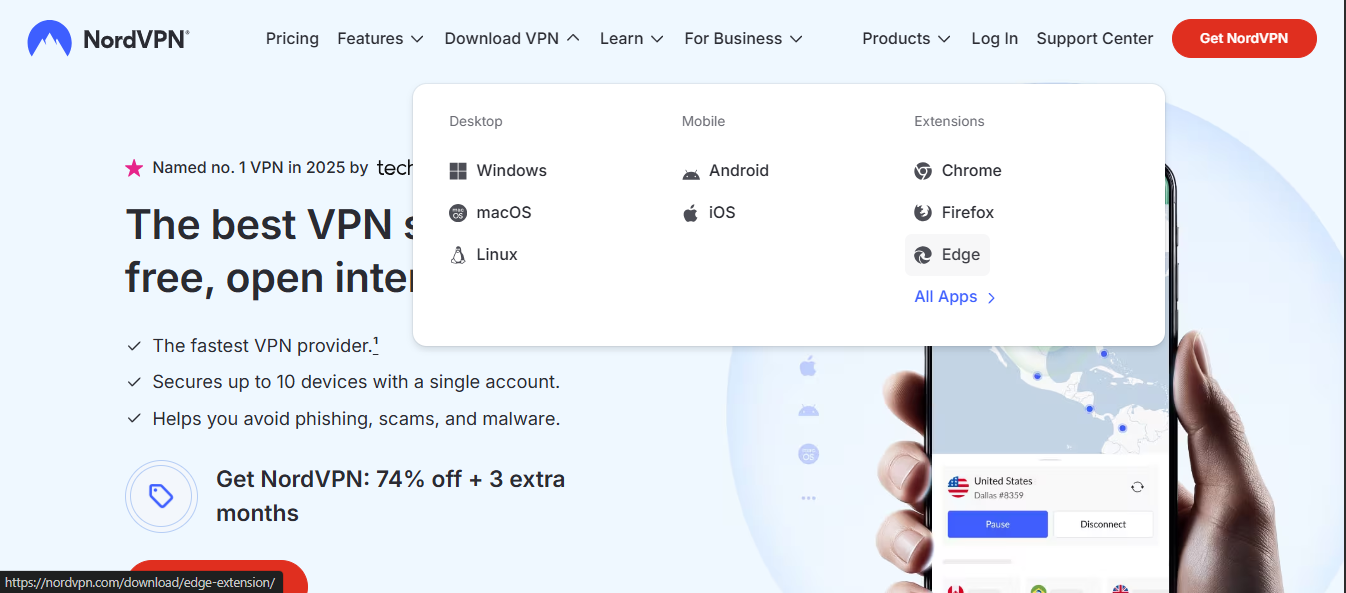
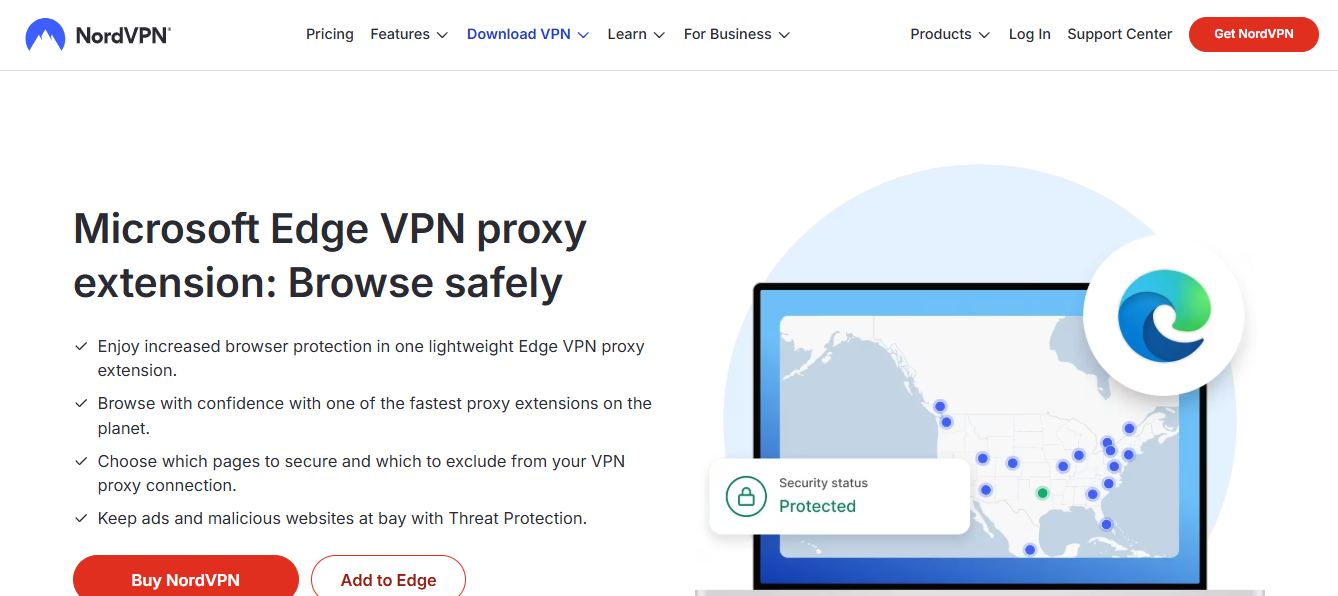
If you’re looking for a free VPN extension for Microsoft Edge, start with a reputable provider that offers a clear privacy policy and a genuinely free plan. A browser extension is usually quick to install and can route traffic from Edge through a VPN server, helping mask your IP address from websites. However, free options come with trade-offs, and an extension may protect only browser traffic, not everything your device sends online.

Editor's pick: NordVPN — fast, secure VPN — Strong encryption, a no-logs policy and apps for every device. 30-day money-back guarantee. Get NordVPN →
Compare common types of free VPN extensions for Edge
| Option type | What it does | Typical benefit | Main limitation | Best suited for |
|---|---|---|---|---|
| Browser proxy extension | Routes browser traffic through a proxy | Simple browser-only setup | May not protect other apps | Occasional browsing |
| Full VPN browser extension | Connects the browser through a VPN service | VPN features in the browser | Free plans may be limited | Browser-focused use |
| Built-in browser VPN feature | Provides a browser-integrated connection service | Convenient to access | Availability and features vary | Users who prefer built-in tools |
| Free tier from a VPN provider | Offers limited access to a provider’s service | Known provider and clear plan terms | Data, speed, or server limits may apply | Light, occasional use |
| Unlimited free extension | Advertises free access without a data cap | No stated data limit | Privacy and business model need checking | Users willing to research carefully |
| Paid VPN extension | Offers access under a paid plan | Often includes more features | Requires a subscription | Regular or higher-demand use |
Compiled November 2026; check the provider's site for current details.
| VPN | Obfuscation | From / month | Plan | Free plan | Refund | Alipay | UnionPay | Crypto | Website opens in China | Trustpilot | |
|---|---|---|---|---|---|---|---|---|---|---|---|
 Proton VPN | Turn on manually Stealth, free plan too | $2.99/mo | 12 months: $35.88 | Yes | 30 days | ✗ | ✗ | ✗ | ✓ | ✗ Blocked | 2.1/5 (1,040 reviews) |
 Windscribe | Turn on manually Stealth / WStunnel | $5.75/mo | 12 months: $69 | Yes | See site | ✗ | ✗ | ✗ | ✓ | ✗ Blocked | 4.7/5 (13,355 reviews) |
 ZoogVPN | Turn on manually Shadow | $2.49/mo | 27 months: $59.99 | Yes | 7 days | ✓ | ✓ | ✓ | ✓ | Official site blocked; our special link opens (4.4 s) | 4.2/5 (195 reviews) |
 NordVPN | Turn on manually Obfuscated Servers / NordWhisper | $3.49/mo | 27 months: $94.23 | No | 30 days | ? | ✗ | ✓ | ✓ | ✗ Blocked | 4.2/5 (51,628 reviews) |
 ExpressVPN | ✓ On by default all servers | $3.00/mo | 28 months: $84 | No | 30 days | ✗ | ✗ | ✓ | ✗ | ✗ Blocked | 4.4/5 (29,706 reviews) |
 Surfshark | ✓ On by default Camouflage, with OpenVPN | See site | See site | No | 30 days | ✗ | ✗ | ✗ | ✓ | ✗ Blocked | 4.3/5 (31,823 reviews) |
 Astrill VPN | Turn on manually StealthVPN / OpenWeb | $12.50/mo | 24 months: $300 | No | See site | ✗ | ✗ | ✗ | ✓ | ✗ Blocked | 1.3/5 (110 reviews) |
 Private Internet Access | Turn on manually Shadowsocks, OpenVPN only | $2.03/mo | 40 months: $81.2 | No | 30 days | ✗ | ✗ | ✗ | ✗ | ✗ Blocked | 4.2/5 (11,033 reviews) |
 CyberGhost | Turn on manually selected servers | $2.19/mo | 28 months: $61.32 | No | 45 days | ✗ | ✗ | ✗ | ✓ | ✗ Blocked | 4.0/5 (24,178 reviews) |
 PureVPN | Turn on manually switch to OpenVPN | $1.69/mo | 60 months: $101.55 | No | 31 days | ? | ? | ✗ | ✓ | ✗ Blocked | 4.4/5 (17,994 reviews) |
 AdGuard VPN | ✓ On by default TrustTunnel | $2.99/mo | 24 months: $71.76 | Yes | 30 days | ✓ | ✗ | ✓ | ✓ | Official site blocked; our special link opens (3.7 s) | 4.3/5 (290 reviews) |
 Mullvad | Turn on manually QUIC / Shadowsocks / LWO | $5.61/mo | €5/mo | No | 14 days | ✗ | ✗ | ✗ | ✓ | ✗ Blocked | 3.2/5 (192 reviews) |
 StrongVPN | Turn on manually Scramble, OpenVPN TCP | See site | See site | No | 30 days | ✓ | ✗ | ✗ | ✗ | ✗ Blocked | 4.4/5 (2,695 reviews) |
 LightXtreme 闪连 | Not listed | $7.08/mo | 12 months: $84.99 | Yes | 30 days | ✓ | ✓ | ✓ | ✓ | ✓ Yes (3.5 s) | No page |
Prices checked 2026-11-10 on each vendor's pricing page (cheapest long plan, USD). Check the vendor's checkout for the final price.
Obfuscation checked 2026-11-14 on each vendor's site and help center: "on by default" = nothing to set; "turn on manually" = switch protocol or mode in settings; "not listed" = the vendor describes no obfuscation.
Payment methods checked 2026-11-10 on each vendor's payment pages: all 14 take cards and PayPal; ✗ = not listed, ? = the vendor's own pages disagree.
China access: whether the official website opens from mainland China networks (tests the website only, not the VPN connection). Last checked 2026-11-18 01:02 Beijing time.
Trustpilot score and review count checked 2026-11-10.
What a VPN extension for Edge does
A VPN, or virtual private network, sends internet traffic through a remote server operated by the VPN provider. When you use a VPN extension in Edge, websites generally see the VPN server’s IP address instead of your usual public IP address. The connection may also help protect browser traffic when you’re on public Wi-Fi, depending on how the service is configured.
The key distinction is scope. A browser extension may act as a proxy for Edge traffic rather than a full-device VPN. Other browsers, desktop apps, and system services may continue to connect through your regular internet connection.
Extensions can also have different technical designs. Some encrypt traffic between the browser and the provider, while others mainly route it through a proxy. Read the provider’s description rather than assuming every extension offers the same level of protection.
A VPN does not make you completely anonymous. Websites may still recognize you through account logins, cookies, browser fingerprinting, or information you choose to share. It also does not automatically block every scam, malicious download, or tracking method. NordVPN in China: What to Know Before You Travel
Free VPN extensions worth comparing
Several established VPN providers offer free browser extensions or free plans that may be used with Edge. Availability, limits, and features can change, so verify current details on the provider’s official website before installing.
| Provider | What to check | Possible trade-off |
|---|---|---|
| Proton VPN | Whether its current free offering supports the Edge setup you want | Free-plan locations or features may differ from paid plans |
| Windscribe | Monthly data allowance, server locations, and account requirements | A data cap may limit frequent streaming or downloads |
| Browsec | Free-tier speed, locations, and privacy terms | Free service may have fewer locations or slower performance |
| SetupVPN | Data limits, provider details, and how traffic is handled | Confirm the service’s current terms and technical protections |
This is a comparison checklist, not a guarantee that every feature is currently available. Providers can change their plans, and Edge extension listings may differ by region. Look at the latest official documentation and store listing before making a choice.
Be cautious with extensions that promise unlimited access, complete anonymity, or guaranteed access to every streaming service without clearly explaining how they work. A free label alone does not tell you how a provider pays for its service or handles your data.
Check a free VPN extension before installing IPsec VPN connection is down forticlient: Causes and Fixes
| Check | What to look for | Safer sign | Warning sign | Why it matters |
|---|---|---|---|---|
| Publisher | Company identity and website | Clear, consistent identity | Unclear publisher | Helps assess accountability |
| Privacy policy | Data collected and shared | Specific, readable terms | Vague or missing policy | Shows how browsing data may be handled |
| Permissions | Access requested by the extension | Permissions fit its features | Unexplained broad access | Limits unnecessary access |
| Business model | How the free service is funded | Clearly explained funding | No explanation | Helps evaluate incentives |
| Limits | Data, speed, or server restrictions | Limits stated upfront | Restrictions hidden | Sets realistic expectations |
| Reviews | Recent user feedback | Consistent, relevant feedback | Repeated reports of problems | Can reveal practical issues |
| Updates | Recent maintenance activity | Ongoing updates | Long inactivity | Indicates whether the extension is maintained |
| Provider reputation | Independent coverage and track record | Verifiable history | Little reliable information | Adds context beyond store listings |
Compiled November 2026; check the provider's site for current details.
How to install a free VPN extension in Microsoft Edge
Use the official Microsoft Edge Add-ons store or a link provided directly by the VPN provider. Avoid downloading extension files from unfamiliar websites.
- Open Microsoft Edge and visit the Edge Add-ons store.
- Search for the VPN provider by its exact name.
- Check the publisher and compare the listing with the provider’s official website.
- Review permissions, user feedback, update history, and the privacy policy.
- Select “Get” or “Add to Edge,” then confirm the installation.
- Open the extension, sign in or create an account if required, and choose a server.
- Test your public IP address with a reputable IP-checking website.
After installation, check whether the extension is connected before browsing. If the service offers a connection-drop or leak-protection setting, review what it does and whether it is available on the free plan. Keep Edge and the extension updated, and remove the extension if it stops receiving updates or its terms become unclear.
Choosing a safer free option
A trustworthy provider should explain what information it collects, why it collects it, and how long it keeps it. Read the privacy policy, especially its sections on browsing data, connection logs, analytics, and sharing with third parties. “No logs” is a marketing claim unless supported by clear details about the service’s practices. FortiClient IPsec: Setup, Configuration, and Troubleshooting
Pay attention to the extension’s permissions. A VPN extension may need broad browser access to route traffic, but you should still understand what that access allows. If the requested permissions seem unrelated to the service, investigate before installing.
Use this quick checklist:
- Provider identity: Is the publisher clearly connected to a known VPN service?
- Privacy policy: Does it explain data collection in plain language?
- Limits: Are data, speed, and server restrictions stated upfront?
- Permissions: Do they make sense for the extension’s purpose?
- Updates: Is the extension maintained and compatible with your version of Edge?
- Support: Can you find official help pages and contact information?
Avoid free VPNs that rely on intrusive advertisements, hide ownership, or make sweeping privacy promises without evidence. A free service may be useful for occasional browsing, but if the provider is not transparent, it may not be worth the risk.
Limitations to understand before connecting
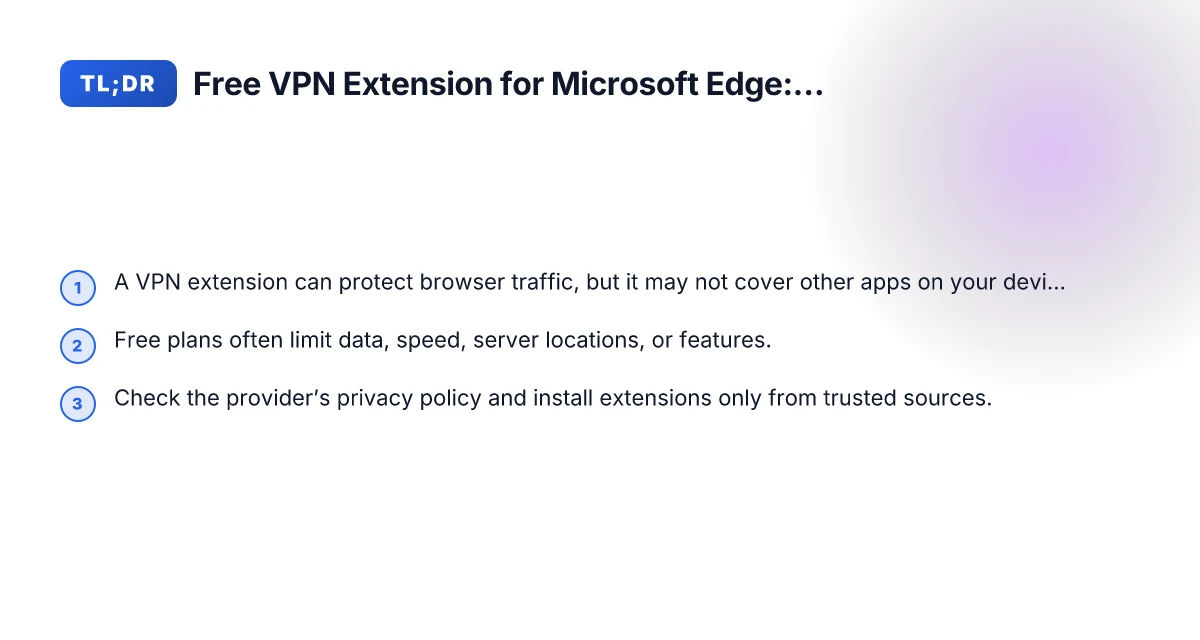
Free plans commonly restrict data, speed, server locations, or simultaneous use. These limits may be fine for basic browsing, but they can make video calls, large downloads, or high-definition streaming frustrating. Free servers may also become busy at peak times. VPN Cisco: How Cisco VPN Works and Which Option to Choose
A VPN can affect website access. Some sites block known VPN server addresses, ask for extra verification, or show content based on the server’s location. Connection speed can drop because your traffic takes an additional route.
Remember that an Edge extension may not protect traffic from other apps. If you need device-wide coverage, for example, for a messaging app or software that does not run in the browser, look for a full VPN application and confirm what its free plan includes.
A VPN is also not a substitute for HTTPS, strong passwords, multi-factor authentication, or cautious downloading. For sensitive tasks, use trusted websites and keep your operating system and browser security features enabled.
Choose an option based on how you plan to use it TunnelBear Extension Edge: How to Install and Use It
| Need | Free extension may fit? | What to check first | Likely trade-off | Consider another option when |
|---|---|---|---|---|
| Occasional browsing | Yes | Privacy policy and permissions | Service limits | You need dependable access |
| Accessing region-specific sites | Maybe | Available locations and site compatibility | Locations may be limited | A required location is unavailable |
| Streaming video | Maybe | Speed, data limits, and service rules | Buffering or access restrictions | You need consistent playback |
| Protecting browser traffic on public Wi-Fi | Maybe | Connection behavior and privacy terms | Browser-only coverage may leave other apps out | You need whole-device protection |
| Using apps outside Edge | Usually not by itself | Whether the service includes a full VPN app | Extension may cover only browser traffic | Other apps also need protection |
| Handling sensitive activity | Not ideal without careful review | Provider practices and independent evidence | Free-service privacy may be unclear | You need stronger assurances |
| Avoiding subscriptions | Yes, with caution | Free-plan limits and funding model | Reduced features or service constraints | Limits interfere with regular use |
| Frequent, high-bandwidth use | Often not | Data allowance, speed, and server access | Free tiers may be restrictive | You need sustained performance |
Compiled November 2026; check the provider's site for current details.
Recommendation
For occasional browser use, choose a free VPN extension from a provider with a transparent privacy policy, clear limits, and an official Edge listing. Confirm whether it covers Edge alone or offers broader device protection, then test the connection and review its permissions. If you need reliable performance, more locations, or protection for every app, compare reputable full VPN plans rather than relying on a browser extension alone.