Forticlientvpninstaller.exe: Safe Download and Installation Guide
Learn what forticlientvpninstaller.exe is, where to get FortiClient VPN, and how to install it safely on Windows.
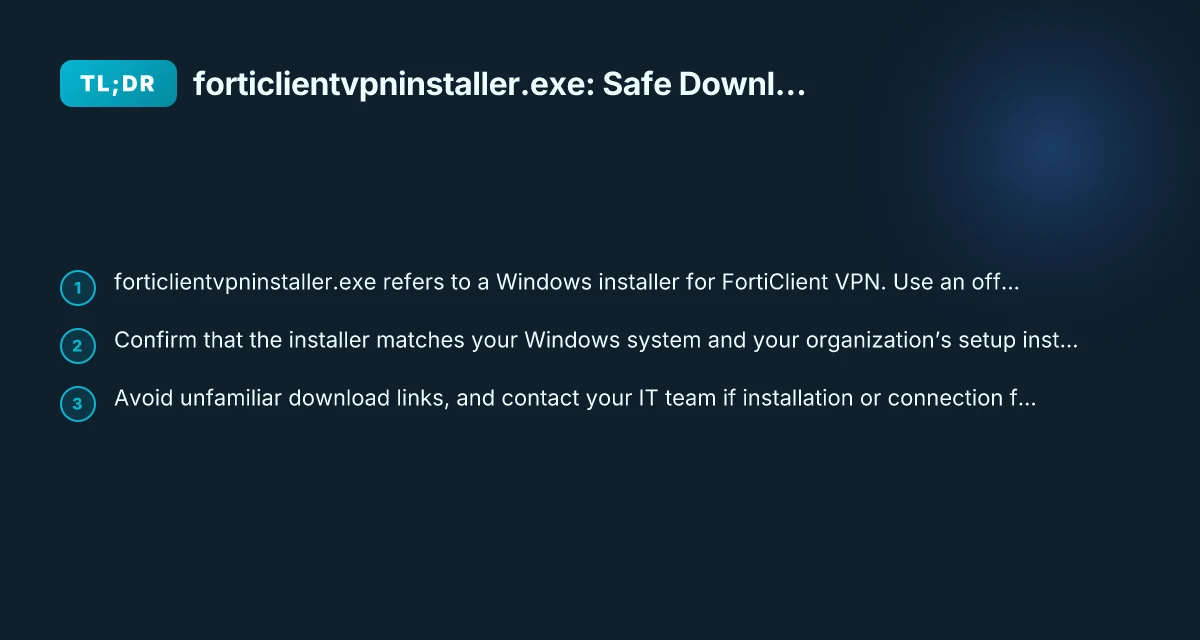
forticlientvpninstaller.exe is a Windows installer file associated with FortiClient VPN. To install the VPN client, get the installer from Fortinet’s official product-download page or follow the download link provided by your organization. Check that the file comes from a trusted source before opening it, then follow the installation prompts and use the VPN settings supplied by your workplace, school, or service provider.

Editor's pick: NordVPN — fast, secure VPN — Strong encryption, a no-logs policy and apps for every device. 30-day money-back guarantee. Get NordVPN →
Compare safe download sources
| Source | Trust level | Version clarity | Tampering risk | Recommendation |
|---|---|---|---|---|
| Fortinet official site | Highest | Check listing | Lowest | Preferred |
| Organization’s IT portal | High if verified | May be managed | Low if verified | Use for work devices |
| Authorized reseller | Depends on seller | Check listing | Varies | Verify authorization |
| Third-party download site | Uncertain | May be outdated | Higher | Avoid when possible |
| Search-result download link | Uncertain | Unclear | Higher | Open official source directly |
| File-sharing site | Low | Unclear | High | Avoid |
| Email attachment | Unverified | Unclear | High | Confirm with IT first |
Compiled November 2026; check the provider's site for current details.
| VPN | Obfuscation | From / month | Plan | Free plan | Refund | Alipay | UnionPay | Crypto | Website opens in China | Trustpilot | |
|---|---|---|---|---|---|---|---|---|---|---|---|
 ZoogVPN | Turn on manually Shadow | $2.49/mo | 27 months: $59.99 | Yes | 7 days | ✓ | ✓ | ✓ | ✓ | Official site blocked; our special link opens (4.4 s) | 4.2/5 (195 reviews) |
 NordVPN | Turn on manually Obfuscated Servers / NordWhisper | $3.49/mo | 27 months: $94.23 | No | 30 days | ? | ✗ | ✓ | ✓ | ✗ Blocked | 4.2/5 (51,628 reviews) |
 ExpressVPN | ✓ On by default all servers | $3.00/mo | 28 months: $84 | No | 30 days | ✗ | ✗ | ✓ | ✗ | ✗ Blocked | 4.4/5 (29,706 reviews) |
 Surfshark | ✓ On by default Camouflage, with OpenVPN | See site | See site | No | 30 days | ✗ | ✗ | ✗ | ✓ | ✗ Blocked | 4.3/5 (31,823 reviews) |
 Proton VPN | Turn on manually Stealth, free plan too | $2.99/mo | 12 months: $35.88 | Yes | 30 days | ✗ | ✗ | ✗ | ✓ | ✗ Blocked | 2.1/5 (1,040 reviews) |
 Astrill VPN | Turn on manually StealthVPN / OpenWeb | $12.50/mo | 24 months: $300 | No | See site | ✗ | ✗ | ✗ | ✓ | ✗ Blocked | 1.3/5 (110 reviews) |
 Private Internet Access | Turn on manually Shadowsocks, OpenVPN only | $2.03/mo | 40 months: $81.2 | No | 30 days | ✗ | ✗ | ✗ | ✗ | ✗ Blocked | 4.2/5 (11,033 reviews) |
 CyberGhost | Turn on manually selected servers | $2.19/mo | 28 months: $61.32 | No | 45 days | ✗ | ✗ | ✗ | ✓ | ✗ Blocked | 4.0/5 (24,178 reviews) |
 PureVPN | Turn on manually switch to OpenVPN | $1.69/mo | 60 months: $101.55 | No | 31 days | ? | ? | ✗ | ✓ | ✗ Blocked | 4.4/5 (17,994 reviews) |
 AdGuard VPN | ✓ On by default TrustTunnel | $2.99/mo | 24 months: $71.76 | Yes | 30 days | ✓ | ✗ | ✓ | ✓ | Official site blocked; our special link opens (3.7 s) | 4.3/5 (290 reviews) |
 Mullvad | Turn on manually QUIC / Shadowsocks / LWO | $5.61/mo | €5/mo | No | 14 days | ✗ | ✗ | ✗ | ✓ | ✗ Blocked | 3.2/5 (192 reviews) |
 Windscribe | Turn on manually Stealth / WStunnel | $5.75/mo | 12 months: $69 | Yes | See site | ✗ | ✗ | ✗ | ✓ | ✗ Blocked | 4.7/5 (13,355 reviews) |
 StrongVPN | Turn on manually Scramble, OpenVPN TCP | See site | See site | No | 30 days | ✓ | ✗ | ✗ | ✗ | ✗ Blocked | 4.4/5 (2,695 reviews) |
 LightXtreme 闪连 | Not listed | $7.08/mo | 12 months: $84.99 | Yes | 30 days | ✓ | ✓ | ✓ | ✓ | ✓ Yes (3.5 s) | No page |
Prices checked 2026-11-10 on each vendor's pricing page (cheapest long plan, USD). Check the vendor's checkout for the final price.
Obfuscation checked 2026-11-14 on each vendor's site and help center: "on by default" = nothing to set; "turn on manually" = switch protocol or mode in settings; "not listed" = the vendor describes no obfuscation.
Payment methods checked 2026-11-10 on each vendor's payment pages: all 14 take cards and PayPal; ✗ = not listed, ? = the vendor's own pages disagree.
China access: whether the official website opens from mainland China networks (tests the website only, not the VPN connection). Last checked 2026-11-18 01:02 Beijing time.
Trustpilot score and review count checked 2026-11-10.
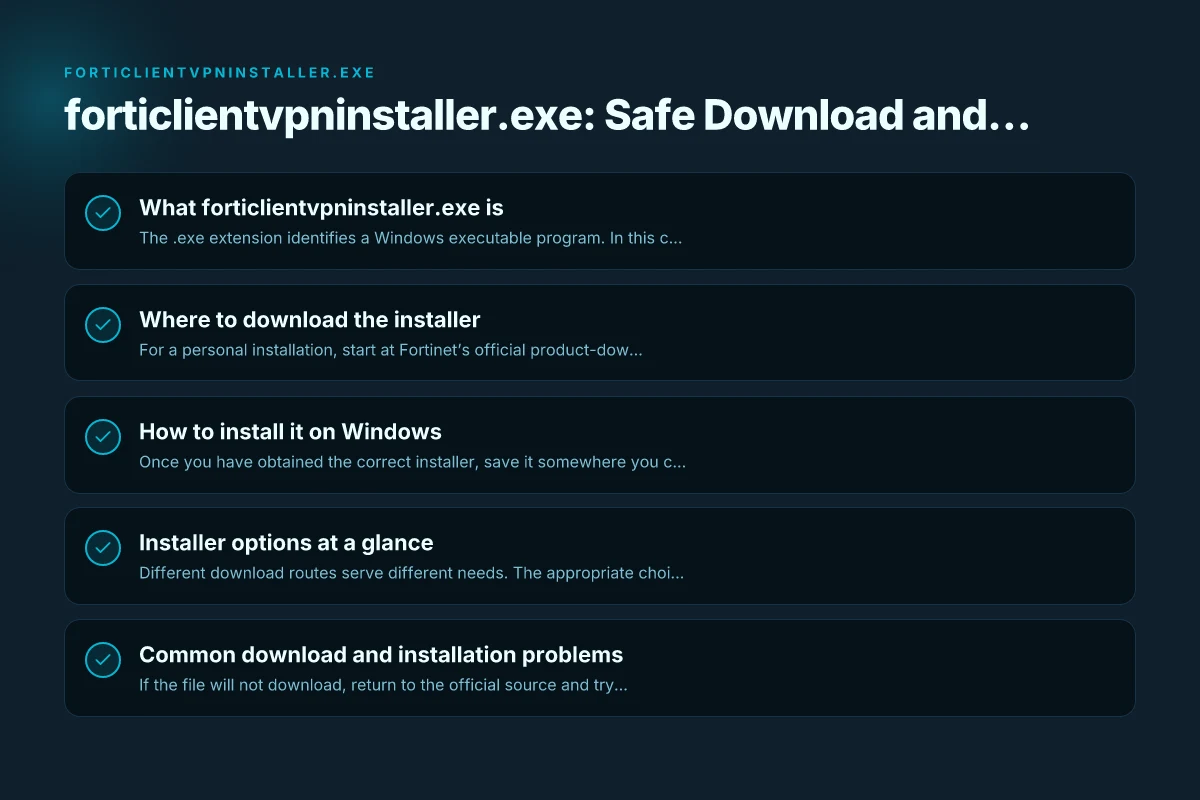
What forticlientvpninstaller.exe is
The .exe extension identifies a Windows executable program. In this case, the filename points to an installer for FortiClient VPN, a client used to connect a computer to a virtual private network. FortiClient is a Fortinet product. Its available features and installation options can vary by version and by how an organization manages it.
An installer is different from the VPN connection profile. Installing FortiClient places the application on your computer, but you may still need connection details, such as a VPN gateway address and sign-in method, from your organization. The installer alone does not provide access to a particular private network.
Fortinet’s documentation also describes installer files used for managed deployments. These can include custom modifications created for an organization. If an employer or school supplies a specific installer, use its instructions rather than substituting a general download without checking first.
Where to download the installer
For a personal installation, start at Fortinet’s official product-download page and select the FortiClient VPN option for your operating system. An organization may instead provide its own approved download link or deployment package. VPN to Change Location Free: What Works and What to Check
A search result or a filename alone is not proof that a file is genuine. Before downloading:
- Check that the page belongs to Fortinet or is linked from an official Fortinet support page.
- Follow your organization’s software instructions if you are setting up a work or school VPN.
- Avoid download links from file-sharing sites, unsolicited messages, or pages that bundle unrelated software.
- Confirm that the download is intended for Windows and is compatible with your device.
- If the installer’s source is unclear, ask your IT administrator before running it.
Fortinet’s support resources also cover obtaining FortiClient and the FCRemove.exe utility. Use support guidance when you need an official installer or help removing an existing installation. Do not download removal tools from an unverified source.
Choose an installation approach
| Approach | Best for | Administrator access | Configuration source | Main consideration |
|---|---|---|---|---|
| Standard Windows setup | Most users | May be required | Installer prompts | Follow on-screen steps |
| IT-provided installer | Managed devices | Depends on policy | Organization | Confirm it is current |
| IT-guided installation | Work or school VPN | May be required | IT instructions | Use approved settings |
| Reinstall after troubleshooting | Existing broken installation | May be required | Current official installer | Remove old version only as advised |
| Defer installation | Unverified or unexpected file | Not applicable | None | Verify the source first |
| Ask IT for help | Managed or restricted device | Varies | IT support | Avoid changing managed settings |
Compiled November 2026; check the provider's site for current details. How Can I Tell If a VPN Is Blocking My Internet?
How to install it on Windows
Once you have obtained the correct installer, save it somewhere you can find, such as your Downloads folder. Close other applications if practical, then open the file and review the Windows security prompt. Continue only if you trust the file’s source and the displayed publisher information is consistent with the expected software.
Follow the setup wizard. The available prompts can differ depending on the package and whether it has been customized for an organization. If Windows asks for administrator approval, you may need an administrator account or assistance from your IT team.
After installation:
- Open FortiClient from the Start menu.
- Choose the VPN option or connection profile provided by your organization.
- Enter the server address and authentication details supplied by your administrator.
- Connect and follow any prompts for multi-factor authentication or certificate approval.
- Check that you can reach the work or school resources you need.
Do not guess the VPN server address or approve an unexpected certificate prompt. Ask the organization that manages the VPN if any connection detail is missing or unfamiliar. NordVPN Windows: How to Download, Install, and Use the App
Installer options at a glance
Different download routes serve different needs. The appropriate choice depends on whether the computer is personally managed or controlled by an organization.
| Download or installer type | Best suited for | What to check |
|---|---|---|
| Fortinet product-download page | Personal setup or a standard download | Select the correct operating system and VPN product |
| Organization-provided package | Work, school, or managed devices | Follow the organization’s deployment and connection instructions |
| Third-party download page | Generally not the preferred route | Verify the source independently; avoid if authenticity is uncertain |
FortiClient documentation distinguishes between installer files and deployment packages that may include custom modifications. That means two files with similar names may not be interchangeable. When in doubt, use the package supplied by your organization.
Troubleshoot common installer problems
| Problem | Possible cause | First check | Safer next step | Avoid |
|---|---|---|---|---|
| Download does not start | Network or browser issue | Connection and browser notice | Retry from official source | Unverified mirrors |
| Download is incomplete | Interrupted connection | File size or download status | Download again | Running a partial file |
| Windows blocks the file | Security warning | Publisher and source | Verify with Fortinet or IT | Bypassing warnings blindly |
| Installer will not launch | Permissions or damaged download | File source and Windows prompts | Redownload or ask IT | Disabling security tools |
| Installation is blocked | Device policy | Organization guidance | Contact IT | Changing managed policies |
| VPN will not connect | Incorrect settings or access | VPN details and account | Check with VPN administrator | Guessing connection settings |
| Existing version causes trouble | Conflicting installation | Installed apps and IT guidance | Follow approved reinstall steps | Deleting files manually |
Compiled November 2026; check the provider's site for current details. Urban VPN Extension Edge Download: How to Install and Use It
Common download and installation problems
If the file will not download, return to the official source and try again. Check that your browser has not blocked the download and that you have enough permission to save files to the chosen location. If you were given a link by an organization, confirm that it is still current.
If Windows blocks the installer or displays a warning, do not disable security protections just to continue. Recheck where the file came from and contact the provider or IT team if the warning remains. A warning can have several causes, and the filename by itself cannot establish whether a download is safe.
If the installation finishes but the VPN does not connect, the issue may be with the profile, network address, credentials, authentication method, or organization’s access policy, not the installer. Check for typing errors and confirm that you are using the right connection details. For managed access, ask your administrator to verify the required configuration.
If FortiClient was already installed and you are trying to replace or remove it, follow Fortinet’s support instructions or your organization’s IT guidance. Avoid deleting program files manually, since that can leave the application in an incomplete state. Microsoft Edge Secure Network VPN Reviews: Is It Safe and Worth Using?
Recommendation
Download forticlientvpninstaller.exe only from Fortinet’s official download resources or a trusted link supplied by your organization. Use the installer and connection instructions intended for your device, and ask your IT team for help if the source, setup prompts, or VPN details are uncertain.