Urban VPN Extension Edge Download: How to Install and Use It
Find the Urban VPN extension for Microsoft Edge, install it safely, and learn what to check before connecting.
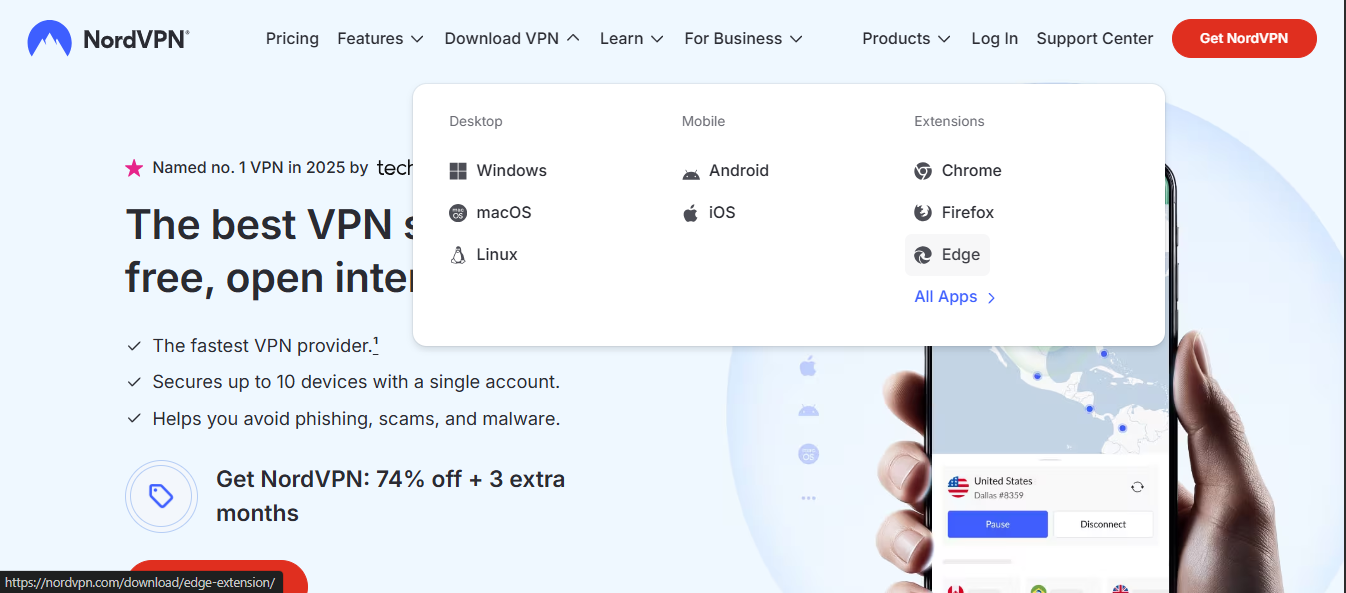
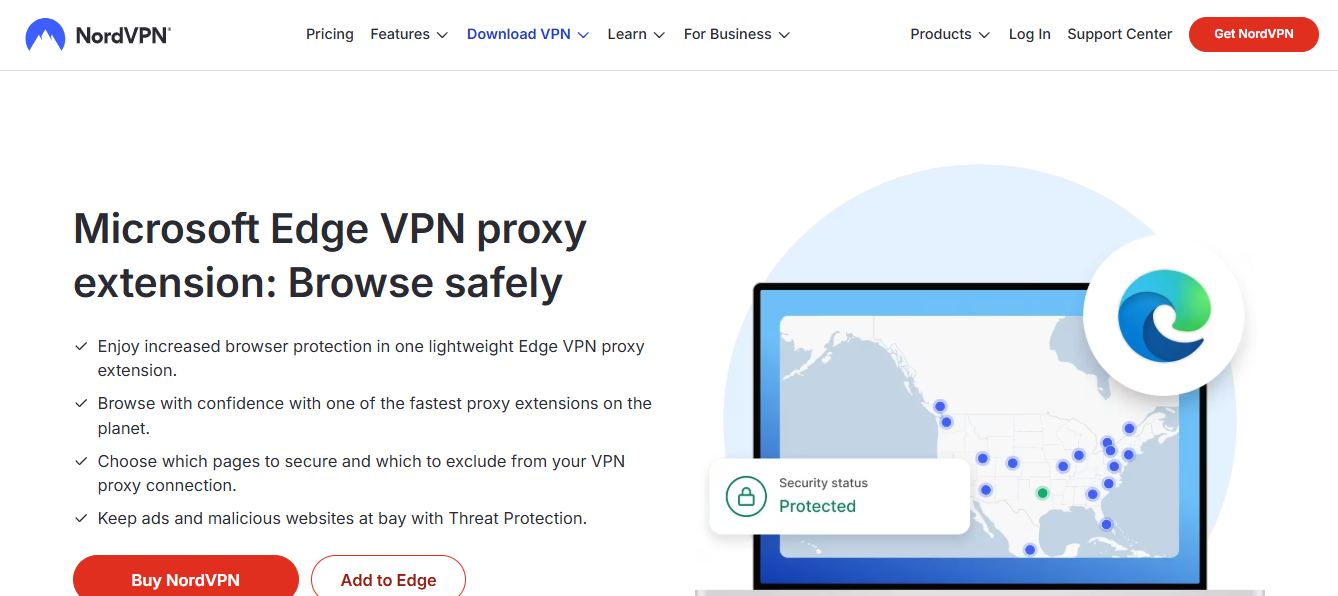
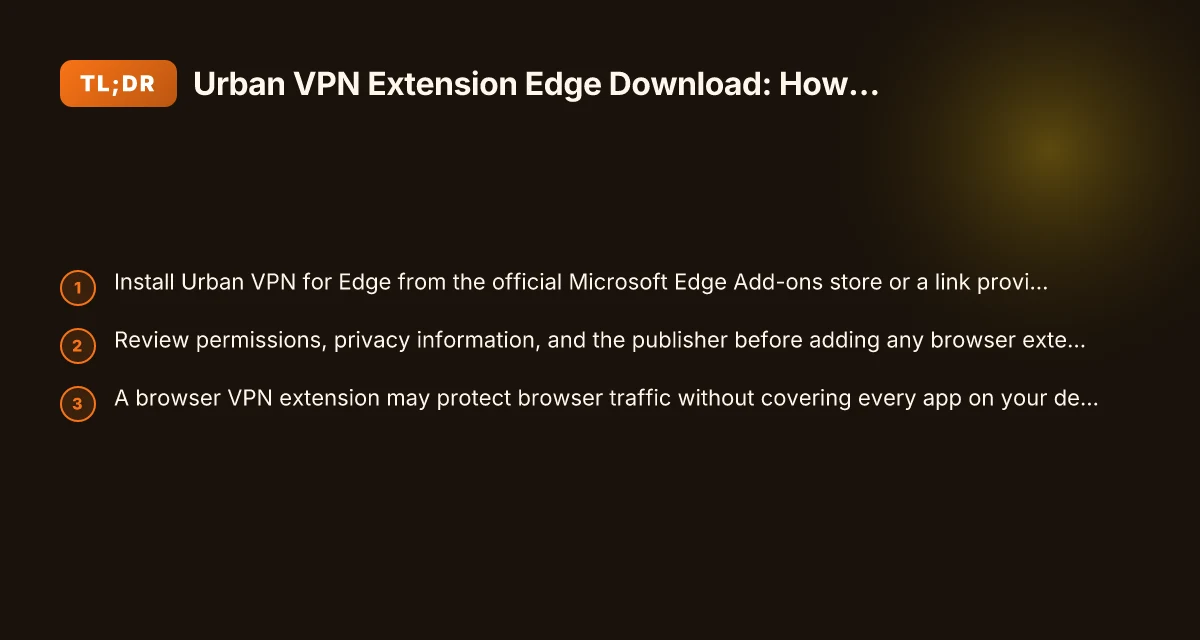
If you’re looking for an Urban VPN extension Edge download, open the Microsoft Edge Add-ons store and search for “Urban VPN,” then verify the publisher and product details before installing. You can also visit Urban VPN’s official website and follow its link to the Edge listing. Avoid third-party download sites: browser extensions should be installed through a trusted store or an official provider link.

Editor's pick: NordVPN — fast, secure VPN — Strong encryption, a no-logs policy and apps for every device. 30-day money-back guarantee. Get NordVPN →
How to compare Edge VPN extension installation options
| Option | Where to get it | What to check | Setup effort | Best for |
|---|---|---|---|---|
| Urban VPN Edge extension | Microsoft Edge Add-ons listing | Publisher and permissions | Low | Adding VPN features to Edge |
| Edge Add-ons search | Edge browser store | Exact product name | Low | Finding the official listing |
| Developer’s official site | Urban VPN website | Link leads to the Edge listing | Low | Verifying the download route |
| Search-engine result | Search results page | Destination and publisher | Varies | Discovery only |
| Third-party download site | External website | Avoid installer or extension files | High risk | Not recommended |
| Sponsored listing | Store or search results | Confirm the product and publisher | Low | Use only after verification |
Compiled November 2026; check the provider's site for current details.
| VPN | Obfuscation | From / month | Plan | Free plan | Refund | Alipay | UnionPay | Crypto | Website opens in China | Trustpilot | |
|---|---|---|---|---|---|---|---|---|---|---|---|
 ZoogVPN | Turn on manually Shadow | $2.49/mo | 27 months: $59.99 | Yes | 7 days | ✓ | ✓ | ✓ | ✓ | Official site blocked; our special link opens (4.4 s) | 4.2/5 (195 reviews) |
 NordVPN | Turn on manually Obfuscated Servers / NordWhisper | $3.49/mo | 27 months: $94.23 | No | 30 days | ? | ✗ | ✓ | ✓ | ✗ Blocked | 4.2/5 (51,628 reviews) |
 ExpressVPN | ✓ On by default all servers | $3.00/mo | 28 months: $84 | No | 30 days | ✗ | ✗ | ✓ | ✗ | ✗ Blocked | 4.4/5 (29,706 reviews) |
 Surfshark | ✓ On by default Camouflage, with OpenVPN | See site | See site | No | 30 days | ✗ | ✗ | ✗ | ✓ | ✗ Blocked | 4.3/5 (31,823 reviews) |
 Proton VPN | Turn on manually Stealth, free plan too | $2.99/mo | 12 months: $35.88 | Yes | 30 days | ✗ | ✗ | ✗ | ✓ | ✗ Blocked | 2.1/5 (1,040 reviews) |
 Astrill VPN | Turn on manually StealthVPN / OpenWeb | $12.50/mo | 24 months: $300 | No | See site | ✗ | ✗ | ✗ | ✓ | ✗ Blocked | 1.3/5 (110 reviews) |
 Private Internet Access | Turn on manually Shadowsocks, OpenVPN only | $2.03/mo | 40 months: $81.2 | No | 30 days | ✗ | ✗ | ✗ | ✗ | ✗ Blocked | 4.2/5 (11,033 reviews) |
 CyberGhost | Turn on manually selected servers | $2.19/mo | 28 months: $61.32 | No | 45 days | ✗ | ✗ | ✗ | ✓ | ✗ Blocked | 4.0/5 (24,178 reviews) |
 PureVPN | Turn on manually switch to OpenVPN | $1.69/mo | 60 months: $101.55 | No | 31 days | ? | ? | ✗ | ✓ | ✗ Blocked | 4.4/5 (17,994 reviews) |
 AdGuard VPN | ✓ On by default TrustTunnel | $2.99/mo | 24 months: $71.76 | Yes | 30 days | ✓ | ✗ | ✓ | ✓ | Official site blocked; our special link opens (3.7 s) | 4.3/5 (290 reviews) |
 Mullvad | Turn on manually QUIC / Shadowsocks / LWO | $5.61/mo | €5/mo | No | 14 days | ✗ | ✗ | ✗ | ✓ | ✗ Blocked | 3.2/5 (192 reviews) |
 Windscribe | Turn on manually Stealth / WStunnel | $5.75/mo | 12 months: $69 | Yes | See site | ✗ | ✗ | ✗ | ✓ | ✗ Blocked | 4.7/5 (13,355 reviews) |
 StrongVPN | Turn on manually Scramble, OpenVPN TCP | See site | See site | No | 30 days | ✓ | ✗ | ✗ | ✗ | ✗ Blocked | 4.4/5 (2,695 reviews) |
 LightXtreme 闪连 | Not listed | $7.08/mo | 12 months: $84.99 | Yes | 30 days | ✓ | ✓ | ✓ | ✓ | ✓ Yes (3.5 s) | No page |
Prices checked 2026-11-10 on each vendor's pricing page (cheapest long plan, USD). Check the vendor's checkout for the final price.
Obfuscation checked 2026-11-14 on each vendor's site and help center: "on by default" = nothing to set; "turn on manually" = switch protocol or mode in settings; "not listed" = the vendor describes no obfuscation.
Payment methods checked 2026-11-10 on each vendor's payment pages: all 14 take cards and PayPal; ✗ = not listed, ? = the vendor's own pages disagree.
China access: whether the official website opens from mainland China networks (tests the website only, not the VPN connection). Last checked 2026-11-18 01:02 Beijing time.
Trustpilot score and review count checked 2026-11-10.
How to download Urban VPN for Microsoft Edge
- Open Microsoft Edge.
- Go to the official Microsoft Edge Add-ons store. You can reach it through Edge’s Extensions menu or by searching for the store in your browser.
- Search for “Urban VPN.”
- Open the result and confirm that the name, publisher, description, and available privacy information match the Urban VPN extension you intend to use.
- Select Get or Add to Edge, then review the requested permissions.
- If you agree, confirm the installation.
- Find the extension in Edge’s toolbar or open the Extensions menu and pin it for easier access.
Store labels and interface details can change, so the exact wording may differ. If the extension does not appear in search, check Urban VPN’s official website for its current Edge link rather than downloading a file from an unfamiliar page.
Check the listing before installing
A VPN extension can handle sensitive browsing data, so take a moment to assess what you’re adding. Check the developer or publisher name and read the listing’s description and privacy disclosures. Look at the permissions Edge requests and consider whether they make sense for the extension’s stated features.
Be cautious if a page directs you to install a package from a file-sharing site, asks you to disable browser security, or urges you to bypass Edge’s normal installation process. These are warning signs, not necessary steps for a routine store installation.
Before proceeding, consider: Microsoft Edge Secure Network VPN Reviews: Is It Safe and Worth Using?
- Publisher: Does the listing identify the expected provider?
- Permissions: Are the requested permissions explained and relevant?
- Privacy information: Does the provider describe what data may be collected and how it is handled?
- Reviews and updates: Do the listing’s recent reviews and update history provide useful context?
- Source: Did you reach the listing through Microsoft or Urban VPN’s official website?
A store listing is a useful starting point, but it is not a guarantee that a service meets your privacy needs. Read the current terms and privacy policy if you plan to use the extension for sensitive browsing.
What to check before installing an Edge VPN extension
| Check | What to look for | Why it matters | If unclear |
|---|---|---|---|
| Product name | Urban VPN, spelled correctly | Helps avoid lookalikes | Do not install yet |
| Publisher | Matches the expected provider | Helps verify the listing | Check the official site |
| Store location | Microsoft Edge Add-ons | Uses Edge’s extension flow | Avoid third-party files |
| Permissions | Requests make sense for the features | Extensions may access browsing data | Review before approving |
| Reviews | Recent, relevant user feedback | Can reveal common issues | Treat reviews as guidance |
| Privacy details | Clear policy and data practices | VPN services may handle sensitive data | Read the policy |
| Update history | Listing shows ongoing maintenance | May indicate current support | Check before choosing |
| Browser prompts | Install confirmation appears in Edge | Confirms the browser controls installation | Cancel unexpected prompts |
Compiled November 2026; check the provider's site for current details.
Set up the extension and connect
After installation, select the Urban VPN icon in Edge. Depending on the current version, you may be asked to sign in, create an account, or choose a location before connecting. Follow the instructions shown in the extension rather than relying on outdated walkthroughs. iPhone VPN Keeps Turning On: Why It Happens and How to Stop It
Once connected, the extension may display its connection status or selected location. To check whether your browser appears to use a different public IP address, you can visit a reputable IP-checking website before and after connecting. Results can vary, and an IP check alone does not confirm that every part of your traffic is protected.
If the connection fails, try these basic steps:
- Confirm that Edge is up to date and that the extension is enabled.
- Disconnect and reconnect, or select another available location.
- Check whether another VPN, proxy, firewall, or security extension is interfering.
- Restart Edge and review the extension’s current support guidance.
- Remove and reinstall the extension only through the official store if ordinary troubleshooting does not help.
Avoid entering passwords or payment details on a page simply because an extension asks you to. Confirm that you are on the service’s genuine website and understand why the information is needed.
What an Edge VPN extension covers
A browser VPN extension generally applies to traffic handled by the browser, subject to the extension’s design and settings. It should not automatically be treated as a full-device VPN. Other applications, such as desktop email clients, games, or separate browsers, may use your regular network connection unless a device-wide VPN app is also running. IPsec VPN FortiGate: Setup, Configuration, and Troubleshooting
| Option | Typical coverage | Best suited to |
|---|---|---|
| VPN browser extension | Browser traffic, depending on the extension | Changing the apparent location of browser sessions or routing browser activity through the service |
| VPN app for Windows | Device traffic, depending on the app and settings | Protecting or routing traffic from multiple applications |
| No VPN | Your usual network connection | Browsing without a VPN service |
The exact behavior depends on the product, configuration, and operating system. Check Urban VPN’s current documentation to confirm what its Edge extension covers and whether it offers a separate Windows app. A VPN also does not make you anonymous: websites may still identify you through account logins, cookies, browser settings, or other information.
Troubleshooting and safe-use tips
If you cannot find the extension, confirm that you are viewing the official Edge Add-ons store and that your browser is not restricted by a work or school administrator. Managed devices may block extension installation. In that case, contact the administrator instead of trying to bypass the restriction.
If the extension installs but does not connect, check your internet connection and the service’s status or support pages. Some websites may behave differently when a VPN is active, and a location change can affect access to services. Follow the terms of the websites and services you use. A VPN does not override their rules.
Keep Edge and the extension updated, and remove extensions you no longer use. If you decide Urban VPN is not right for you, open Edge’s Extensions settings, disable or remove it, and review any account or data-retention options through the provider’s official channels. Nord VPN in China: Does It Work and How to Prepare
What an Edge VPN extension does—and what it does not
| Situation | Extension coverage | What to expect | Safe-use note |
|---|---|---|---|
| Traffic from Edge | Supported, depending on configuration | VPN protection may apply in the browser | Confirm it is connected |
| Other browser traffic | Not covered by an Edge-only extension | Other browsers may use a direct connection | Use separate protection if needed |
| Desktop apps | Not covered by the extension alone | Apps may bypass the browser extension | Check whether a full VPN app is needed |
| Public Wi-Fi browsing in Edge | Supported when connected | Can add a layer of privacy for browser traffic | Avoid assuming complete anonymity |
| Location selection | Depends on available extension features | Server choices may vary | Check the extension interface |
| Connection drops | Protection may stop or change | Browsing could resume without the VPN | Reconnect and verify status |
| Sensitive accounts | Not a substitute for account security | Strong passwords and MFA still matter | Keep security features enabled |
| Troubleshooting | Browser restart or extension review may help | Settings and updates can affect connection | Use official support guidance |
Compiled November 2026; check the provider's site for current details.
Recommendation
For an Urban VPN extension Edge download, use the official Microsoft Edge Add-ons listing or follow the Edge link from Urban VPN’s official website. Verify the publisher, permissions, and privacy information before installing, then confirm whether the browser extension’s coverage matches your needs. If you want VPN protection for apps beyond Edge, investigate a reputable device-wide VPN app instead.