How to Use ¥¥172.30.10.121¥share¥forticlientvpn to Find FortiClient VPN
Learn what this network path means, how to open it safely, and what to check if the FortiClient VPN installer is unavailable.
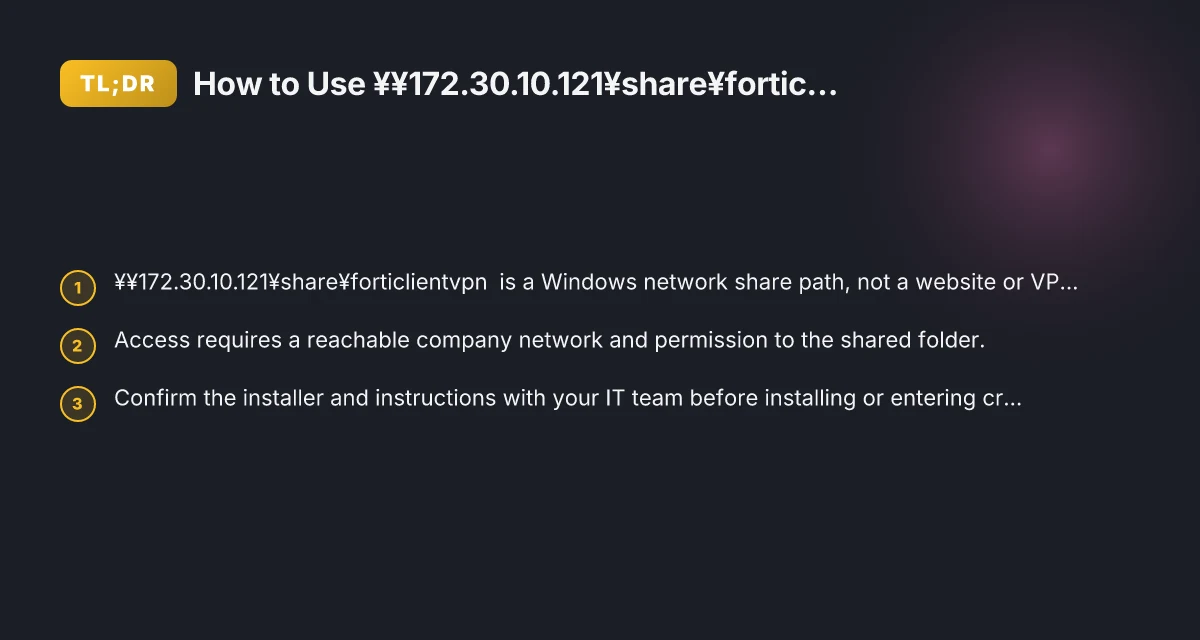
The path ¥¥172.30.10.121¥share¥forticlientvpn is a Windows network share location that may contain FortiClient VPN installers or setup instructions. To open it, use File Explorer on a Windows computer connected to the organization’s network, and make sure you have permission to access the share. The path itself does not connect you to a VPN. It points to files hosted on an internal server.

Editor's pick: NordVPN — fast, secure VPN — Strong encryption, a no-logs policy and apps for every device. 30-day money-back guarantee. Get NordVPN →
How to interpret `\\172.30.10.121\share\forticlientvpn`
| Part | What it indicates | What it is not | What to check |
|---|---|---|---|
| `\\` | Start of a Windows network path | A web address | Keep both leading backslashes |
| `172.30.10.121` | A host identified by an IP address | A VPN server address by itself | Confirm the host is reachable |
| `share` | A shared folder name | A local folder | Check the share name |
| `forticlientvpn` | A folder or item within the share | Proof of a verified installer | Inspect its contents |
| Full path | A path to a network share location | A FortiClient download link | Open it in File Explorer |
| Access | Depends on network and permissions | Guaranteed for every user | Check network access and authorization |
Compiled November 2026; check the provider's site for current details.
| VPN | Obfuscation | From / month | Plan | Free plan | Refund | Alipay | UnionPay | Crypto | Website opens in China | Trustpilot | |
|---|---|---|---|---|---|---|---|---|---|---|---|
 ZoogVPN | Turn on manually Shadow | $2.49/mo | 27 months: $59.99 | Yes | 7 days | ✓ | ✓ | ✓ | ✓ | Official site blocked; our special link opens (4.4 s) | 4.2/5 (195 reviews) |
 NordVPN | Turn on manually Obfuscated Servers / NordWhisper | $3.49/mo | 27 months: $94.23 | No | 30 days | ? | ✗ | ✓ | ✓ | ✗ Blocked | 4.2/5 (51,628 reviews) |
 ExpressVPN | ✓ On by default all servers | $3.00/mo | 28 months: $84 | No | 30 days | ✗ | ✗ | ✓ | ✗ | ✗ Blocked | 4.4/5 (29,706 reviews) |
 Surfshark | ✓ On by default Camouflage, with OpenVPN | See site | See site | No | 30 days | ✗ | ✗ | ✗ | ✓ | ✗ Blocked | 4.3/5 (31,823 reviews) |
 Proton VPN | Turn on manually Stealth, free plan too | $2.99/mo | 12 months: $35.88 | Yes | 30 days | ✗ | ✗ | ✗ | ✓ | ✗ Blocked | 2.1/5 (1,040 reviews) |
 Astrill VPN | Turn on manually StealthVPN / OpenWeb | $12.50/mo | 24 months: $300 | No | See site | ✗ | ✗ | ✗ | ✓ | ✗ Blocked | 1.3/5 (110 reviews) |
 Private Internet Access | Turn on manually Shadowsocks, OpenVPN only | $2.03/mo | 40 months: $81.2 | No | 30 days | ✗ | ✗ | ✗ | ✗ | ✗ Blocked | 4.2/5 (11,033 reviews) |
 CyberGhost | Turn on manually selected servers | $2.19/mo | 28 months: $61.32 | No | 45 days | ✗ | ✗ | ✗ | ✓ | ✗ Blocked | 4.0/5 (24,178 reviews) |
 PureVPN | Turn on manually switch to OpenVPN | $1.69/mo | 60 months: $101.55 | No | 31 days | ? | ? | ✗ | ✓ | ✗ Blocked | 4.4/5 (17,994 reviews) |
 AdGuard VPN | ✓ On by default TrustTunnel | $2.99/mo | 24 months: $71.76 | Yes | 30 days | ✓ | ✗ | ✓ | ✓ | Official site blocked; our special link opens (3.7 s) | 4.3/5 (290 reviews) |
 Mullvad | Turn on manually QUIC / Shadowsocks / LWO | $5.61/mo | €5/mo | No | 14 days | ✗ | ✗ | ✗ | ✓ | ✗ Blocked | 3.2/5 (192 reviews) |
 Windscribe | Turn on manually Stealth / WStunnel | $5.75/mo | 12 months: $69 | Yes | See site | ✗ | ✗ | ✗ | ✓ | ✗ Blocked | 4.7/5 (13,355 reviews) |
 StrongVPN | Turn on manually Scramble, OpenVPN TCP | See site | See site | No | 30 days | ✓ | ✗ | ✗ | ✗ | ✗ Blocked | 4.4/5 (2,695 reviews) |
 LightXtreme 闪连 | Not listed | $7.08/mo | 12 months: $84.99 | Yes | 30 days | ✓ | ✓ | ✓ | ✓ | ✓ Yes (3.5 s) | No page |
Prices checked 2026-11-10 on each vendor's pricing page (cheapest long plan, USD). Check the vendor's checkout for the final price.
Obfuscation checked 2026-11-14 on each vendor's site and help center: "on by default" = nothing to set; "turn on manually" = switch protocol or mode in settings; "not listed" = the vendor describes no obfuscation.
Payment methods checked 2026-11-10 on each vendor's payment pages: all 14 take cards and PayPal; ✗ = not listed, ? = the vendor's own pages disagree.
China access: whether the official website opens from mainland China networks (tests the website only, not the VPN connection). Last checked 2026-11-18 01:02 Beijing time.
Trustpilot score and review count checked 2026-11-10.
What the path means
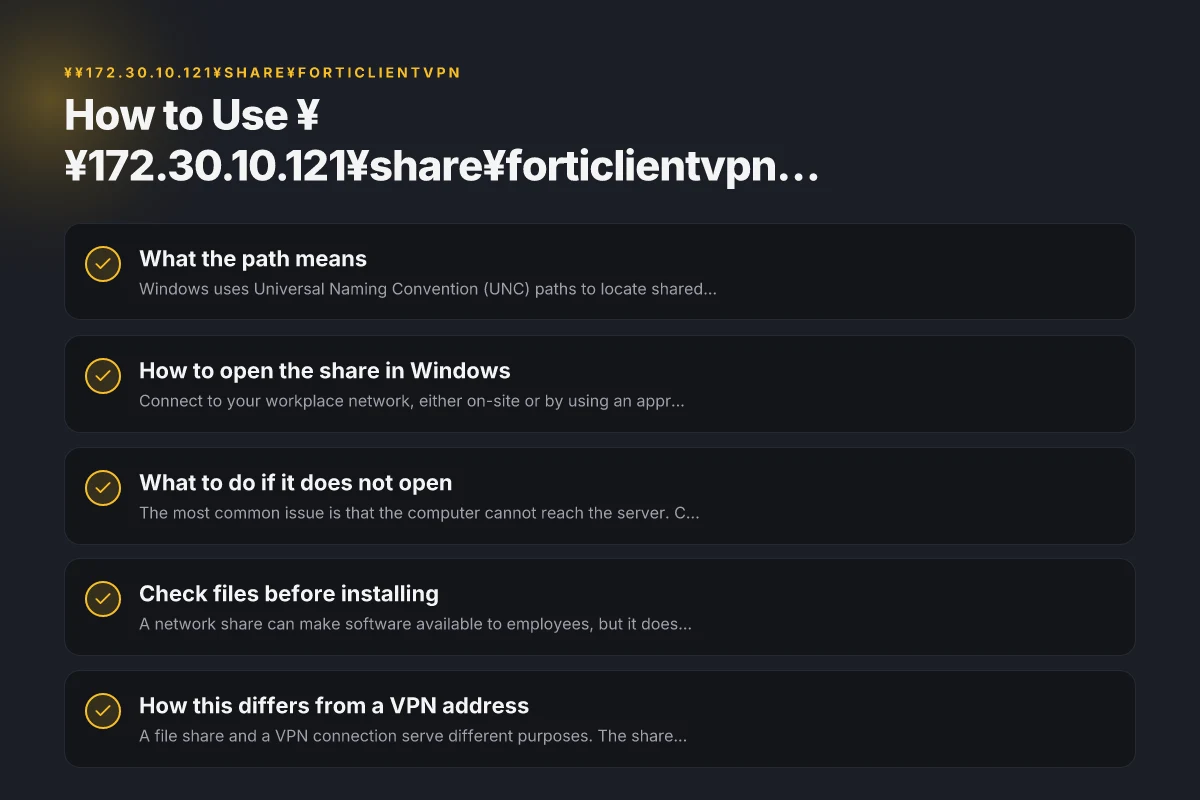
Windows uses Universal Naming Convention (UNC) paths to locate shared folders on a network. A standard UNC path begins with two backslashes, followed by a server name or IP address, then the share and folder names. In Windows, the path is normally written as:
\\172.30.10.121\share\forticlientvpn
The displayed keyword uses the yen symbol (¥) in place of a backslash, which can happen when text is copied or shown with a regional font or encoding. If you are entering the address in Windows, use backslashes.
The parts of the path identify: AWS VPN Gateway: What It Is and How to Choose the Right Option
172.30.10.121: the server’s private-network IP address.share: the shared folder published by that server.forticlientvpn: a folder within the share that may hold VPN-related files.
Because this is a private IP address, it is generally reachable only from the organization’s internal network or through another approved connection. It is not a public download link.
How to open the share in Windows
- Connect to your workplace network, either on-site or by using an approved method provided by your IT team.
- Open File Explorer.
- Click the address bar, enter
\\172.30.10.121\share\forticlientvpn, and press Enter. - If prompted, sign in with your authorized work account.
- Review the folder contents and follow your organization’s installation instructions.
You can also press Windows key + R, enter the UNC path, and select OK. If access is denied, do not try to bypass the restriction or use another person’s credentials. Ask your IT team to confirm that your account has access.
If you need to install FortiClient, use the version and configuration approved by your organization. FortiClient releases and VPN settings can differ, and a generic installer may not include the right configuration for your workplace.
What to do if it does not open
The most common issue is that the computer cannot reach the server. Check that you are connected to the correct corporate network and that the address was entered with backslashes. Then try opening the share again. FortiClient VPN Connection Is Down: How to Restore It
| Message or symptom | Possible cause | Recommended check |
|---|---|---|
| “Windows cannot access…” | Network route or server is unavailable | Confirm your connection and ask IT whether the server is online |
| “Access is denied” | Your account lacks permission | Request access from the share owner or IT |
| A credential prompt keeps returning | Incorrect or outdated sign-in details | Use your authorized work account; contact IT if the prompt persists |
| The folder opens but contains no installer | Files may have moved or the folder may be incomplete | Ask IT for the current download location |
| It works on-site but not remotely | The server may only be reachable on the internal network | Follow your organization’s approved remote-access instructions |
A failed connection does not necessarily mean the path is wrong. The server may be unavailable, the share may have changed, or access may require a specific network connection. Avoid changing firewall, network, or security settings unless your IT team directs you to do so.
Options for opening or troubleshooting the share in Windows
| Option or check | When to use it | What to do | What the result tells you |
|---|---|---|---|
| File Explorer | First attempt | Enter the path in the address bar | Whether Windows can open the share |
| Run dialog | To open the path directly | Enter the path and press Enter | Whether the path resolves |
| Network connection | The host is unreachable | Connect to the network that can access it | Whether network location was the issue |
| Share permissions | Access is denied | Ask the share owner or administrator to check access | Whether your account is authorized |
| Path spelling | Windows cannot find the location | Recheck slashes, IP address, and folder names | Whether a typo caused the failure |
| Name or IP reachability | The host does not respond | Ask the administrator to verify the host is available | Whether the host can be reached |
| Installer verification | Files are visible | Check publisher, signature, and source before running | Whether the installer appears trustworthy |
Compiled November 2026; check the provider's site for current details.
Check files before installing
A network share can make software available to employees, but it does not automatically prove that every file is current or appropriate for your device. Before running an installer: Free VPN Extension Edge Browser: What to Choose and How to Use It
- Confirm with IT that the folder is the official source for FortiClient.
- Check the file name, version, and any published installation instructions.
- Make sure the file is digitally signed by the expected publisher when applicable.
- Do not disable antivirus or endpoint protection to get an installer to run.
- Do not enter VPN credentials into an unexpected prompt or an unverified application.
FortiClient configuration may include a server address, certificate, or other organization-specific settings. Use only details supplied through trusted workplace channels. If the folder contains several installers or configuration files and you are unsure which one applies, ask IT rather than choosing by guesswork.
How this differs from a VPN address
A file share and a VPN connection serve different purposes. The share gives access to files on a network server. The VPN client establishes a secure connection to a network gateway. The path in the keyword is not the gateway address and should not be entered as the VPN server in FortiClient.
For example, your organization may provide a FortiClient installer through this share, then provide a separate VPN portal address and sign-in instructions. The installer, VPN gateway, and credentials are distinct pieces of information. Follow the organization’s setup guide for each one.
Distinguish the network share from a VPN connection Forticlinet VPN: What It Is and How to Connect Safely
| Item | Purpose | Example or location | Opens or connects to | Key check |
|---|---|---|---|---|
| Network share path | Locate shared files | `\\172.30.10.121\share\forticlientvpn` | A folder in Windows | Network access and permissions |
| VPN address | Identify a VPN gateway or service | Provided by the organization | A VPN client connection | Obtain the correct address from IT |
| FortiClient installer | Install VPN client software | May be stored in the shared folder | An installation process | Verify source and publisher |
| FortiClient application | Configure or start a VPN connection | Installed on the device | A VPN gateway using its settings | Use organization-provided configuration |
| Shared folder name | Identify a location on the host | `share` | A network folder | Confirm the exact share name |
| VPN credentials | Authenticate to a VPN service | Provided by the organization | The VPN service | Keep credentials private |
| Recommendation | Avoid confusing file access with VPN access | Ask IT for the installer and VPN details | The appropriate resource | Verify both independently |
Compiled November 2026; check the provider's site for current details.
Recommendation
Use \\172.30.10.121\share\forticlientvpn in File Explorer only when connected to an approved network, and install files from it only after confirming with your IT team that the share and version are official. If the path is inaccessible or the contents are unclear, request the current FortiClient download and setup instructions rather than trying to work around the problem.