VPN Extension for Edge Browser: How to Choose and Use One
Find out how Edge VPN extensions work, what they protect, and how to choose a trustworthy option.
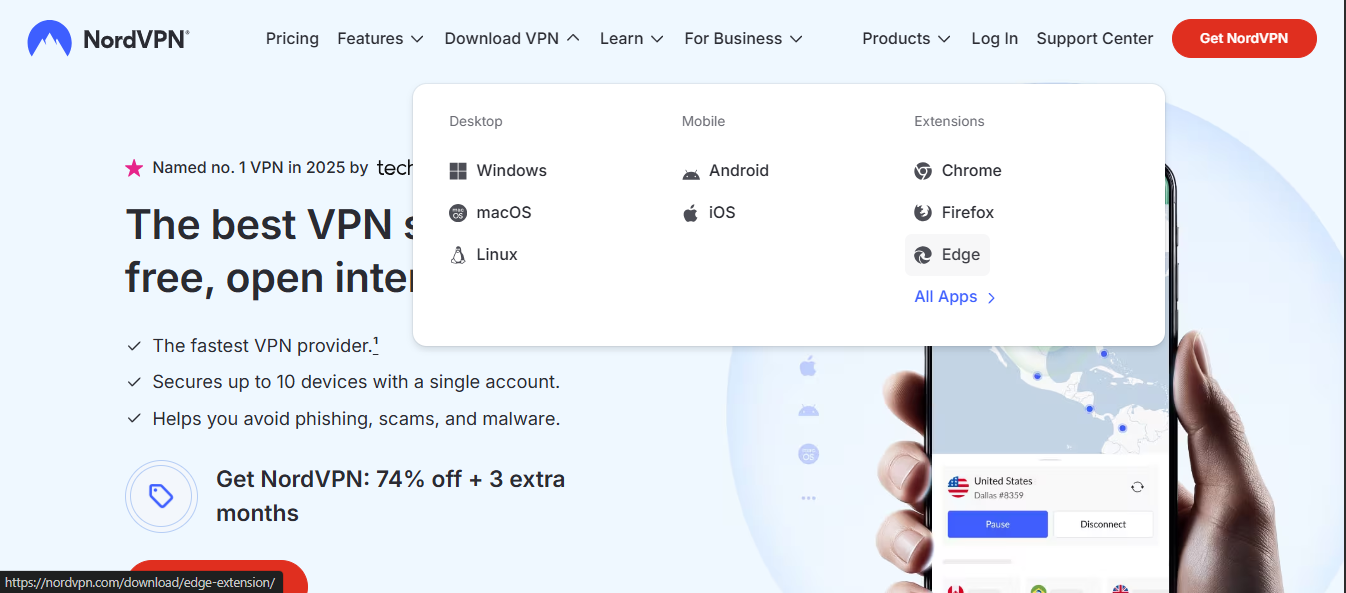
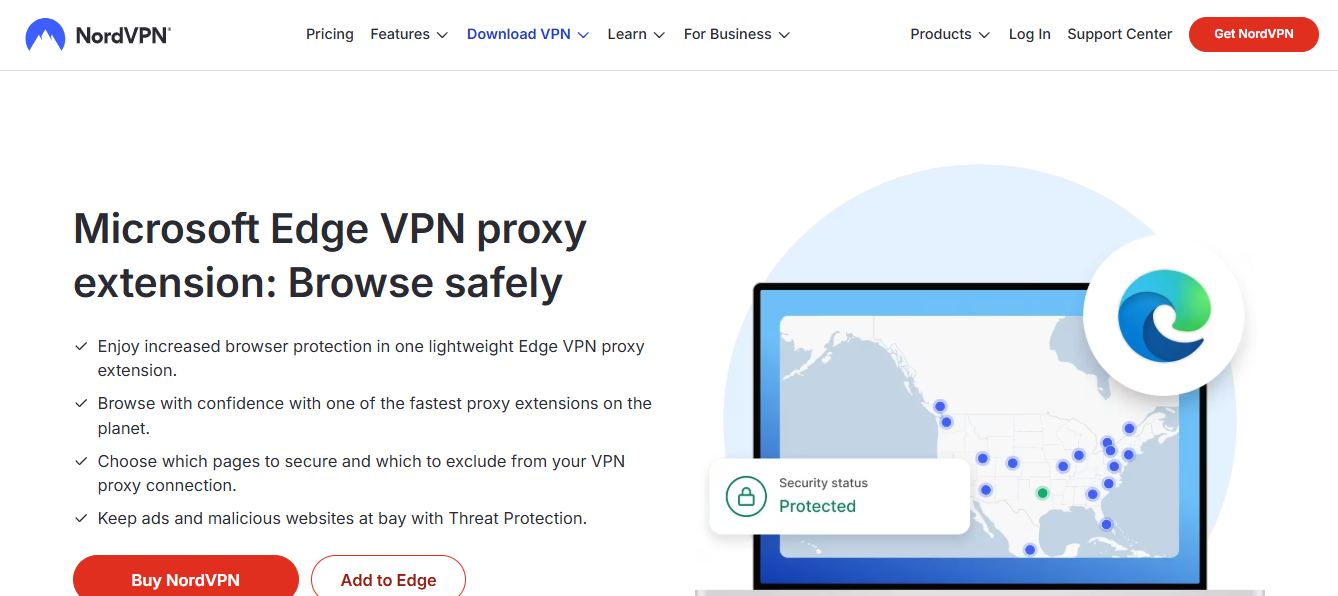
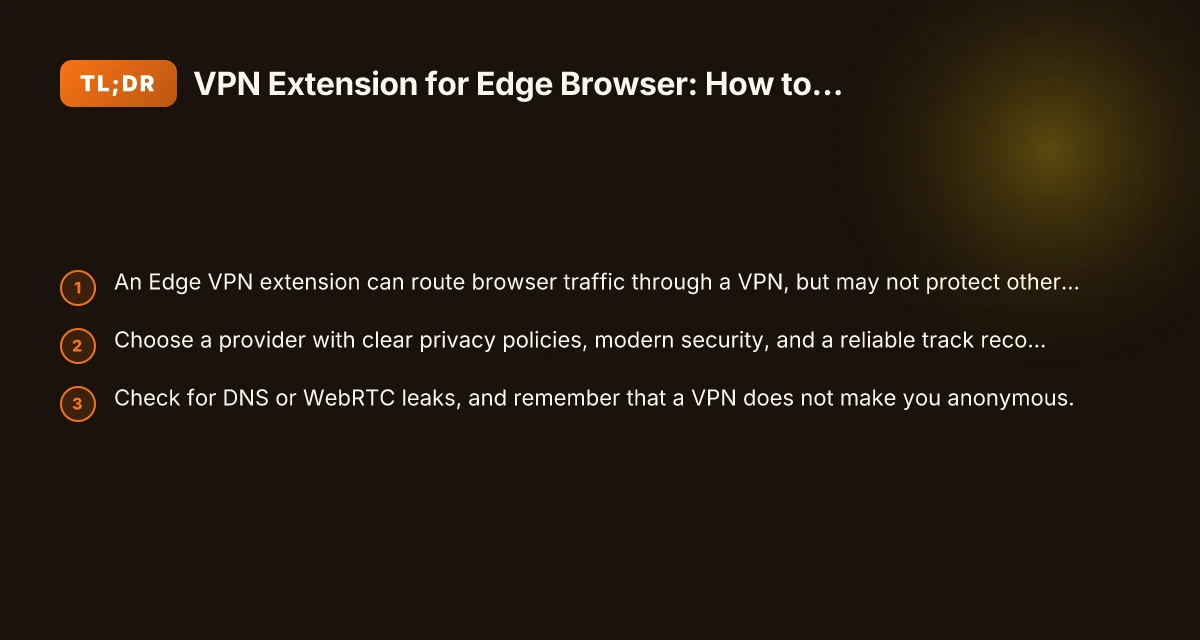
A VPN extension for Edge browser adds VPN features to Microsoft Edge, usually letting you connect to a provider’s servers without leaving the browser. It can help protect browser traffic on public Wi-Fi, reduce exposure of your IP address to websites, and access content available in other regions. Before installing one, check whether it is a true VPN connection or a browser proxy, what data the provider collects, and whether it covers only Edge or your whole device.

Editor's pick: NordVPN — fast, secure VPN — Strong encryption, a no-logs policy and apps for every device. 30-day money-back guarantee. Get NordVPN →
Edge VPN extension selection checklist
| Criterion | What to look for | Why it matters | Check before installing |
|---|---|---|---|
| Provider identity | A recognizable provider with clear ownership | Helps you assess who operates the service | Confirm the publisher name |
| Privacy policy | Plain-language data and logging details | Shows what activity or account data may be collected | Read the policy |
| Permissions | Permissions relevant to the extension’s features | Broad access can expose more browser data | Review the permission list |
| Connection security | Clear explanation of how traffic is protected | Helps distinguish a VPN from a proxy or other tool | Check the provider’s documentation |
| Server locations | Locations that meet your needs | Affects available connection choices | Check the location list |
| Performance | Reliable connections and acceptable speed | Slow or unstable connections can disrupt browsing | Look for current, independent reviews |
| Compatibility | Support for Microsoft Edge | Avoids installing an incompatible extension | Check the Edge add-on listing |
| Support | Clear help and contact options | Makes setup and troubleshooting easier | Check available support channels |
Compiled November 2026; check the provider's site for current details.
| VPN | Obfuscation | From / month | Plan | Free plan | Refund | Alipay | UnionPay | Crypto | Website opens in China | Trustpilot | |
|---|---|---|---|---|---|---|---|---|---|---|---|
 ZoogVPN | Turn on manually Shadow | $2.49/mo | 27 months: $59.99 | Yes | 7 days | ✓ | ✓ | ✓ | ✓ | Official site blocked; our special link opens (4.4 s) | 4.2/5 (195 reviews) |
 NordVPN | Turn on manually Obfuscated Servers / NordWhisper | $3.49/mo | 27 months: $94.23 | No | 30 days | ? | ✗ | ✓ | ✓ | ✗ Blocked | 4.2/5 (51,628 reviews) |
 ExpressVPN | ✓ On by default all servers | $3.00/mo | 28 months: $84 | No | 30 days | ✗ | ✗ | ✓ | ✗ | ✗ Blocked | 4.4/5 (29,706 reviews) |
 Surfshark | ✓ On by default Camouflage, with OpenVPN | See site | See site | No | 30 days | ✗ | ✗ | ✗ | ✓ | ✗ Blocked | 4.3/5 (31,823 reviews) |
 Proton VPN | Turn on manually Stealth, free plan too | $2.99/mo | 12 months: $35.88 | Yes | 30 days | ✗ | ✗ | ✗ | ✓ | ✗ Blocked | 2.1/5 (1,040 reviews) |
 Astrill VPN | Turn on manually StealthVPN / OpenWeb | $12.50/mo | 24 months: $300 | No | See site | ✗ | ✗ | ✗ | ✓ | ✗ Blocked | 1.3/5 (110 reviews) |
 Private Internet Access | Turn on manually Shadowsocks, OpenVPN only | $2.03/mo | 40 months: $81.2 | No | 30 days | ✗ | ✗ | ✗ | ✗ | ✗ Blocked | 4.2/5 (11,033 reviews) |
 CyberGhost | Turn on manually selected servers | $2.19/mo | 28 months: $61.32 | No | 45 days | ✗ | ✗ | ✗ | ✓ | ✗ Blocked | 4.0/5 (24,178 reviews) |
 PureVPN | Turn on manually switch to OpenVPN | $1.69/mo | 60 months: $101.55 | No | 31 days | ? | ? | ✗ | ✓ | ✗ Blocked | 4.4/5 (17,994 reviews) |
 AdGuard VPN | ✓ On by default TrustTunnel | $2.99/mo | 24 months: $71.76 | Yes | 30 days | ✓ | ✗ | ✓ | ✓ | Official site blocked; our special link opens (3.7 s) | 4.3/5 (290 reviews) |
 Mullvad | Turn on manually QUIC / Shadowsocks / LWO | $5.61/mo | €5/mo | No | 14 days | ✗ | ✗ | ✗ | ✓ | ✗ Blocked | 3.2/5 (192 reviews) |
 Windscribe | Turn on manually Stealth / WStunnel | $5.75/mo | 12 months: $69 | Yes | See site | ✗ | ✗ | ✗ | ✓ | ✗ Blocked | 4.7/5 (13,355 reviews) |
 StrongVPN | Turn on manually Scramble, OpenVPN TCP | See site | See site | No | 30 days | ✓ | ✗ | ✗ | ✗ | ✗ Blocked | 4.4/5 (2,695 reviews) |
 LightXtreme 闪连 | Not listed | $7.08/mo | 12 months: $84.99 | Yes | 30 days | ✓ | ✓ | ✓ | ✓ | ✓ Yes (3.5 s) | No page |
Prices checked 2026-11-10 on each vendor's pricing page (cheapest long plan, USD). Check the vendor's checkout for the final price.
Obfuscation checked 2026-11-14 on each vendor's site and help center: "on by default" = nothing to set; "turn on manually" = switch protocol or mode in settings; "not listed" = the vendor describes no obfuscation.
Payment methods checked 2026-11-10 on each vendor's payment pages: all 14 take cards and PayPal; ✗ = not listed, ? = the vendor's own pages disagree.
China access: whether the official website opens from mainland China networks (tests the website only, not the VPN connection). Last checked 2026-11-18 01:02 Beijing time.
Trustpilot score and review count checked 2026-11-10.
What an Edge VPN extension does
A browser extension works inside Microsoft Edge. Depending on the provider, it may encrypt browser traffic and route it through a remote server, or act as a proxy that changes the apparent location of your browser traffic. These options are not identical: a proxy may not encrypt traffic, while a VPN connection generally does.
An extension is convenient when you mainly want protection or location switching in Edge. However, it may not cover other browsers, desktop apps, games, or system services. Some providers offer both an extension and a full VPN app. The app is usually the better choice when you want device-wide coverage.
A VPN can help conceal your public IP address from websites and make it harder for someone on the same unsecured network to inspect your traffic. It does not prevent websites from identifying you through account sign-ins, cookies, browser fingerprinting, or information you submit yourself.
How to choose a VPN extension for Edge
Start with the provider, not just the extension’s star rating. A polished interface cannot make up for unclear data practices or weak security. Look for a company that explains what it logs, how long it retains data, and whether it shares information with third parties. Urban VPN Add On: What It Does and Whether You Should Use It
Useful checks include:
- Privacy policy: It should clearly describe what data is collected and why.
- Independent reviews: Look for credible security audits or transparent reports about privacy practices.
- Security features: Check for encrypted connections, secure protocols, and leak protection where available.
- Provider reputation: Research the company’s history, ownership, and response to security issues.
- Practical performance: Consider connection stability, server locations, speed, and customer support.
- Pricing terms: Review renewal rates, cancellation rules, and which features require a paid plan.
Be cautious with free extensions that promise unlimited access without explaining how they are funded. Some may collect browsing data, show intrusive ads, limit security features, or sell access to a paid plan. Free does not automatically mean unsafe, but the provider should be transparent about its business model.
| Option | Typical coverage | Best suited to | Main limitation |
|---|---|---|---|
| Edge VPN extension | Usually Edge browser traffic | Browser-only use and quick connections | May not protect other apps |
| Full VPN app | Often traffic across the device | General privacy on a computer | Requires installing and managing an app |
| Browser proxy extension | Browser traffic, depending on setup | Basic location switching | May not encrypt the connection |
Edge VPN extension setup checklist
| Step | Action | What to check | If something goes wrong |
|---|---|---|---|
| 1. Choose | Select an extension from a provider you trust | Publisher, policy, and permissions | Compare another provider |
| 2. Install | Use the Microsoft Edge Add-ons store when available | Correct extension name and publisher | Avoid look-alike listings |
| 3. Review | Read the requested permissions | Access matches the stated features | Do not install if permissions seem excessive |
| 4. Sign in | Use the provider’s account flow if required | You are on the provider’s legitimate sign-in page | Stop if the page or request looks suspicious |
| 5. Connect | Choose a location and turn on the connection | The extension shows an active status | Reconnect or choose another location |
| 6. Test | Visit a trusted IP or DNS test site | Results reflect the expected connection | Check for leaks or connection issues |
| 7. Maintain | Update the extension and review settings | Updates come through the official store | Remove it if support or updates end |
Compiled November 2026; check the provider's site for current details. FortiClient IPsec Over TCP: What It Is and How to Set It Up
How to install and set it up
Install extensions from the official Microsoft Edge Add-ons store or from the VPN provider’s verified website. Check the developer name and requested permissions before adding the extension. Permissions to read or change data on websites may be needed for the extension to work, but they also make the provider’s trustworthiness especially important.
A typical setup looks like this:
- Open the official Edge Add-ons store and search for the provider’s extension.
- Confirm that the listing is published by the provider you intend to use.
- Select Get or Add to Edge, then review the permission request.
- Open the extension and sign in or create an account if required.
- Choose a server or location and connect.
- Visit a reputable IP-checking site to confirm that your browser’s apparent IP address has changed.
Check the extension’s settings for options such as automatic connection, a kill switch, or protection against DNS and WebRTC leaks. Feature names and availability vary between providers. If the extension cannot offer a system-level kill switch, closing Edge or disconnecting may not provide the same protection as a full VPN app.
Limitations and safety checks
A VPN extension changes how some traffic is routed. It does not erase your online identity. You may still be tracked by cookies, signed-in services, advertising identifiers, or browser fingerprinting. A VPN also does not replace antivirus software, safe browsing habits, or strong account security. V2Ray for iOS: How to Choose an App and Connect Safely
After connecting, check whether your real IP address or DNS requests are exposed. You can also test for WebRTC leaks, which may reveal network information in some browser configurations. Results depend on the test site and your setup, so do not treat one test as a guarantee of privacy.
Keep Edge and the extension updated. Remove extensions you no longer use, and avoid installing several VPN or proxy extensions at once because they can conflict or make it harder to understand how your traffic is routed. If the connection fails, use the provider’s support guidance rather than downloading an unofficial replacement.
Remember that VPN use does not guarantee access to every streaming service or website. Some services block VPN servers, and access rules vary by service and location. Follow applicable laws and the terms of the services you use.
Edge VPN extension or full VPN app? Clash Verge on iPhone: What Works and What to Use Instead
| Comparison point | Edge VPN extension | Full VPN app |
|---|---|---|
| Coverage | Usually focuses on browser traffic | Can cover traffic across the device |
| Setup | Installed in Edge | Installed on the operating system |
| Browser use | Convenient for browser-only needs | Works alongside browsers and other apps |
| Permissions | Requests browser-related access | May require device-level network permissions |
| Protection scope | Depends on provider and extension design | Depends on app settings and provider |
| Device coverage | May not protect other apps | Can protect more than one app on the device |
| Best fit | People who want a browser-focused option | People who want broader device coverage |
| Safety check | Verify privacy details and permissions | Verify provider, privacy details, and app permissions |
Compiled November 2026; check the provider's site for current details.
Extension or full VPN app?
Choose an extension if your goal is limited to browser traffic and you value quick access from Edge. Choose a full VPN app if you want protection for other browsers and applications, or if you need device-level features such as a system-wide kill switch.
Before deciding, check whether the extension uses the provider’s full VPN infrastructure or a separate proxy service. Read its feature list carefully: “VPN” in the name alone does not confirm that all browser traffic is encrypted or that traffic outside Edge is covered.
Recommendation
For a VPN extension for Edge browser, choose a reputable provider with a clear privacy policy, transparent security practices, and leak-protection features. Install it from an official source, test the connection, and use a full VPN app when you need protection beyond Edge. A VPN is a useful privacy layer, but it works best alongside updated software, careful browsing, and strong account security. Clash Verge for iOS: What iPhone Users Need to Know