VPN 360 for Windows 11: Setup, Features, and What to Check
Learn how to find, install, and assess VPN 360 on Windows 11, including privacy, compatibility, and troubleshooting checks.
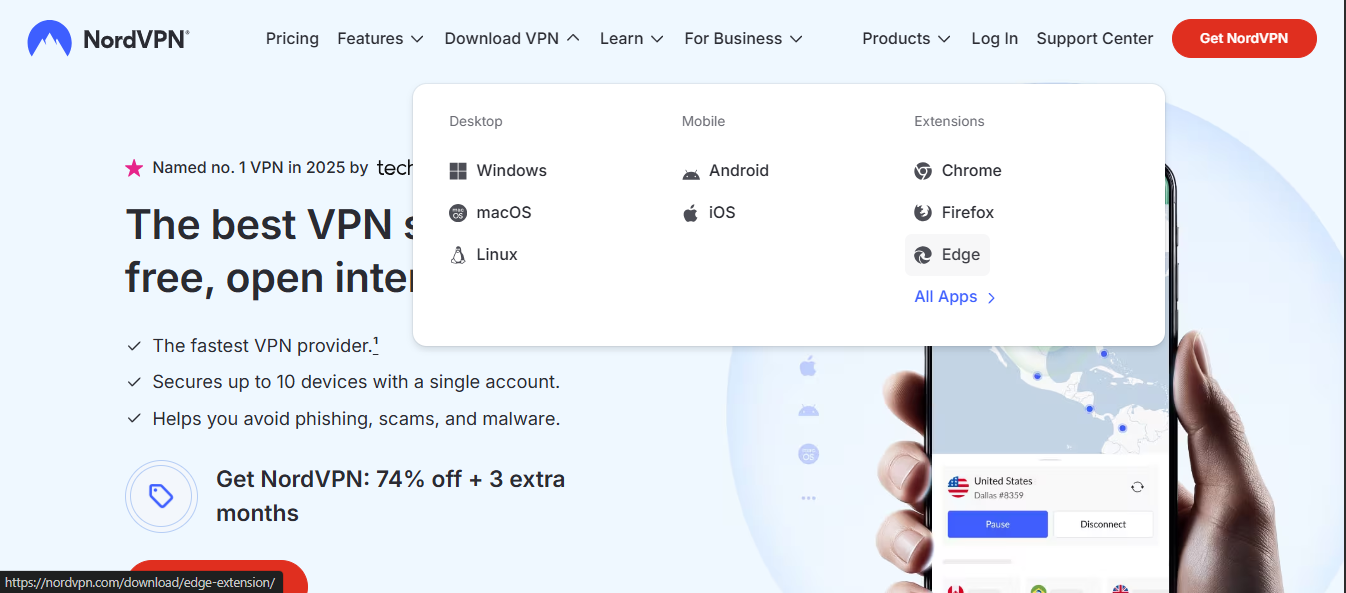
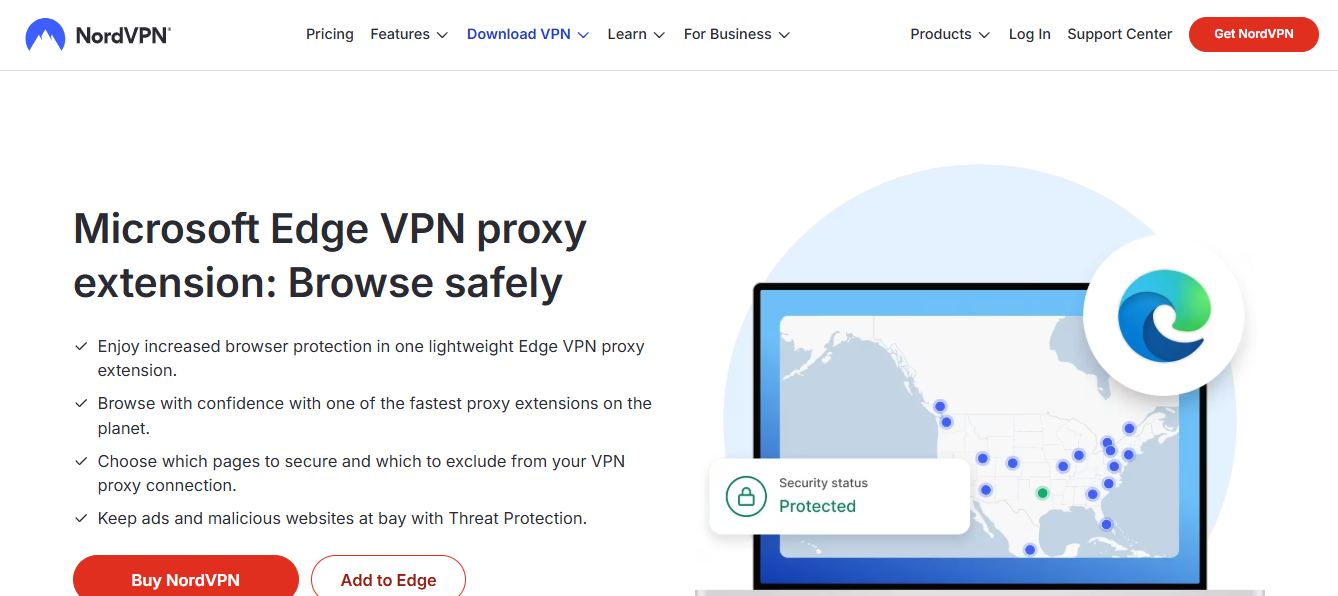
If you’re looking for VPN 360 for Windows 11, first check whether the VPN 360 provider currently offers an official Windows app. Do not assume that an app available for Android or iOS has a Windows version. Download software only from the provider’s official website or a trusted Microsoft Store listing, and avoid third-party installers that claim to be the Windows edition.
A VPN can route your internet traffic through a VPN server, which may help protect traffic on untrusted Wi-Fi and change the IP address websites see. It does not make you anonymous, prevent every kind of tracking, or guarantee security by itself. The steps below can help you verify compatibility and decide whether VPN 360 is suitable for your Windows 11 PC.
| VPN | Obfuscation | From / month | Plan | Free plan | Refund | Alipay | UnionPay | Crypto | Website opens in China | Trustpilot | |
|---|---|---|---|---|---|---|---|---|---|---|---|
 ZoogVPN | Turn on manually Shadow | $2.49/mo | 27 months: $59.99 | Yes | 7 days | ✓ | ✓ | ✓ | ✓ | Official site blocked; our special link opens (4.4 s) | 4.2/5 (195 reviews) |
 NordVPN | Turn on manually Obfuscated Servers / NordWhisper | $3.49/mo | 27 months: $94.23 | No | 30 days | ? | ✗ | ✓ | ✓ | ✗ Blocked | 4.2/5 (51,628 reviews) |
 ExpressVPN | ✓ On by default all servers | $3.00/mo | 28 months: $84 | No | 30 days | ✗ | ✗ | ✓ | ✗ | ✗ Blocked | 4.4/5 (29,706 reviews) |
 Surfshark | ✓ On by default Camouflage, with OpenVPN | See site | See site | No | 30 days | ✗ | ✗ | ✗ | ✓ | ✗ Blocked | 4.3/5 (31,823 reviews) |
 Proton VPN | Turn on manually Stealth, free plan too | $2.99/mo | 12 months: $35.88 | Yes | 30 days | ✗ | ✗ | ✗ | ✓ | ✗ Blocked | 2.1/5 (1,040 reviews) |
 Astrill VPN | Turn on manually StealthVPN / OpenWeb | $12.50/mo | 24 months: $300 | No | See site | ✗ | ✗ | ✗ | ✓ | ✗ Blocked | 1.3/5 (110 reviews) |
 Private Internet Access | Turn on manually Shadowsocks, OpenVPN only | $2.03/mo | 40 months: $81.2 | No | 30 days | ✗ | ✗ | ✗ | ✗ | ✗ Blocked | 4.2/5 (11,033 reviews) |
 CyberGhost | Turn on manually selected servers | $2.19/mo | 28 months: $61.32 | No | 45 days | ✗ | ✗ | ✗ | ✓ | ✗ Blocked | 4.0/5 (24,178 reviews) |
 PureVPN | Turn on manually switch to OpenVPN | $1.69/mo | 60 months: $101.55 | No | 31 days | ? | ? | ✗ | ✓ | ✗ Blocked | 4.4/5 (17,994 reviews) |
 AdGuard VPN | ✓ On by default TrustTunnel | $2.99/mo | 24 months: $71.76 | Yes | 30 days | ✓ | ✗ | ✓ | ✓ | Official site blocked; our special link opens (3.7 s) | 4.3/5 (290 reviews) |
 Mullvad | Turn on manually QUIC / Shadowsocks / LWO | $5.61/mo | €5/mo | No | 14 days | ✗ | ✗ | ✗ | ✓ | ✗ Blocked | 3.2/5 (192 reviews) |
 Windscribe | Turn on manually Stealth / WStunnel | $5.75/mo | 12 months: $69 | Yes | See site | ✗ | ✗ | ✗ | ✓ | ✗ Blocked | 4.7/5 (13,355 reviews) |
 StrongVPN | Turn on manually Scramble, OpenVPN TCP | See site | See site | No | 30 days | ✓ | ✗ | ✗ | ✗ | ✗ Blocked | 4.4/5 (2,695 reviews) |
 LightXtreme 闪连 | Not listed | $7.08/mo | 12 months: $84.99 | Yes | 30 days | ✓ | ✓ | ✓ | ✓ | ✓ Yes (3.5 s) | No page |
Prices checked 2026-11-10 on each vendor's pricing page (cheapest long plan, USD). Check the vendor's checkout for the final price.
Obfuscation checked 2026-11-14 on each vendor's site and help center: "on by default" = nothing to set; "turn on manually" = switch protocol or mode in settings; "not listed" = the vendor describes no obfuscation.
Payment methods checked 2026-11-10 on each vendor's payment pages: all 14 take cards and PayPal; ✗ = not listed, ? = the vendor's own pages disagree.
China access: whether the official website opens from mainland China networks (tests the website only, not the VPN connection). Last checked 2026-11-18 01:02 Beijing time.
Trustpilot score and review count checked 2026-11-10.

Editor's pick: NordVPN — fast, secure VPN — Strong encryption, a no-logs policy and apps for every device. 30-day money-back guarantee. Get NordVPN →
Windows 11 compatibility and setup checks
| Check | What to look for | Why it matters | If unclear |
|---|---|---|---|
| Windows 11 support | Explicit Windows 11 compatibility | Confirms the app is intended for your system | Check the provider’s current documentation |
| Official download | Provider’s official website or app store | Reduces the risk of altered installers | Avoid third-party download sites |
| Publisher identity | Installer publisher matches the provider | Helps verify the software source | Do not run an unidentified installer |
| Installation permissions | Permission requests are relevant to a VPN | Helps avoid granting unnecessary access | Review the request before approving |
| App updates | Current version and update method are clear | Updates can address compatibility and security issues | Check release notes and support information |
| Privacy policy | Data collection and retention are explained | Shows what information may be handled | Read the policy before creating an account |
| Support route | A working official support channel is available | Helps resolve setup or compatibility problems | Confirm the support page is current |
Compiled November 2026; check the provider's site for current details.
Check whether VPN 360 supports Windows 11
Start with the provider’s official site or support pages. Look for a Windows download, supported operating-system requirements, release notes, and contact information. Check that the listing identifies VPN 360 as the publisher and that the download link leads to a legitimate source.
If the provider lists only mobile apps, do not install a file from an unrelated download site simply because it is labeled “VPN 360 for Windows.” Such files can be outdated, modified, or malicious. A mobile app may sometimes be used on a PC through an Android emulator, but that is not the same as a native Windows VPN client. Emulator use can add complexity and may not work reliably.
Before installing any VPN client, also check:
- Whether your Windows 11 version meets the stated requirements
- Whether the provider has a current privacy policy and terms of service
- Whether customer support can answer questions about Windows compatibility
- Whether the app requires a paid subscription or offers a limited free plan
How to install it safely
If an official Windows version is available, use the provider’s instructions. The general process is: How to Download VPNIFY on Xbox Through Microsoft
- Open the provider’s official website or its verified Microsoft Store page.
- Confirm the app name, publisher, and Windows system requirements.
- Download and run the installer, or install it through the Store.
- Review any permissions and installation prompts before accepting them.
- Open the app, sign in or create an account, and choose a VPN server.
- Connect, then check that the app reports an active VPN connection.
Windows may ask you to approve installation or allow a network component to be added. Read the prompt and make sure it relates to the app you intentionally installed. If the publisher name looks unfamiliar or the installer asks for unexpected access, stop and verify the download source.
For a Microsoft Store app, check its publisher, recent update date, and user reviews. Reviews can offer useful clues, but they are not proof of security or service quality.
VPN options comparison checklist
| Comparison point | VPN 360 | Another VPN | What to verify |
|---|---|---|---|
| Windows 11 support | Check official documentation | Check official documentation | Compatibility is stated for Windows 11 |
| Download source | Use an official source | Use an official source | Publisher and download page are authentic |
| Privacy practices | Review the privacy policy | Review the privacy policy | Data collection and retention are clear |
| Connection features | Confirm in the app or documentation | Confirm in the app or documentation | Features match your needs |
| Server availability | Check current provider information | Check current provider information | Locations and availability are suitable |
| Pricing and limits | Review current terms | Review current terms | Costs, limits, and renewal terms are clear |
| Customer support | Check available support channels | Check available support channels | Help is accessible when needed |
Compiled November 2026; check the provider's site for current details. Advanced Proxy Settings Edge: How to Configure and Troubleshoot Them
What to assess before using a VPN
A VPN service is only as useful as its privacy practices, security features, and reliability. Read the privacy policy rather than relying solely on claims such as “private” or “secure.” Look for clear information about what data is collected, how long it is retained, and whether it is shared with third parties.
Also check whether the service explains its encryption and VPN protocols, provides a way to contact support, and describes how to cancel a subscription. If it offers a free plan, find out whether it has data limits, speed restrictions, ads, fewer server locations, or other conditions.
| What to compare | What to look for |
|---|---|
| Windows support | An official client with clear Windows 11 requirements |
| Privacy | A readable policy explaining collection, retention, and sharing |
| Security | Clear details about protocols and protection features |
| Performance | Server locations and realistic speed or data limits |
| Cost | Transparent pricing, renewal terms, and cancellation steps |
| Support | Current help pages and a way to contact the provider |
A VPN may also affect internet speed because traffic takes an additional route. Try a nearby server first if performance matters, and disconnect the VPN temporarily to check whether a connection problem is related to the service. A VPN cannot protect you from phishing, unsafe downloads, weak passwords, or malware, so keep Windows and your security software up to date.
Troubleshooting connection problems
If an official VPN 360 client installs but will not connect, try these basic checks: Check My VPN Location: A Simple Guide to Verifying Your Connection
- Confirm that your internet works when the VPN is disconnected.
- Restart the app and your PC, then try another server.
- Check that your subscription or account is active, if required.
- Install app updates from the provider’s official source.
- Review Windows firewall or security software alerts before changing settings.
- Contact the provider if the app shows an error you cannot resolve.
Avoid disabling Windows security features or installing unfamiliar certificates to force a connection. If the service’s instructions recommend a change you do not understand, ask its support team what the change does before proceeding.
You can also review Windows 11’s built-in VPN settings under Settings > Network & internet > VPN. These settings can connect to some VPN services when you have the necessary server and sign-in details, but they do not automatically provide a VPN subscription or server network. Follow the provider’s instructions. Do not guess at connection details.
VPN 360 or another option?
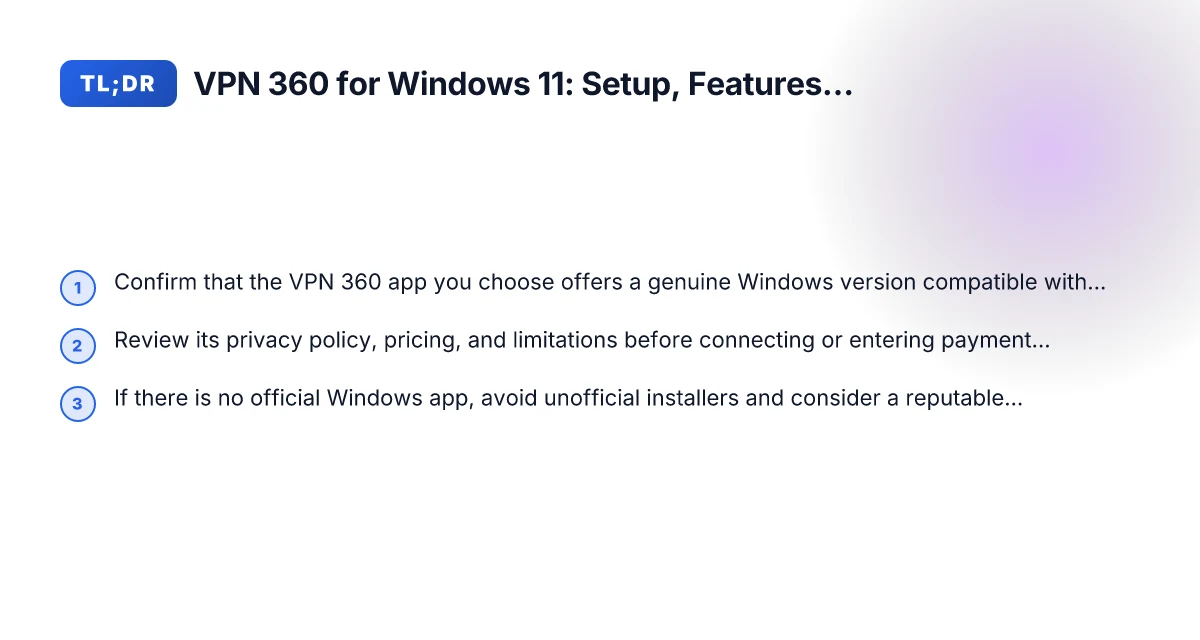
If VPN 360 does not offer an official Windows app, choose a provider that explicitly supports Windows 11 rather than relying on an unofficial installer or an emulator. Compare services using the same checks: published privacy practices, clearly stated costs, current Windows support, and accessible customer service.
Be cautious of services that promise complete anonymity, unrestricted access to everything, or guaranteed protection from all online threats. A VPN changes how your connection is routed. It does not replace safe browsing habits or other security measures. FortiClient IPsec VPN Connection Is Down: Causes and Fixes
Troubleshooting VPN connection problems
| Symptom | Check first | Safe action | If it continues |
|---|---|---|---|
| App will not open | Windows 11 compatibility and app updates | Restart the app and install official updates | Contact the provider’s support |
| Installer fails | Download source and installer publisher | Download a fresh copy from the official source | Check provider guidance for Windows 11 |
| Cannot connect | Internet connection and VPN app status | Reconnect using the app’s normal controls | Check service status or contact support |
| Connection drops | Network stability and app updates | Try a stable network and reconnect | Report the issue to the provider |
| Slow connection | Network conditions and selected server | Try another available server | Compare results at a different time |
| Website does not load | Whether the issue occurs with VPN disconnected | Reconnect or change server using app settings | Check the website or provider guidance |
| Unexpected permission prompt | Prompt details and app publisher | Decline if the request is unclear | Verify with official support before proceeding |
Compiled November 2026; check the provider's site for current details.
Recommendation
Use VPN 360 on Windows 11 only if you can verify an official, current Windows client and are comfortable with the provider’s privacy policy, features, and pricing. If there is no official Windows version, do not download a lookalike installer. Choose a reputable VPN with documented Windows 11 support instead.