How to Use a Proxy Safely and Effectively

Learn how to use a proxy, choose the right type, configure it on your devices, and understand its privacy limits.
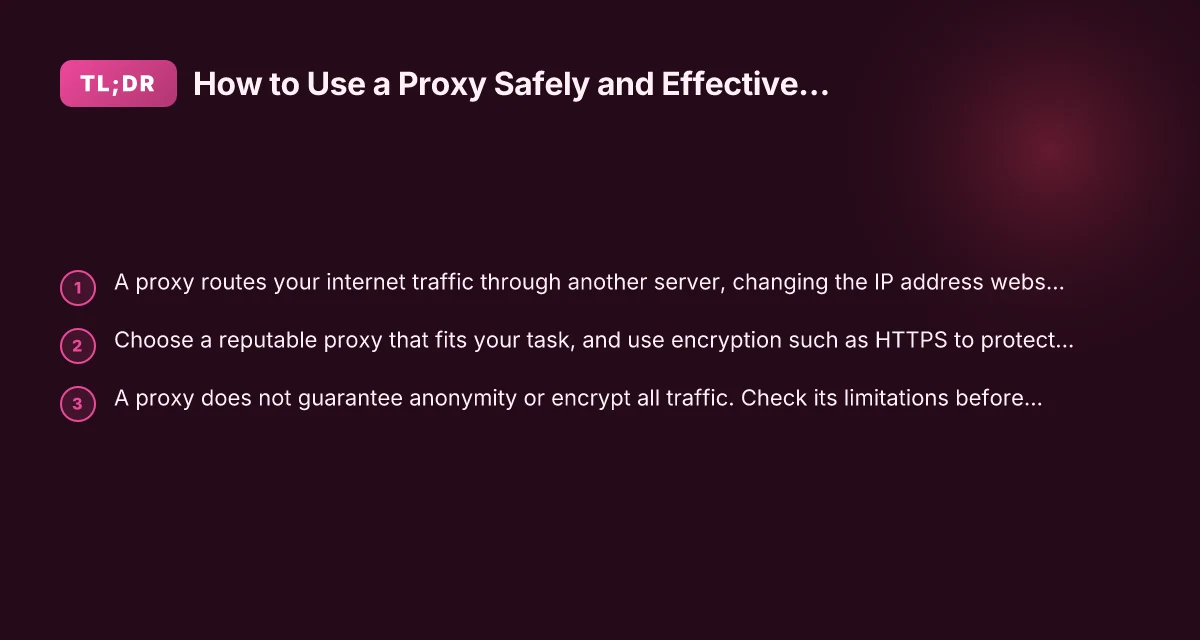
To use a proxy, choose a trustworthy provider, get its server address and connection details, and enter them in your device, browser, or application’s network settings. Once connected, your requests pass through the proxy before reaching websites. The right setup depends on what you need: a proxy can help manage network access, test how a site appears from another location, or route traffic through a specific server. It does not automatically make you anonymous or secure.

Editor's pick: NordVPN — fast, secure VPN — Strong encryption, a no-logs policy and apps for every device. 30-day money-back guarantee. Get NordVPN →
Compare proxy types by privacy, stability, and typical use
| Proxy type | Traffic coverage | Typical strengths | Main limitations | Good fit |
|---|---|---|---|---|
| HTTP proxy | Web traffic | Simple for browser use | May not cover other apps | Web browsing |
| HTTPS proxy | Web traffic | Encrypts the connection to the proxy | Proxy operator can still see destination details | Safer web access |
| SOCKS5 proxy | Many kinds of app traffic | Flexible protocol support | Does not encrypt traffic by itself | Apps that support SOCKS5 |
| Residential proxy | Selected routed traffic | Uses residential IP addresses | Quality and trust vary by provider | Location-specific access |
| Datacenter proxy | Selected routed traffic | Often fast and consistent | IPs may be easier to identify as proxy traffic | Speed-focused tasks |
| Free proxy | Varies by service | No subscription cost | Privacy, reliability, and safety may be poor | Low-risk testing |
| Paid proxy | Varies by plan | More support and provider accountability may be available | Costs money; quality still varies | Regular use |
Compiled November 2026; check the provider's site for current details.
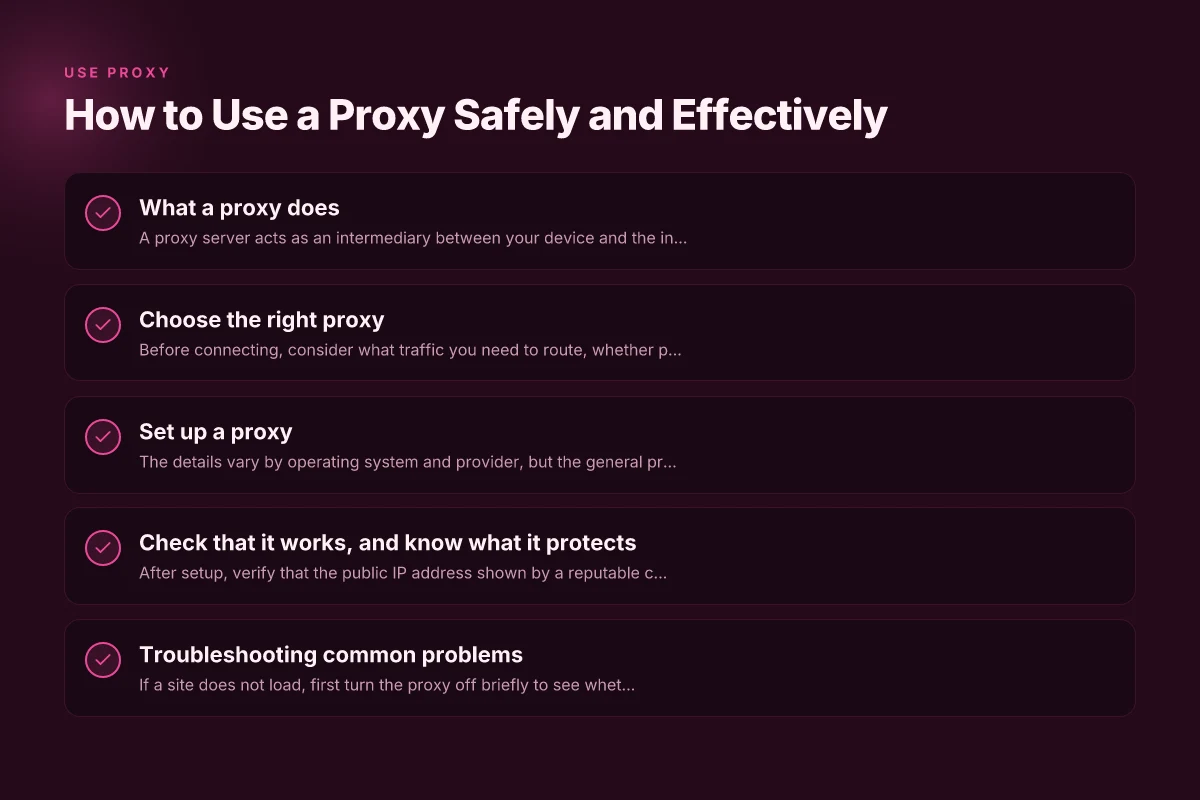
What a proxy does
A proxy server acts as an intermediary between your device and the internet. Instead of connecting directly to a website, your device sends a request to the proxy, which forwards it and returns the response. The website generally sees the proxy’s IP address rather than your device’s public IP address.
Proxies can be useful for:
- Applying workplace or school network policies.
- Testing websites and apps from different locations.
- Routing traffic through an organization’s approved gateway.
- Managing requests for certain business or research workflows.
- Accessing services when permitted by the service’s terms and local rules.
A proxy is different from a VPN. A browser proxy may route only browser traffic, while a VPN typically routes traffic from multiple apps through an encrypted tunnel. The exact behavior depends on the product and how you configure it.
Choose the right proxy
Before connecting, consider what traffic you need to route, whether privacy matters, and whether the provider is trustworthy. Free proxies may be unreliable and can expose your activity to an unknown operator. For work, use a proxy provided or approved by your organization. FortiGate VPN PFS: What It Is and How to Configure It
| Proxy type | Typical use | Points to consider |
|---|---|---|
| HTTP | Web traffic | May not handle other app traffic; use HTTPS websites for encrypted connections |
| HTTPS or TLS-enabled proxy | Web traffic with a protected connection to the proxy | Confirm how the provider handles logs and traffic |
| SOCKS5 | Various applications that support SOCKS | Does not itself encrypt traffic |
| Transparent proxy | Network filtering or administration | Often configured by the network administrator, not the user |
| Residential or mobile proxy | Specialized location or connectivity testing | Verify provider legitimacy, consent, and the service’s rules |
The names can be confusing: an HTTPS proxy and an HTTPS website are not the same thing. A secure proxy connection protects the connection between your device and the proxy when properly configured. HTTPS on a website protects the connection between your browser and that website. Check both the proxy’s security and the site’s connection.
Choose a proxy setup method for your device or app
| Setup method | What it changes | Coverage | Ease of setup | Best suited for |
|---|---|---|---|---|
| Browser settings | Browser proxy connection | That browser | Usually simple | Browser-only use |
| Operating-system settings | System proxy connection | Apps that honor system settings | Moderate | General device use |
| App-specific settings | One app’s connection | That app | Simple when supported | Targeted routing |
| Proxy extension | Browser traffic through an extension | Usually that browser | Simple | Quick browser switching |
| Manual configuration | Host, port, and possibly credentials | Depends on where configured | Requires accurate details | Users with provider settings |
| PAC file | Proxy rules for matching traffic | Apps that support PAC | Moderate | Rule-based routing |
| VPN instead | Device traffic through a VPN tunnel | Often broader device coverage | Usually straightforward | Encrypted device-wide routing |
Compiled November 2026; check the provider's site for current details.
Set up a proxy
The details vary by operating system and provider, but the general process is similar: FortiClient VPN 7.2 Download: Safe Sources and Installation Guide
- Get the connection information. You may need a hostname or IP address, a port, a proxy type, and a username and password.
- Open network or proxy settings. Look for a section called “Proxy,” “Network,” or “Connection settings.”
- Choose manual configuration if your provider gave you a server and port. Enter the information exactly as supplied.
- Add authentication details if required. Do not share credentials or save them on a device others can access.
- Save and connect. Open a trusted IP-checking site or the provider’s status page to confirm that the connection appears to be working.
- Test the applications you need. Some apps follow system proxy settings. Others need to be configured separately.
If your provider supplies an automatic configuration URL or a setup script, use it only if you trust the provider. On a managed work or school device, follow the administrator’s instructions rather than changing network settings yourself.
Browser-specific setup
Some browsers use your device’s system proxy settings, while others offer separate controls or support extensions. An extension may route only browser traffic and may have access to browsing data, so review its permissions and publisher before installing it. Avoid configuring a proxy from an unfamiliar link or message.
Check that it works, and know what it protects
After setup, verify that the public IP address shown by a reputable checking service differs from your regular address when the proxy is active. Then test the website or app you intended to use. If the connection fails, check the server address, port, authentication, and proxy type. Confirm that the provider is online and that your network permits proxy connections.
A proxy’s privacy and security depend on its configuration and operator. In particular: CatVPN: What It Is, How to Evaluate It, and Whether You Should Use It
- It may hide your IP address from a destination, but not your identity. Accounts, cookies, browser fingerprints, and other details can still identify you.
- It may not encrypt your traffic. SOCKS and ordinary HTTP proxies do not automatically provide encryption.
- The operator may see connection details. Review the provider’s privacy policy, logging practices, and reputation.
- Some traffic may bypass it. Apps, DNS requests, or other connections might use your normal network unless they are configured to use the proxy.
- It does not make unsafe browsing safe. Keep software updated, avoid suspicious downloads, and use HTTPS for sensitive sites.
Do not use a proxy to evade access controls, violate a service’s terms, or handle sensitive data through an untrusted operator. If you need broad protection for public Wi-Fi or traffic across multiple apps, compare a reputable VPN or your organization’s approved secure connection instead.
Check proxy behavior and understand its limits
| Check or issue | What to verify | What a proxy can help with | What it does not guarantee | Next step |
|---|---|---|---|---|
| IP address | Public IP reflects the proxy | Masks your usual IP from destination sites | Anonymity or identity protection | Compare before and after |
| DNS requests | DNS uses the intended route | May route requests through the proxy | DNS privacy unless configured | Check for DNS leaks |
| Encryption | Site uses HTTPS | Proxy routing to a site | Encryption of all traffic | Use HTTPS and trusted apps |
| App coverage | App actually uses proxy settings | Routing for configured traffic | Coverage of apps that ignore settings | Test each relevant app |
| Login identity | Account is not identifying you | Hiding your usual network IP | Hiding account or device identity | Review account and browser data |
| Connection failure | Host, port, credentials, and status | Access through a working endpoint | Continuous availability | Recheck settings or contact provider |
| Slow connection | Proxy route and provider status | Possible access through another location | Faster speeds | Try a closer or less busy server |
| Suspicious provider | Privacy policy and reputation | Limited routing service | Safe handling of your data | Avoid untrusted free proxies |
Compiled November 2026; check the provider's site for current details.
Troubleshooting common problems
If a site does not load, first turn the proxy off briefly to see whether the proxy is causing the issue. If it is, try these checks: Extension VPN Free Edge: How to Choose and Use One Safely
- Confirm the server address and port, including spelling and punctuation.
- Re-enter the username and password if the provider requires authentication.
- Check that you selected the correct proxy protocol.
- Make sure the proxy is allowed on your current network.
- Look for an outdated configuration or provider service outage.
- Disable conflicting proxy extensions or settings, changing only one setting at a time.
When you no longer need the proxy, disconnect it or restore your previous network settings. This helps prevent unexpected connection failures or traffic being routed through a server you no longer trust.
Recommendation
Use a proxy when you have a clear need and can verify who operates it. Choose a reputable provider or an organization-approved service, configure only the traffic you intend to route, and check the connection afterward. For sensitive activity, do not rely on a proxy alone: use HTTPS, protect your accounts, and choose an appropriate encrypted service when you need broader traffic protection.