Total VPN on Fire Stick: How to Install and Use It
Learn whether Total VPN works on Fire Stick, how to install it, and what to do if the app is unavailable.
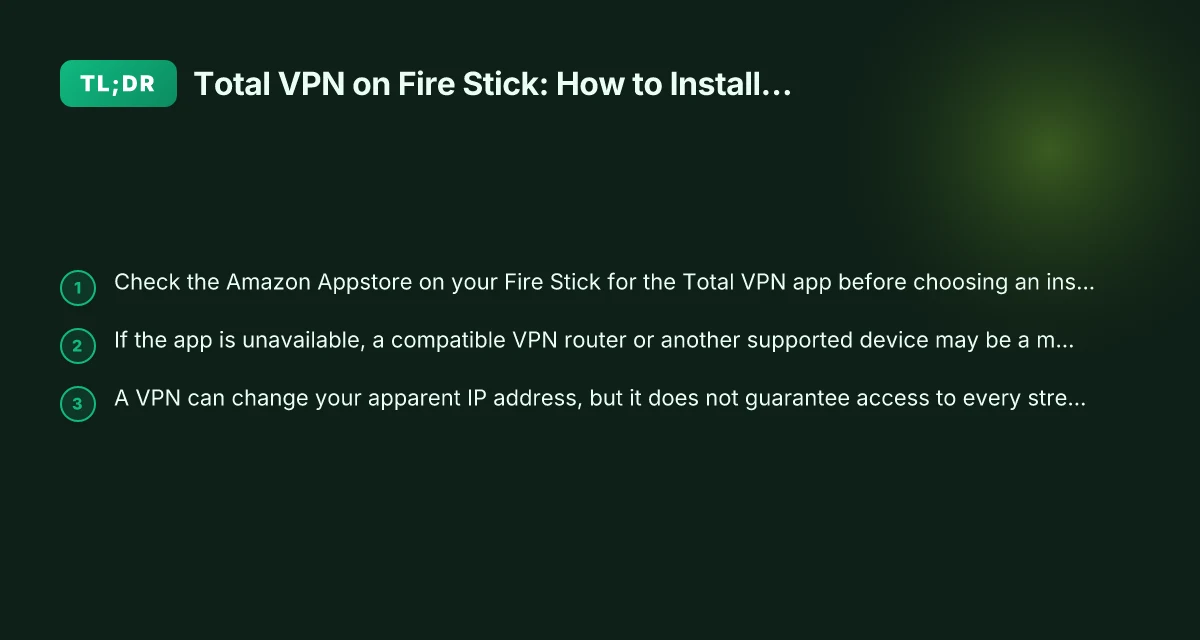
Total VPN may work on a Fire TV Stick if its app is available for your device and region in the Amazon Appstore. Search the Appstore on your Stick first, install the official app if it appears, then sign in and connect to a server. If you cannot find it, don’t assume that an Android phone app will work properly on Fire TV: check Total VPN’s current support information before trying a workaround.

Editor's pick: NordVPN — fast, secure VPN — Strong encryption, a no-logs policy and apps for every device. 30-day money-back guarantee. Get NordVPN →
Choose an installation route for Total VPN on Fire Stick
| Route | What to check | Best when | Main drawback | Next step |
|---|---|---|---|---|
| Fire TV Appstore | Search for Total VPN | The app is listed | Availability may vary | Install the app |
| Total VPN account | Check for Fire TV support | You want the official app | Support may depend on device | Follow the provider’s instructions |
| Sideloading | Confirm the app is compatible | No Appstore listing is available | More setup and security risks | Use only a trusted source |
| Router VPN | Check router VPN support | You want coverage for connected devices | Setup is more technical | Configure the router |
| Another device | Check casting or streaming options | Fire TV installation is unavailable | May not protect Fire TV traffic | Use the VPN on that device |
| No VPN | Compare your privacy needs | You do not need VPN protection | Traffic is not routed through a VPN | Continue without the app |
Compiled November 2026; check the provider's site for current details.
| VPN | Obfuscation | From / month | Plan | Free plan | Refund | Alipay | UnionPay | Crypto | Website opens in China | Trustpilot | |
|---|---|---|---|---|---|---|---|---|---|---|---|
 ZoogVPN | Turn on manually Shadow | $2.49/mo | 27 months: $59.99 | Yes | 7 days | ✓ | ✓ | ✓ | ✓ | Official site blocked; our special link opens (4.4 s) | 4.2/5 (195 reviews) |
 NordVPN | Turn on manually Obfuscated Servers / NordWhisper | $3.49/mo | 27 months: $94.23 | No | 30 days | ? | ✗ | ✓ | ✓ | ✗ Blocked | 4.2/5 (51,628 reviews) |
 ExpressVPN | ✓ On by default all servers | $3.00/mo | 28 months: $84 | No | 30 days | ✗ | ✗ | ✓ | ✗ | ✗ Blocked | 4.4/5 (29,706 reviews) |
 Surfshark | ✓ On by default Camouflage, with OpenVPN | See site | See site | No | 30 days | ✗ | ✗ | ✗ | ✓ | ✗ Blocked | 4.3/5 (31,823 reviews) |
 Proton VPN | Turn on manually Stealth, free plan too | $2.99/mo | 12 months: $35.88 | Yes | 30 days | ✗ | ✗ | ✗ | ✓ | ✗ Blocked | 2.1/5 (1,040 reviews) |
 Astrill VPN | Turn on manually StealthVPN / OpenWeb | $12.50/mo | 24 months: $300 | No | See site | ✗ | ✗ | ✗ | ✓ | ✗ Blocked | 1.3/5 (110 reviews) |
 Private Internet Access | Turn on manually Shadowsocks, OpenVPN only | $2.03/mo | 40 months: $81.2 | No | 30 days | ✗ | ✗ | ✗ | ✗ | ✗ Blocked | 4.2/5 (11,033 reviews) |
 CyberGhost | Turn on manually selected servers | $2.19/mo | 28 months: $61.32 | No | 45 days | ✗ | ✗ | ✗ | ✓ | ✗ Blocked | 4.0/5 (24,178 reviews) |
 PureVPN | Turn on manually switch to OpenVPN | $1.69/mo | 60 months: $101.55 | No | 31 days | ? | ? | ✗ | ✓ | ✗ Blocked | 4.4/5 (17,994 reviews) |
 AdGuard VPN | ✓ On by default TrustTunnel | $2.99/mo | 24 months: $71.76 | Yes | 30 days | ✓ | ✗ | ✓ | ✓ | Official site blocked; our special link opens (3.7 s) | 4.3/5 (290 reviews) |
 Mullvad | Turn on manually QUIC / Shadowsocks / LWO | $5.61/mo | €5/mo | No | 14 days | ✗ | ✗ | ✗ | ✓ | ✗ Blocked | 3.2/5 (192 reviews) |
 Windscribe | Turn on manually Stealth / WStunnel | $5.75/mo | 12 months: $69 | Yes | See site | ✗ | ✗ | ✗ | ✓ | ✗ Blocked | 4.7/5 (13,355 reviews) |
 StrongVPN | Turn on manually Scramble, OpenVPN TCP | See site | See site | No | 30 days | ✓ | ✗ | ✗ | ✗ | ✗ Blocked | 4.4/5 (2,695 reviews) |
 LightXtreme 闪连 | Not listed | $7.08/mo | 12 months: $84.99 | Yes | 30 days | ✓ | ✓ | ✓ | ✓ | ✓ Yes (3.5 s) | No page |
Prices checked 2026-11-10 on each vendor's pricing page (cheapest long plan, USD). Check the vendor's checkout for the final price.
Obfuscation checked 2026-11-14 on each vendor's site and help center: "on by default" = nothing to set; "turn on manually" = switch protocol or mode in settings; "not listed" = the vendor describes no obfuscation.
Payment methods checked 2026-11-10 on each vendor's payment pages: all 14 take cards and PayPal; ✗ = not listed, ? = the vendor's own pages disagree.
China access: whether the official website opens from mainland China networks (tests the website only, not the VPN connection). Last checked 2026-11-18 01:02 Beijing time.
Trustpilot score and review count checked 2026-11-10.
Check whether Total VPN is available
Fire TV app availability can vary by device, software version, country, and the provider’s current support. Start with the simplest check:
- On your Fire TV Stick, open Find or Search.
- Search for Total VPN.
- Confirm that the listing is the official app, published by the VPN provider.
- Review its compatibility and install it if offered.
You can also search the Amazon Appstore website while signed in to the account linked to your Fire TV. Make sure the listing explicitly supports your device or lets you deliver the app to it. An app appearing in a phone’s app store does not automatically mean it is available for Fire TV.
If there is no official Fire TV listing, consult Total VPN’s website or support team for current device compatibility and setup instructions. App catalogs change, so an old guide or forum post may describe a method that no longer works.
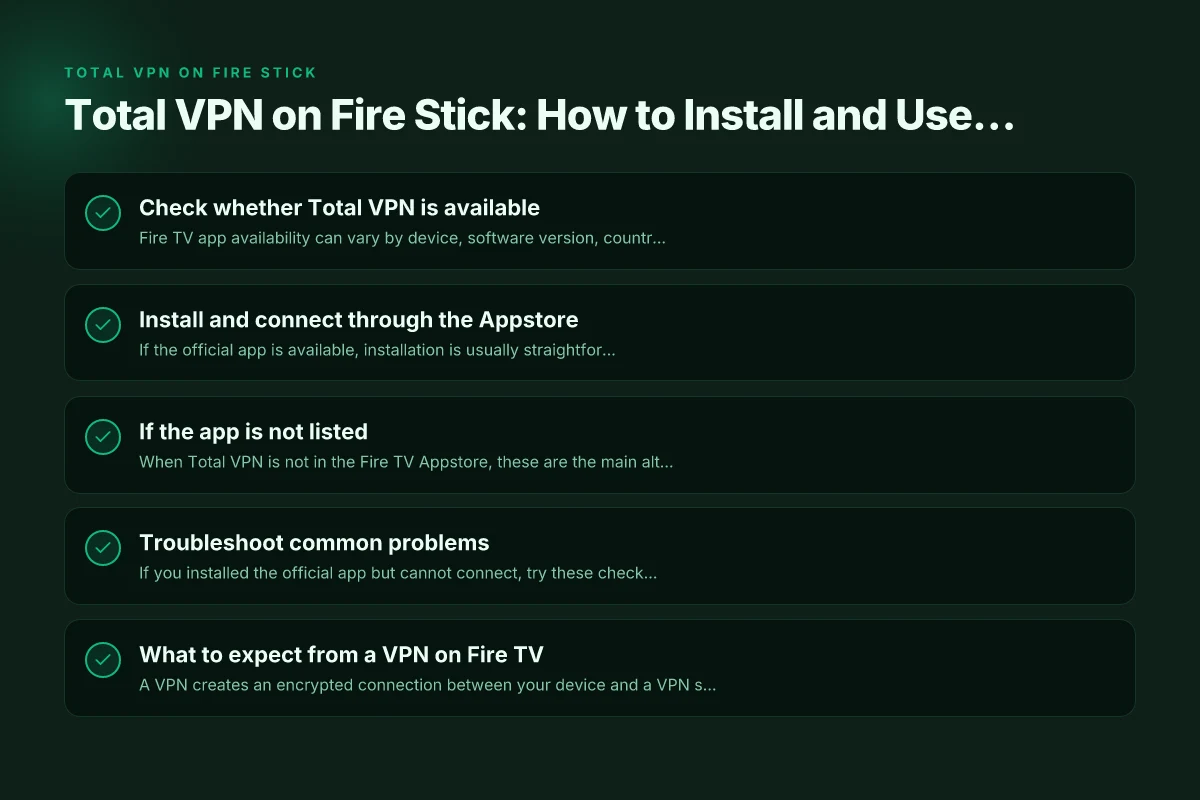
Install and connect through the Appstore
If the official app is available, installation is usually straightforward: .Ovpn File: What It Is and How to Open It
- Select the Total VPN listing and choose Get or Download.
- Open the app once installation finishes.
- Sign in with your Total VPN account, following any on-screen instructions.
- Choose a server location and select Connect.
- Approve the Fire TV VPN connection request if the system displays one.
Before streaming, check the app’s connection status. You can also test whether your public IP address has changed using a reputable IP-checking service in the Fire TV browser, if available. This helps confirm that the connection is active. It does not prove that every app is routing all traffic through the VPN.
Disconnect from the VPN within the app when you no longer need it. If you use a VPN for privacy, consider connecting before opening streaming or browsing apps, and reconnect if the VPN app reports that the connection has dropped.
If the app is not listed
When Total VPN is not in the Fire TV Appstore, these are the main alternatives. Their suitability depends on Total VPN’s supported features and your equipment.
| Option | What it does | Main consideration |
|---|---|---|
| VPN-compatible router | Routes devices connected to the router through a VPN | Requires a compatible router and setup supported by the VPN provider |
| VPN on another supported device | Protects that device’s own internet traffic | Does not automatically protect the Fire TV Stick |
| Hotspot from a VPN-connected device | May share a VPN connection with other devices | Many phones and computers do not reliably share their VPN tunnel over a hotspot |
| Sideloading an Android app | Installs an app outside the Amazon Appstore | May be unsupported, difficult to control, or incompatible with the Fire TV interface |
A VPN router is often the most practical option for a Fire TV Stick without a native app, but confirm that Total VPN supports router configuration before buying or changing hardware. Some VPN services provide manual setup details for certain routers. Others may not support this approach. Best VPN Extension for Edge: How to Choose the Right One
Sideloading deserves particular caution. Fire TV devices use a version of Android, but that does not mean every Android app will run correctly. A sideloaded app may have an awkward phone-oriented interface, fail to connect, or stop working after an update. Only download installation files from a source you trust, and check Total VPN’s official guidance before proceeding. Avoid unofficial downloads that claim to be the provider’s app.
Troubleshoot Total VPN on Fire Stick
| Problem | Check first | Try this | If it continues |
|---|---|---|---|
| App not listed | Appstore search and device availability | Check the provider’s compatibility guidance | Consider another supported route |
| Install fails | Available storage and connection | Restart Fire TV and try again | Check for device updates |
| App will not open | App and system updates | Restart the device | Reinstall the app |
| Sign-in fails | Account details and subscription | Re-enter your credentials | Contact Total VPN support |
| VPN will not connect | Internet connection and chosen location | Try another server location | Check service status or support |
| Streaming still has issues | VPN connection and app playback | Reconnect and retry playback | Check the streaming service |
| Connection slows down | Server location and network quality | Try a closer location | Compare performance without VPN |
Compiled November 2026; check the provider's site for current details.
Troubleshoot common problems
If you installed the official app but cannot connect, try these checks: Axgate VPN client download: Safe Download and Setup Guide
- Restart the Stick: Unplug it briefly, reconnect it, and try again.
- Check your internet connection: Open another app or service to see whether the Fire TV is online.
- Update the app and Fire OS: Install available updates, then retry the connection.
- Try another server: A particular location may be temporarily unavailable or congested.
- Sign out and back in: This can resolve an expired session or account issue.
- Check your account: Confirm that your subscription is active and includes the features you need.
- Contact Total VPN support: Ask whether your Fire TV model and current software are supported.
If the VPN connects but a streaming app still gives an error, the service may block or restrict VPN traffic. Streaming platforms can change their rules and detection systems, and a VPN does not guarantee that a particular title or service will be available. Follow the platform’s terms and your local laws.
What to expect from a VPN on Fire TV
A VPN creates an encrypted connection between your device and a VPN server, which can help protect traffic on networks you do not fully trust and make your public IP address appear to come from the server’s location. It does not make you anonymous, protect every other device in your home, or prevent tracking through accounts, cookies, and app data.
Performance can also vary. Video quality depends on your broadband speed, Wi-Fi signal, server load, VPN protocol, and the streaming service. If playback buffers, test a nearby server, move the Stick closer to the router, or compare performance with the VPN disconnected. Keep in mind that disconnecting also removes the VPN connection.
What to expect from a VPN on Fire TV Best Free VPN for Edge: Top Options and How to Choose
| Consideration | With Total VPN connected | What it does not guarantee | What to check |
|---|---|---|---|
| Internet traffic | Routes traffic through the VPN | Complete anonymity | Connection status |
| Network privacy | Can help protect traffic on shared networks | Protection from every online threat | VPN and device settings |
| Streaming access | May change your apparent location | Access to every streaming catalog | Service terms and availability |
| Streaming quality | Depends on VPN server and network | Faster playback | Playback performance |
| Fire TV compatibility | Depends on app availability and support | Support on every Fire TV model | Appstore and provider guidance |
| App installation | May be available through the Appstore | A listing in every region | Search the Fire TV Appstore |
| VPN connection | Requires a working network and service | An uninterrupted connection | Reconnect if the VPN drops |
Compiled November 2026; check the provider's site for current details.
Recommendation
Search the Fire TV Appstore for the official Total VPN app and install it only if it is listed as compatible with your Stick. If it is unavailable, verify current support with Total VPN before trying sideloading. For whole-home coverage, consider a VPN-compatible router only if the provider supports your router’s setup.