Extensions VPN for Edge: How to Choose and Use One
Find out how VPN extensions for Microsoft Edge work, what to look for, and how to choose a safer option.
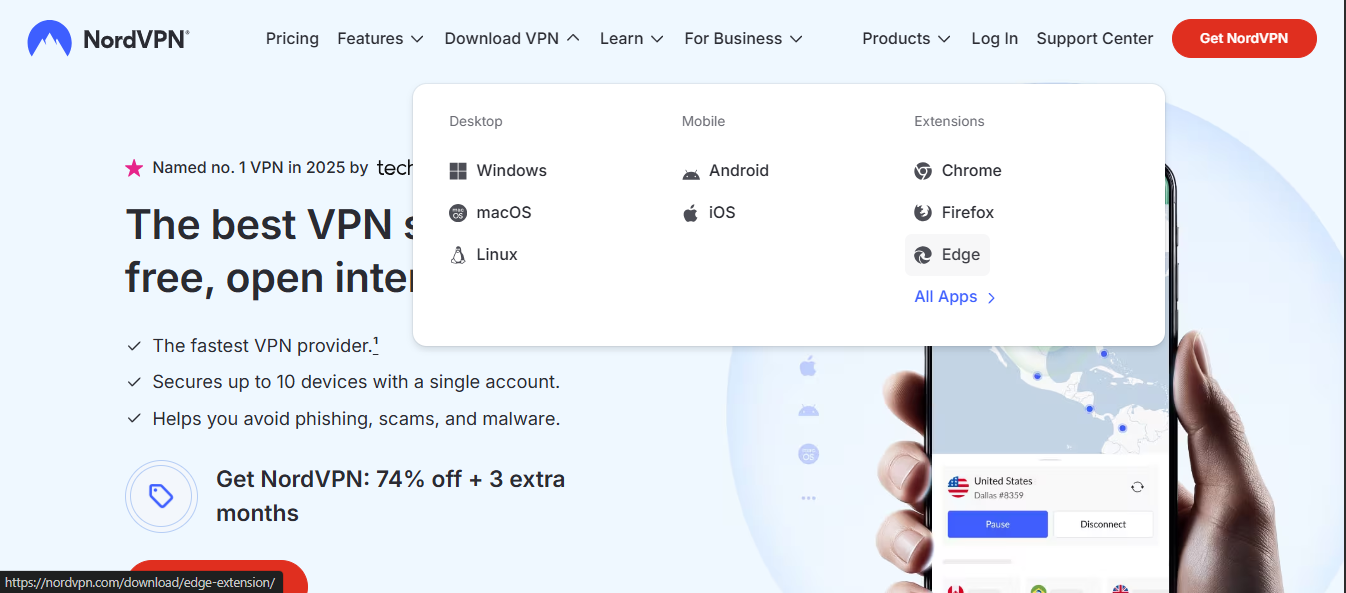
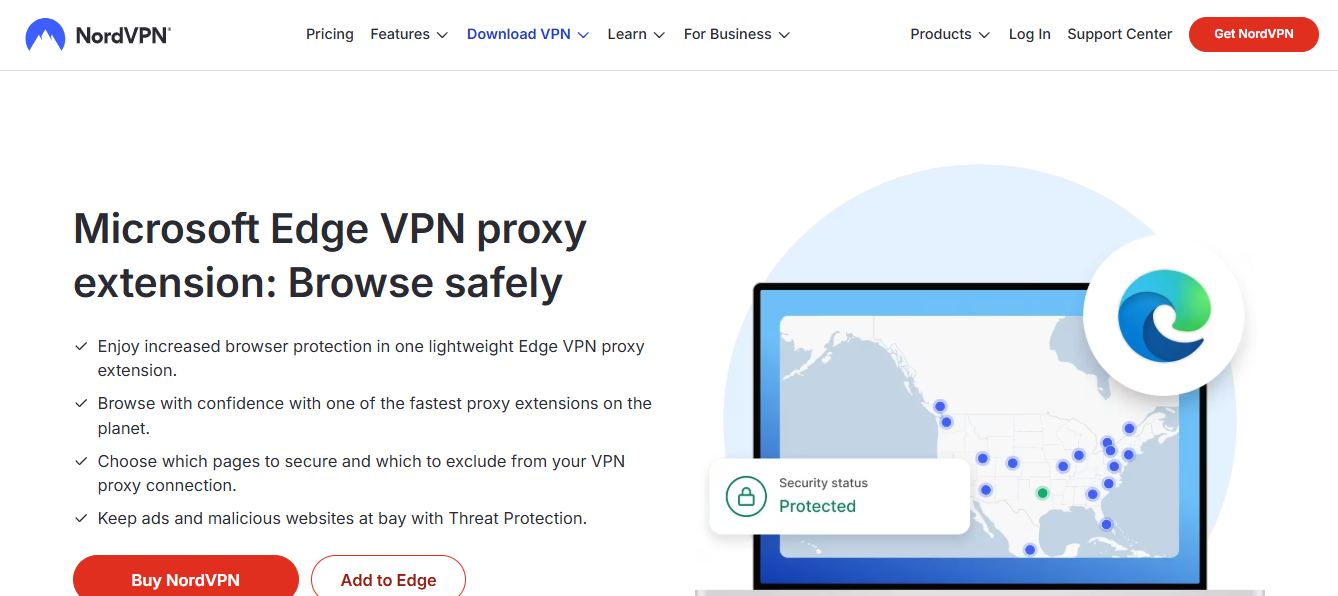
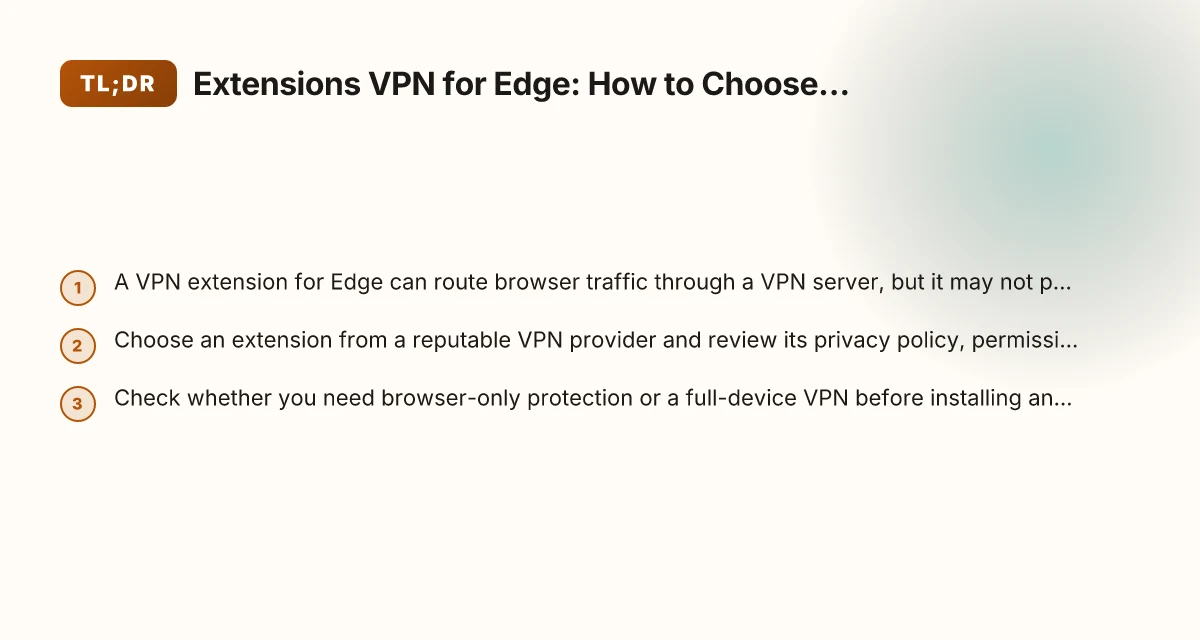
A VPN extension for Microsoft Edge can help protect browser traffic and change the apparent location of your browsing. To install one, find a reputable provider’s extension in the Microsoft Edge Add-ons store, add it to Edge, sign in, and connect to a server. Before choosing, check what the extension actually covers: many browser extensions protect only traffic from the browser, while a VPN app can protect traffic from other applications too.

Editor's pick: NordVPN — fast, secure VPN — Strong encryption, a no-logs policy and apps for every device. 30-day money-back guarantee. Get NordVPN →
Compare Edge VPN extensions by the features that matter
| Comparison point | What to look for | Why it matters | Good sign | Warning sign |
|---|---|---|---|---|
| Provider identity | A clear company behind the extension | Helps you assess accountability | Named provider and support details | Unclear ownership |
| Privacy policy | Plain-language data practices | Shows what browsing data may be collected | Specific collection and retention terms | Vague or missing policy |
| Permissions | Access limited to necessary functions | Reduces unnecessary exposure | Permissions match stated features | Broad access without explanation |
| Encryption | Clear description of protected traffic | Helps you understand what is secured | Encryption and coverage are explained | Security claims without detail |
| Leak protection | DNS and WebRTC safeguards | Helps prevent exposure of network details | Protections are documented | No information about leaks |
| Independent reviews | Credible audits or security assessments | Adds evidence beyond marketing claims | Public, relevant assessment | Unsupported “audited” claims |
| Server locations | Locations and availability are stated | Helps you judge access and performance | Current location information | No useful server details |
| Support and updates | Recent updates and reachable support | Helps address bugs and safety issues | Active maintenance and support | Long gaps or no contact path |
Compiled November 2026; check the provider's site for current details.
| VPN | Obfuscation | From / month | Plan | Free plan | Refund | Alipay | UnionPay | Crypto | Website opens in China | Trustpilot | |
|---|---|---|---|---|---|---|---|---|---|---|---|
 ZoogVPN | Turn on manually Shadow | $2.49/mo | 27 months: $59.99 | Yes | 7 days | ✓ | ✓ | ✓ | ✓ | Official site blocked; our special link opens (4.4 s) | 4.2/5 (195 reviews) |
 NordVPN | Turn on manually Obfuscated Servers / NordWhisper | $3.49/mo | 27 months: $94.23 | No | 30 days | ? | ✗ | ✓ | ✓ | ✗ Blocked | 4.2/5 (51,628 reviews) |
 ExpressVPN | ✓ On by default all servers | $3.00/mo | 28 months: $84 | No | 30 days | ✗ | ✗ | ✓ | ✗ | ✗ Blocked | 4.4/5 (29,706 reviews) |
 Surfshark | ✓ On by default Camouflage, with OpenVPN | See site | See site | No | 30 days | ✗ | ✗ | ✗ | ✓ | ✗ Blocked | 4.3/5 (31,823 reviews) |
 Proton VPN | Turn on manually Stealth, free plan too | $2.99/mo | 12 months: $35.88 | Yes | 30 days | ✗ | ✗ | ✗ | ✓ | ✗ Blocked | 2.1/5 (1,040 reviews) |
 Astrill VPN | Turn on manually StealthVPN / OpenWeb | $12.50/mo | 24 months: $300 | No | See site | ✗ | ✗ | ✗ | ✓ | ✗ Blocked | 1.3/5 (110 reviews) |
 Private Internet Access | Turn on manually Shadowsocks, OpenVPN only | $2.03/mo | 40 months: $81.2 | No | 30 days | ✗ | ✗ | ✗ | ✗ | ✗ Blocked | 4.2/5 (11,033 reviews) |
 CyberGhost | Turn on manually selected servers | $2.19/mo | 28 months: $61.32 | No | 45 days | ✗ | ✗ | ✗ | ✓ | ✗ Blocked | 4.0/5 (24,178 reviews) |
 PureVPN | Turn on manually switch to OpenVPN | $1.69/mo | 60 months: $101.55 | No | 31 days | ? | ? | ✗ | ✓ | ✗ Blocked | 4.4/5 (17,994 reviews) |
 AdGuard VPN | ✓ On by default TrustTunnel | $2.99/mo | 24 months: $71.76 | Yes | 30 days | ✓ | ✗ | ✓ | ✓ | Official site blocked; our special link opens (3.7 s) | 4.3/5 (290 reviews) |
 Mullvad | Turn on manually QUIC / Shadowsocks / LWO | $5.61/mo | €5/mo | No | 14 days | ✗ | ✗ | ✗ | ✓ | ✗ Blocked | 3.2/5 (192 reviews) |
 Windscribe | Turn on manually Stealth / WStunnel | $5.75/mo | 12 months: $69 | Yes | See site | ✗ | ✗ | ✗ | ✓ | ✗ Blocked | 4.7/5 (13,355 reviews) |
 StrongVPN | Turn on manually Scramble, OpenVPN TCP | See site | See site | No | 30 days | ✓ | ✗ | ✗ | ✗ | ✗ Blocked | 4.4/5 (2,695 reviews) |
 LightXtreme 闪连 | Not listed | $7.08/mo | 12 months: $84.99 | Yes | 30 days | ✓ | ✓ | ✓ | ✓ | ✓ Yes (3.5 s) | No page |
Prices checked 2026-11-10 on each vendor's pricing page (cheapest long plan, USD). Check the vendor's checkout for the final price.
Obfuscation checked 2026-11-14 on each vendor's site and help center: "on by default" = nothing to set; "turn on manually" = switch protocol or mode in settings; "not listed" = the vendor describes no obfuscation.
Payment methods checked 2026-11-10 on each vendor's payment pages: all 14 take cards and PayPal; ✗ = not listed, ? = the vendor's own pages disagree.
China access: whether the official website opens from mainland China networks (tests the website only, not the VPN connection). Last checked 2026-11-18 01:02 Beijing time.
Trustpilot score and review count checked 2026-11-10.
What a VPN extension for Edge does
A VPN extension is an add-on that connects your browser to a VPN server. Websites you visit will generally see the server’s IP address rather than your usual public IP address. Depending on the provider, the extension may also encrypt traffic between Edge and the VPN server.
That can be useful when you want more privacy while browsing on a public Wi-Fi network, or when you want to access a service that is available in another region. However, a browser extension is not automatically the same as a full VPN application.
A browser-only extension typically covers activity in Edge, not traffic from email programs, games, or other browsers. Some providers’ extensions work alongside a desktop VPN app and control its browser connection. Read the provider’s description to understand which setup applies.
A VPN also does not make you completely anonymous. Websites can still recognize you through account sign-ins, cookies, browser fingerprinting, and other tracking methods. Free Edge VPN Extension: What to Know Before You Install One
How to choose a trustworthy extension
Start with the provider, not just the extension’s rating or download count. Look for a VPN company with a clear privacy policy, a history of maintaining its products, and straightforward information about how it handles data.
Check these points before installing:
- Privacy policy: Find out whether the provider logs browsing activity, connection details, or your IP address, and how long it retains any data.
- Permissions: Review what the extension asks to access. Browser permissions can be powerful, so the requested access should make sense for its features.
- Security details: Look for clear explanations of encryption and safeguards against DNS or IP leaks. Do not assume every extension includes the same protections.
- Provider reputation: Prefer an established provider with accessible support and transparent company information.
- Business model: Be cautious of free extensions that make unclear promises or do not explain how they fund the service. A free plan from a recognizable VPN provider may be a better option, but check its limits and terms.
- Updates and reviews: Recent updates and consistent user feedback can help you assess whether an extension is actively maintained. Reviews alone do not prove that a service is safe.
Also check whether the extension is the official one published by the VPN provider. Similar names and logos can be used by unrelated developers.
Browser extension or full VPN app? BIG-IP Edge VPN Client: What It Is and How to Use It
| Comparison point | Edge extension | Full VPN app | Better fit when |
|---|---|---|---|
| Traffic covered | Usually browser traffic only | Can cover device-wide traffic | You need protection beyond Edge |
| Setup | Installed from Edge add-ons | Installed on the device | You want browser-only setup |
| Control | Often focused on browser settings | Usually offers broader network controls | You need more connection options |
| Other apps | May not protect them | Can protect other apps | You use apps outside the browser |
| Network behavior | May rely on browser or provider features | Can manage device connections | You need device-level coverage |
| Resource use | May be lighter for browser use | May use more device resources | You prioritize a simpler browser setup |
| Best use | Browser-specific privacy or access needs | Wider protection across the device | Choose based on the traffic you need covered |
Compiled November 2026; check the provider's site for current details.
Browser extension or full VPN app?
The right choice depends on what you want to protect. A browser extension can be convenient when your goal is limited to Edge. A desktop VPN app is generally the better fit when you want VPN coverage for the whole device.
| Feature | Edge VPN extension | Full VPN app |
|---|---|---|
| Typical coverage | Browser traffic, depending on the provider | Usually traffic from the whole device |
| Setup | Installed through Edge | Installed on Windows or another operating system |
| Convenience | Quick to toggle while browsing | Can run in the background across apps |
| Best suited for | Browser-focused privacy or location changes | Broader protection for multiple applications |
| What to verify | Whether it acts alone or requires the provider’s app | Which apps and network connections it covers |
Some providers offer both and let the extension manage a connection through their desktop app. Others provide a standalone browser proxy or VPN-style connection. The name “VPN extension” does not guarantee that all traffic from your computer is encrypted, so verify the coverage before relying on it.
How to install and use one in Microsoft Edge
Once you have chosen a provider, install its official extension: Proton VPN Windows Download: How to Get and Install the Official App
- Open the Microsoft Edge Add-ons store.
- Search for the provider’s exact name and confirm the developer is the official publisher.
- Open the listing and review its description, permissions, and privacy information.
- Select Get and approve the installation.
- Open the extension from Edge’s Extensions menu.
- Sign in or create an account if required.
- Choose a server and connect.
After connecting, visit the VPN provider’s own IP or DNS leak test page, if it offers one. You can also use a reputable independent test. These checks can help reveal whether your browser’s connection is exposing your usual IP address or DNS requests, but a single test is not a guarantee of complete privacy.
If the connection fails, try a different server, check that Edge is updated, and review the provider’s troubleshooting instructions. Avoid installing several VPN extensions at once, since they can conflict or make it harder to tell which service is handling your traffic.
Edge VPN extension setup and safety checklist
| Step or check | What to do | What to confirm | Avoid |
|---|---|---|---|
| Choose a provider | Review ownership and privacy terms | Provider and data practices are clear | Unknown extensions with bold claims |
| Open Edge Add-ons | Find the extension in the official store | Listing matches the provider | Downloading from unfamiliar sites |
| Review permissions | Read requested access before adding | Requests fit the stated features | Approving unexplained access |
| Install | Select the add option and confirm | Extension appears in Edge | Installing duplicate or unofficial copies |
| Sign in or subscribe | Use the provider’s official flow | Pricing and renewal terms are clear | Entering credentials on lookalike pages |
| Connect | Open the extension and choose a location | Connection status is shown | Assuming it is active without checking |
| Test coverage | Check what traffic the extension protects | Limits are explained by the provider | Treating browser coverage as device-wide |
| Keep it safe | Update Edge and the extension; review settings | Updates and permissions remain appropriate | Ignoring warnings or outdated software |
Compiled November 2026; check the provider's site for current details. Proton VPN Free: What You Get and Whether It’s Worth Using
Common limitations and safety tips
A VPN extension changes how your browser connects to websites, but it does not remove every online risk. It cannot stop phishing, malware, unsafe downloads, or a website from identifying you after you sign in. It also does not replace HTTPS: when available, HTTPS protects data between your browser and the website, while a VPN protects the connection to its server.
Keep these practical points in mind:
- Disconnect only when you are comfortable browsing without the VPN connection.
- Use a strong, unique password for your VPN account and enable multifactor authentication if offered.
- Keep Edge and the extension updated.
- Review the extension’s permissions periodically and remove it if you no longer use it.
- Follow the law and the terms of services you access. A VPN does not grant special access rights.
- If you need protection for all apps, install the provider’s full VPN app rather than assuming the Edge extension covers everything.
Recommendation
For browser-only use, choose an official Edge extension from a reputable VPN provider with clear privacy practices, sensible permissions, and understandable coverage. If you want to protect traffic beyond Edge, use the provider’s full VPN app instead. In either case, confirm what is covered before connecting, and treat a VPN as one privacy tool, not a guarantee of anonymity or complete online security.