Clash Meta for iOS: What It Is and How to Use It Safely
Learn what Clash Meta for iOS does, how to install it safely, and what to check before importing a proxy configuration.
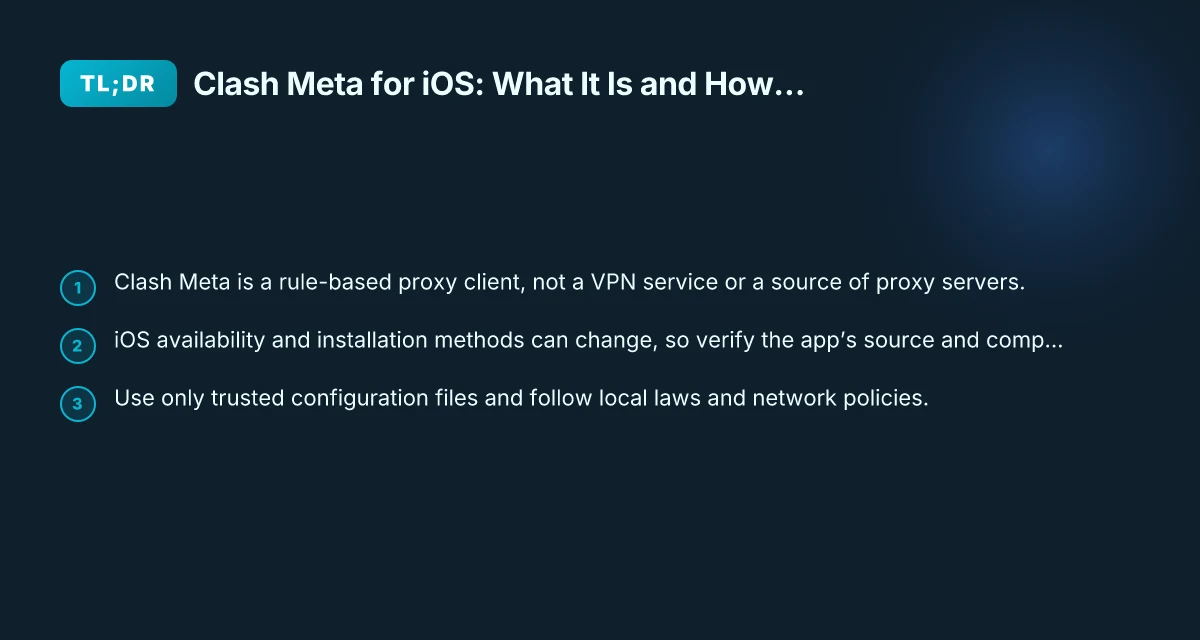
Clash Meta for iOS is an iPhone and iPad client for managing proxy connections and routing network traffic according to rules. It can be useful if you already have access to a compatible proxy service and configuration, but the app itself does not provide a subscription, server, or guaranteed privacy. Before installing it, check whether a current iOS build is available from a source you trust and confirm that its configuration format is supported.

Compare iOS setup options
| Option | Availability | What you need | Setup effort | Main consideration |
|---|---|---|---|---|
| App Store installation | Depends on regional availability | Compatible iPhone or iPad | Low | Check the current listing |
| TestFlight installation | Only when a test build is available | TestFlight and an invitation or public link | Low | Test builds may expire |
| Sideloading | Possible with a compatible signing method | Installation method and app file | Medium | Signing and trust need care |
| Enterprise-signed app | Only if legitimately provided | Trusted distribution source | Medium | Avoid unknown profiles |
| Importing a configuration | Available within the app | A compatible configuration file or link | Low | Review its contents first |
| Manual configuration | Depends on app features | Server and proxy details | High | Easy to misconfigure |
Compiled November 2026; check the provider's site for current details.
What Clash Meta for iOS does
Clash Meta is associated with the Clash family of rule-based proxy tools. On iOS, a compatible client can use Apple’s Network Extension framework to create a local VPN-style connection. This allows it to direct selected traffic through proxy servers based on a profile’s rules.
Depending on the client and configuration, features may include:
- Importing proxy profiles or subscription links
- Choosing between proxy groups or server nodes
- Applying domain, IP, or application routing rules
- Viewing connection activity and traffic statistics
- Updating a profile when its provider publishes changes
The VPN indicator on an iPhone does not necessarily mean the app is a conventional commercial VPN. It usually indicates that iOS has enabled a network tunnel for the proxy client. The traffic route and level of protection depend on the selected proxy, configuration, and destination.
Clash Meta also does not automatically make every connection private. A proxy provider may be able to observe information about traffic that passes through its servers. Encrypted websites still use HTTPS, but the proxy may see connection metadata such as destination domains or connection timing. Avoid treating a proxy client as a substitute for careful security practices. iPhone VPN: How to Choose, Set Up, and Use One
Availability and installation on iOS
Availability can vary by country, iOS version, app distribution rules, and project maintenance. A client may appear in the App Store, be distributed through another permitted channel, or be unavailable for a period. The name “Clash Meta” may also refer to the underlying project rather than one specific iOS app, so check the exact app and publisher.
Use this order of checks before installing:
- Search the Apple App Store for a current, compatible client and review the publisher details.
- If no App Store version is available, check the project’s official documentation or repository for its current iOS status and recommended installation method.
- Confirm that the app supports your iOS version and the configuration features you need.
- Avoid unofficial download sites, repackaged apps, and profiles from unknown sources.
Be cautious if an installation guide asks you to install an unfamiliar certificate, trust an unknown developer, or provide account credentials unrelated to the app. These steps can grant significant access or expose private information. Do not bypass device security simply to install an app unless you understand the risks and have verified the source.
Check what you need before connecting Forti VPN: What It Is, How It Works, and When to Use It
| Requirement | Why it matters | How to check | If missing |
|---|---|---|---|
| Compatible iOS device | The app must run on your device | Check app requirements | Use a supported device |
| Legitimate app source | Reduces installation risk | Verify the publisher and source | Do not install |
| Configuration file or link | Provides connection settings | Confirm it came from a trusted provider | Request a valid configuration |
| Working proxy service | Supplies the connection endpoint | Check provider status and details | Contact the provider |
| VPN permission | Lets iOS route traffic through the app | Approve the iOS prompt when connecting | Review VPN settings |
| Network access | Needed to reach the service | Test Wi-Fi or cellular data | Restore connectivity |
| Updated app and iOS | Helps with compatibility and security | Check for available updates | Update when practical |
Compiled November 2026; check the provider's site for current details.
What you need before using it
Clash Meta for iOS is a client, so you generally need a working proxy configuration from a provider or from a network you administer. The configuration may be a local file or a subscription link, depending on the client’s capabilities.
Before importing anything, check:
- Source: You recognize and trust the provider or administrator.
- Format: The file or subscription is compatible with the iOS client and its current version.
- Permissions: The profile does not request access that seems unrelated to proxy operation.
- Terms: Your use follows the provider’s conditions, workplace or school rules, and applicable local law.
- Privacy: You understand what the provider can log and how it handles connection data.
Treat subscription links like passwords. Anyone who obtains one may be able to access or use the associated configuration. Do not post it publicly, send it in an unsecured message, or include it in screenshots. Urban VPN Chrome: How to Install, Use, and Evaluate the Extension
Basic setup and connection
Exact menus differ between iOS clients, but the general process is similar. Install a verified client, open its profile or configuration area, and import the file or subscription supplied by your provider. Review the profile before activating it, especially if it contains unfamiliar routing rules.
Next, select a proxy group or server if the profile offers a choice. Start the connection and approve the iOS request to add a VPN configuration. This permission is needed for the app to route network traffic through the local tunnel. It does not, by itself, verify that the proxy server is trustworthy.
After connecting, test ordinary tasks such as opening a website or using the service you intended to access. If something fails, check the client’s connection status, selected group, profile update time, and rule mode. A profile may route only certain traffic through a proxy, so a successful connection does not mean every app is using it.
| Option | What it generally does | What to verify |
|---|---|---|
| Rule-based routing | Sends traffic through different routes according to profile rules | Which domains or networks match each rule |
| Global proxy mode | Routes a broader range of traffic through the selected proxy | Whether local services still work as expected |
| Direct mode | Connects without routing traffic through the proxy | Whether this is appropriate for your network |
The labels and available modes vary by app. Consult the client’s own documentation rather than assuming that one setting behaves identically across versions. Urban VPN for Edge Extension: How to Install and Use It
Choose a safe troubleshooting step
| Symptom | First check | Safer next step | Avoid |
|---|---|---|---|
| App is unavailable | Regional listing and app source | Check the developer’s official instructions | Random download sites |
| Installation is blocked | Signing or device trust status | Verify the distributor before trusting it | Trusting unknown profiles |
| Configuration will not import | File format and link validity | Request a fresh configuration from the provider | Editing unfamiliar settings |
| Connection will not start | VPN permission and network access | Restart the app and retry | Repeatedly approving unknown prompts |
| Connection drops | Provider status and network stability | Try another trusted network | Assuming the service is always available |
| Traffic does not route as expected | Configuration rules | Ask the provider to review the setup | Sending sensitive data before testing |
| Security warning appears | App source and certificate details | Stop and verify with the official source | Ignoring the warning |
Compiled November 2026; check the provider's site for current details.
Troubleshooting and safety
If the client will not connect, first check whether your iPhone has internet access without the proxy. Then confirm that the profile is current and the provider’s server is available. Reimporting a configuration can help when a profile is malformed, but only do so using a trusted source.
Common checks include: Urban VPN Extension for Microsoft Edge: Setup, Features, and Safety
- Update the client and iOS, if compatible updates are available.
- Refresh the profile through the provider’s official method.
- Try another server or group included in the profile.
- Review routing rules if only particular apps or websites fail.
- Disconnect the tunnel before testing whether a network blocks or disrupts the proxy.
If a profile appears to route traffic unexpectedly, disconnect and inspect its rules before continuing. Remove configurations you no longer use, and revoke access through the provider if a subscription link may have been exposed. On shared or managed devices, follow the organization’s network and device policies.
Recommendation
Clash Meta for iOS can be a practical way to manage proxy profiles and routing rules on an iPhone or iPad, provided you have a compatible client and a trusted configuration. Verify the app’s current iOS availability through official sources, protect subscription links, and understand that the proxy provider, not the app alone, determines where traffic goes and what information may be visible.